

Review and approval
Every payroll goes through two separate steps before payslips, the bank file and the Revenue submission:
- Bureau review: someone in your bureau checks the calculation and marks it Checked.
- Approval: the payroll is approved. If the client approves pay runs, the approval is the client's; otherwise your bureau approves it.
An approval is for this exact version of the payroll: Cloud records the net pay at the time. If anything is recalculated afterwards, the approval no longer counts and the payroll must be approved again.
Before you start
- The payroll is calculated (see Run a payroll).
- The client has answered the approval question. If not, the run shows "This client hasn't said whether they approve pay runs, so the payroll can't be approved yet." Choose Answer the approval question in client settings (see Client settings).

Step 1: Bureau review
Check the payslip lines: the totals, anyone marked incomplete, unusual net pay, new starters and leavers. Then, under Review and approval:
- Mark as checked when everything is right.
- Needs clarification when you need an answer first, for example from the client. Write what needs clarifying and choose Send. The review status shows Clarification needed until someone marks it checked.
Step 2: Approval
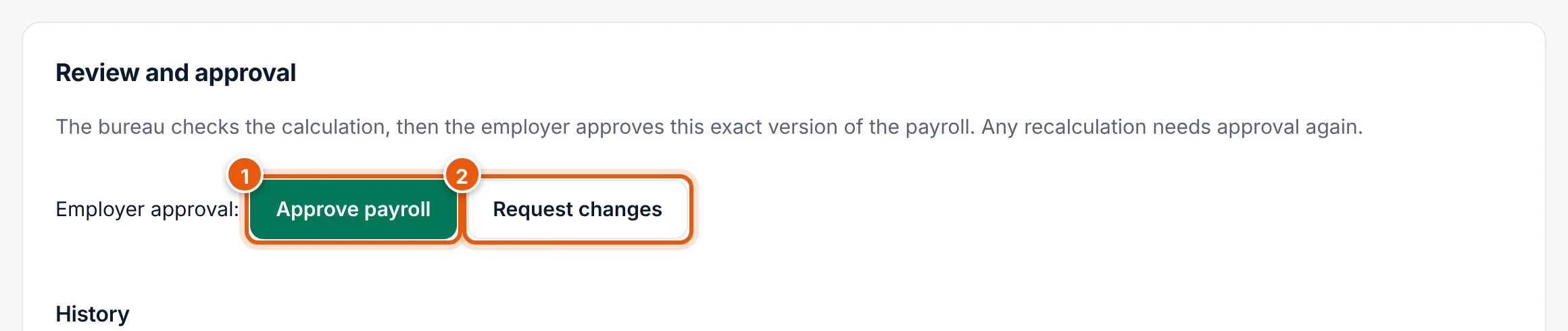
- Choose Approve payroll (1). If something must change first, choose Request changes (2) and say what.
- Cloud asks you to confirm it's you: enter your Password and choose Confirm and approve, or choose Use a passkey.
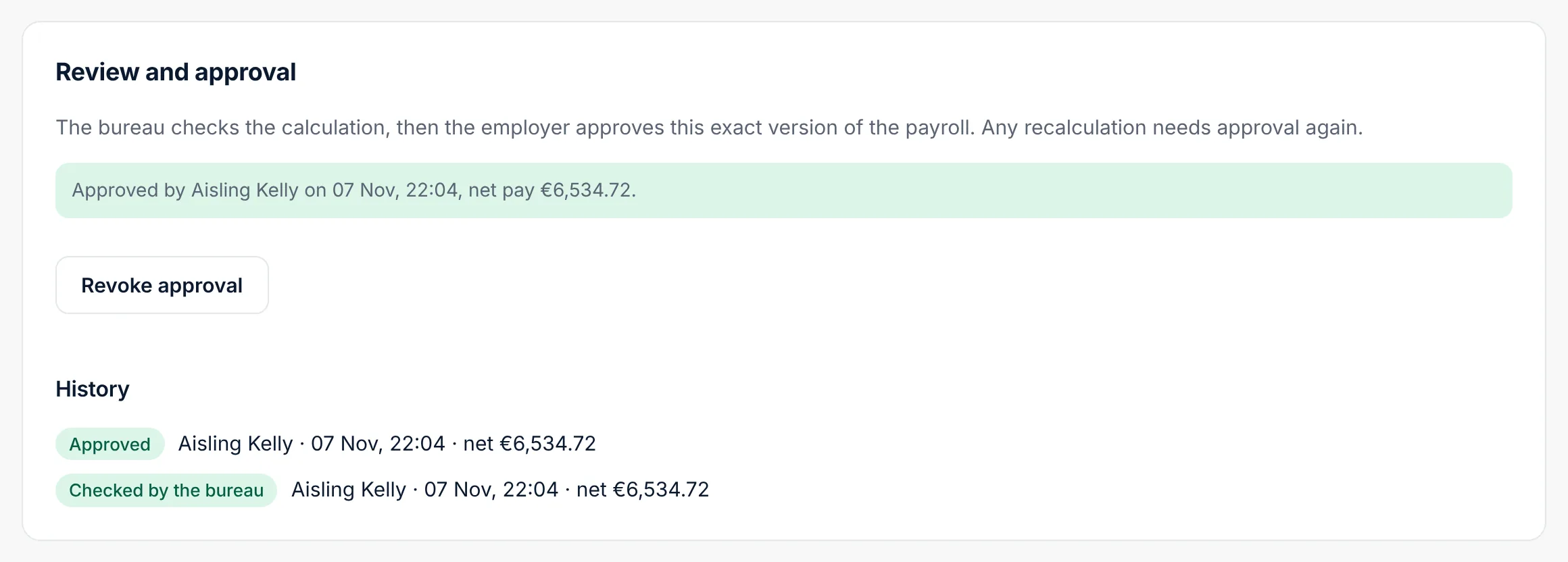
The run shows "Approved by … on …, net pay …". History lists every decision with who, when, the net pay and any note.
When the client approves payroll and needs more than one approval (for example 2 of 3), the payroll is approved once enough approvers have approved.
When the client approves
If the client approves payroll (see Client settings), the request goes to all its approvers at once in the Employer app as soon as the bureau has marked the run checked. Each approver sees the totals and the pay per employee and chooses Approve payroll or Request changes. The run's history in Cloud shows each decision as it comes in.
- With a rule like 2 of 3, the payroll is approved when two different approvers have approved the same calculation.
- One Request changes sends it back to you, with the approver's note. Make the change, recalculate and mark it checked again; the approvers are asked again.
- If you recalculate after some approvers approved, their approvals no longer count and they are asked again.
You can still approve in Cloud yourself, for example when the client approved by phone or email.
Once approved, the payroll is locked: no recalculation and no new inputs. The section Bank file and Revenue appears.
Revoke an approval
If you find a mistake after approval, the bureau owner or an administrator can choose Revoke approval. The payroll can then be changed, recalculated and approved again. The revoked approval stays in the history.
You cannot revoke an approval once the payroll has been sent to Revenue.
If the numbers changed after approval
The run shows "The numbers changed after approval. Recalculate and ask for approval again." and the approval status becomes Required again. Recalculate, check and approve again.