

Sign in and security
Payroll data is sensitive, so Cloud asks you to confirm it's you more often than most websites. This page explains when and why, and how a passkey makes it quicker.
Sign in
- Open your bureau's address, for example
harbour.cloud.payflo.ie. Each bureau has its own address; atcloud.payflo.ieCloud asks you to choose your organisation first. - Enter your Email and Password.
- Choose Sign in.
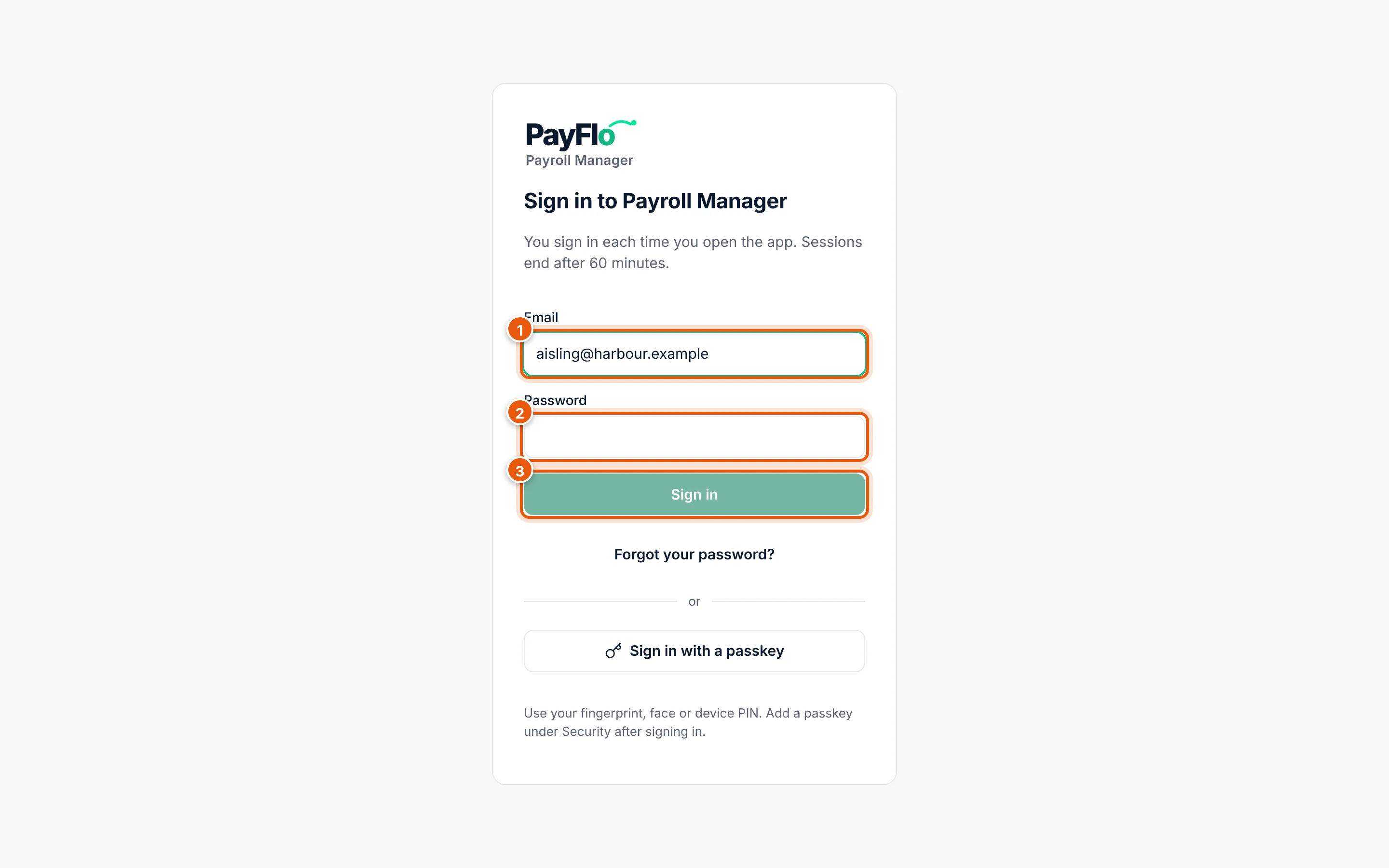
If you added a passkey, choose Sign in with a passkey instead and use your fingerprint, face or device PIN.
The first time
Your bureau owner or administrator gives you a temporary password when they add you to the team. After you sign in with it, Cloud asks you to Choose a new password (at least 12 characters; a short sentence works well).
Forgot your password
- On the sign-in page choose Forgot your password?.
- Enter your email and choose Send reset link.
- Open the email and follow the link. It works once, for 60 minutes.
- Enter the new password twice and choose Set password. All your sessions are signed out.
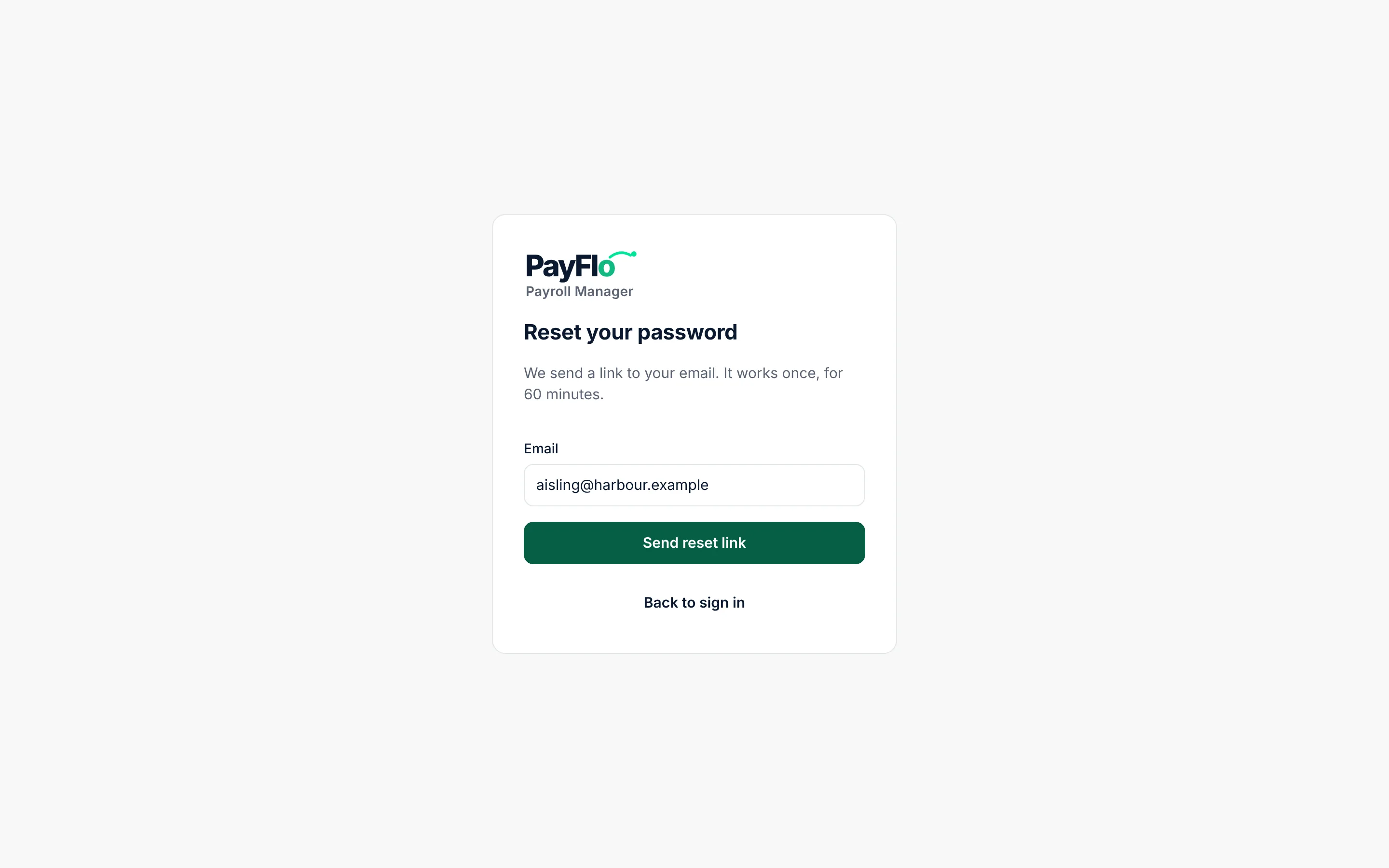
If the email does not arrive, check your spam folder or ask your bureau owner or an administrator to reset your password under Team (see Team and roles).
When Cloud asks you to confirm it's you
| When | What happens |
|---|---|
| 60 minutes after signing in | The session ends, whatever you are doing. Sign in again. The top bar shows Session ends with the time. |
| 5 minutes without activity | The screen locks. Enter your password or use your passkey to continue where you were. |
| You switch to another app or tab | The screen is covered at once, and locked after 30 seconds. |
| Each time you open or reload Cloud | Cloud asks you to confirm it's you, even when the session is still open. |
| You choose the lock in the top bar | The screen locks at once. Do this when you leave your desk. |
| Sensitive steps | Approving payroll, adding a ROS certificate, creating an API key, exporting or importing data and adding a passkey need your password or passkey again. |
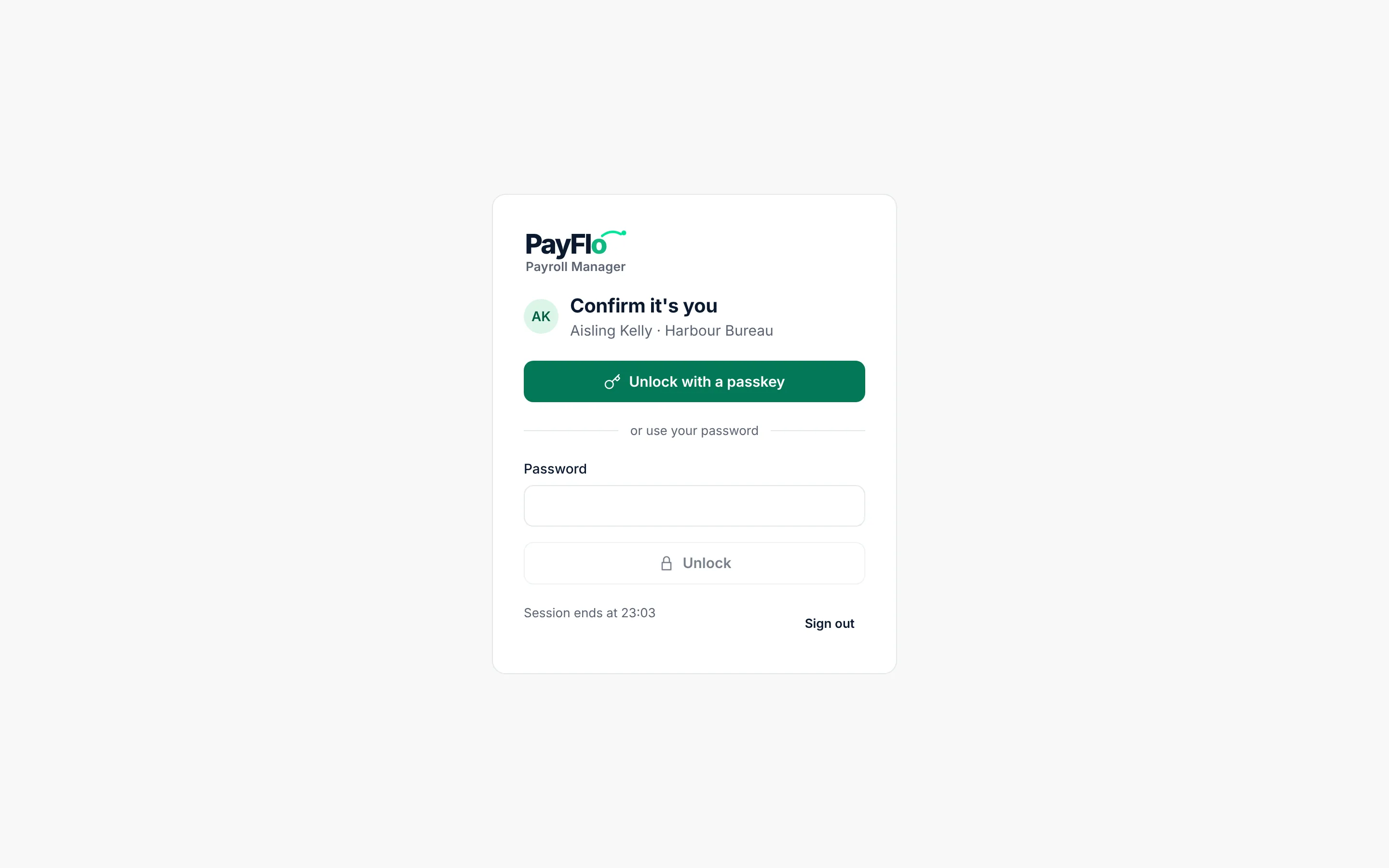
Nothing is lost when the screen locks. Unlock and carry on.
Passkeys
A passkey lets you sign in and unlock with your fingerprint, face or device PIN instead of typing your password. Your fingerprint or face never leaves your device.
- Choose Bureau in the menu, then Security.
- Under Passkeys, give the passkey a name (for example "Office laptop") and choose Add a passkey.
- If Cloud asks, enter your password to confirm it's you.
- Follow your browser or phone: touch the fingerprint reader, look at the camera or enter the device PIN.
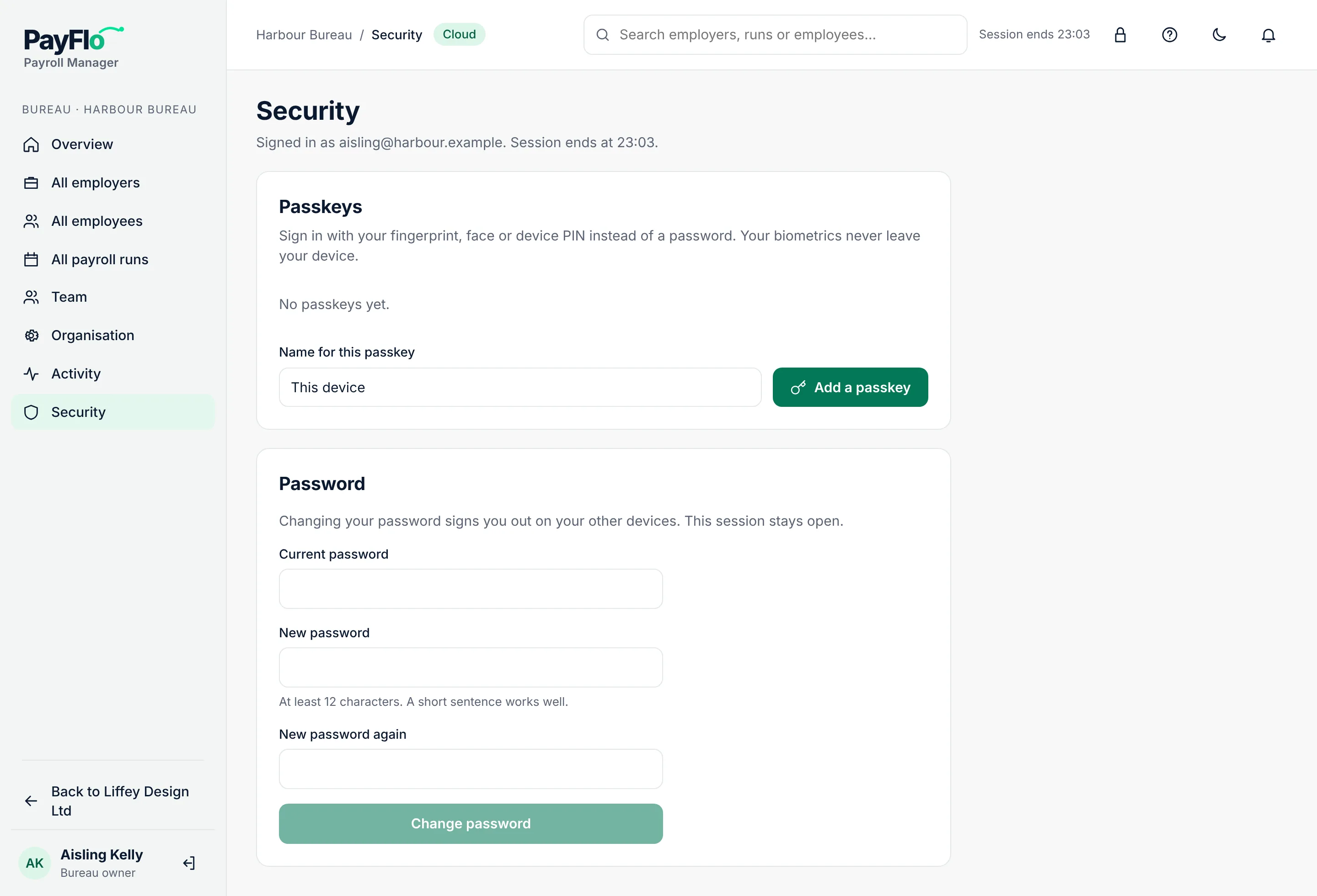
Add a passkey on each computer or phone you use. To stop using one, choose Remove next to it.
Change your password
- Choose Bureau, then Security.
- Under Password, enter your Current password, then the New password twice.
- Choose Change password.
Your other devices are signed out. The session you are in stays open.
Related
- Team and roles: add colleagues and reset their password
- Find your way around