

Approve payroll
If your company approves each payroll, your bureau asks you in the app before anything goes to Revenue and your staff are paid. You check the figures, then either approve the payroll or request changes.
Before you start
- When your bureau added your company, they agreed with you whether you approve each payroll, who the approvers are (named people in your company) and the rule: one approver is enough, or for example 2 of the 3 people on the list must approve. Ask your bureau to change the list or the rule. Every change is recorded.
- You need the Approve payroll permission in the app (the employer admin gives it in People) and you must be on your company's list of approvers.
How a request works
- Your bureau calculates the payroll and checks it.
- Everyone on the list is asked at the same time. There is no order: anyone can approve first.
- When enough people have approved (the rule), the payroll is Approved and your bureau can send it to Revenue, make the payslips and the bank file.
- If anyone asks for changes, your bureau fixes the payroll and asks again. Whenever your bureau recalculates, earlier approvals no longer count: the count starts again from zero and everyone is asked again (Approval needed again).
Each person answers once for each version of the calculation.
Approve a payroll
Choose Approvals. A number next to it (1) shows how many payrolls are waiting for you.

Approvals with one payroll waiting (1). The list shows your company's rule (1) and each payroll Waiting for approval (2) with its Net pay and how many approvals it has so far, for example 1 of 2 approvals (3). Choose Review and approve (4).
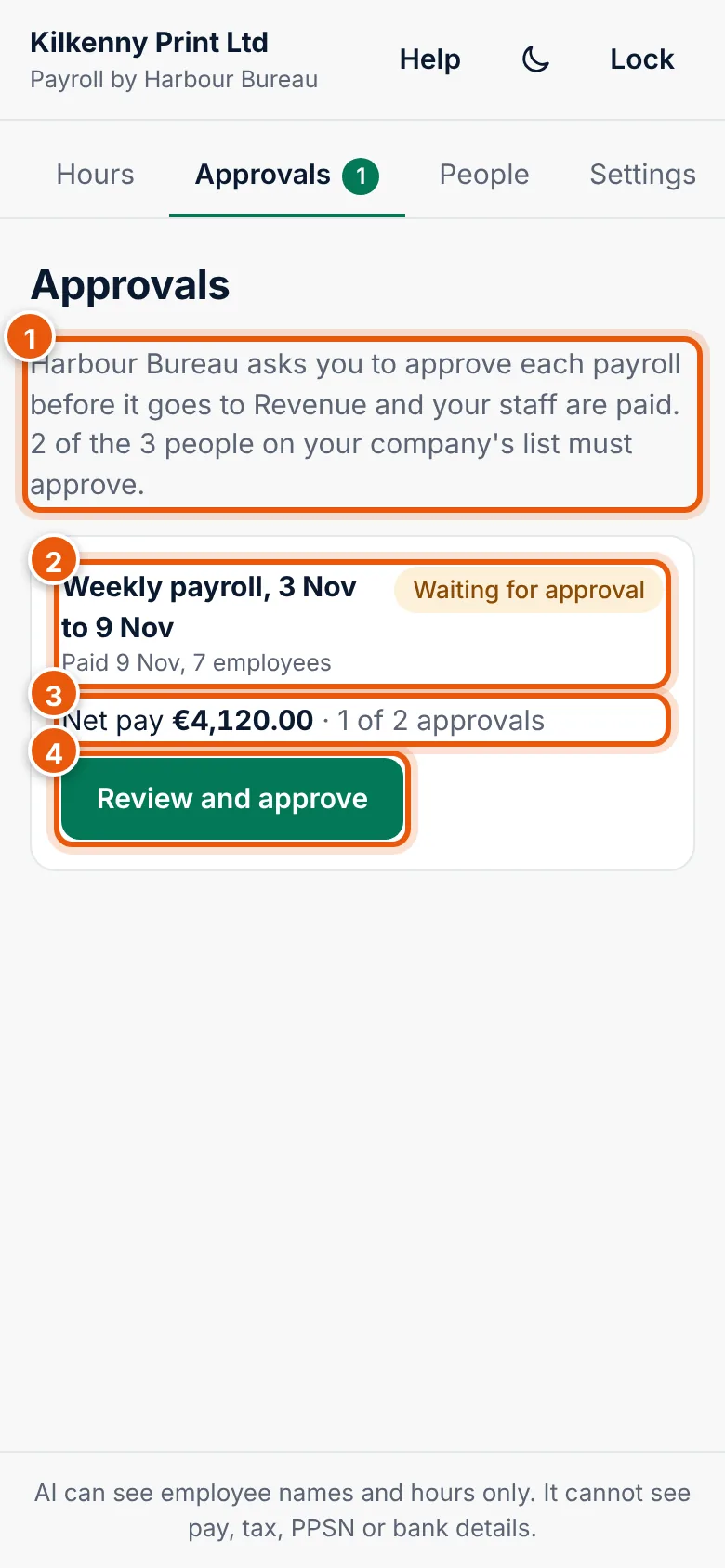
The rule (1), the payroll (2), net pay and progress (3), Review and approve (4). Check the payroll:
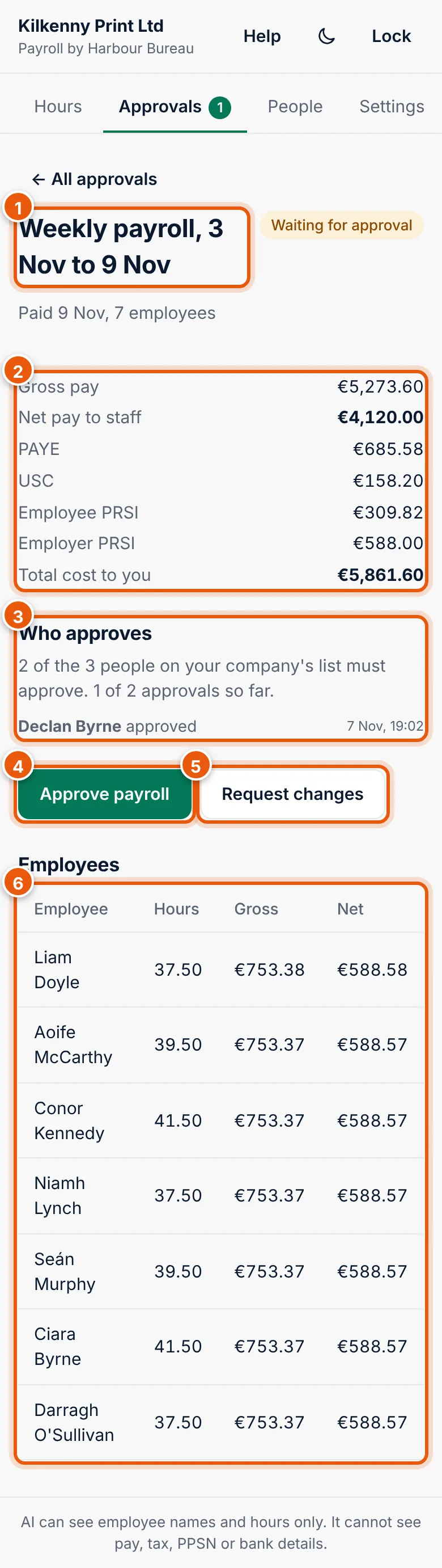
The period (1), totals (2), who approves (3), Approve payroll (4), Request changes (5), pay per employee (6). - The pay period, the pay date and the number of employees.
- Totals: Gross pay, Net pay to staff (what goes to your staff's bank accounts), PAYE, USC, Employee PRSI, Employer PRSI and Total cost to you (gross pay plus employer PRSI and any employer pension).
- Who approves: the rule, how many approvals so far, and who has already answered.
- Approve payroll.
- Request changes.
- Employees: hours, gross and net pay for each person. Compare the hours with what you sent.
If everything is right, choose Approve payroll.
The app asks you to confirm it's you, even if it is unlocked. Your PIN only unlocks the screen; it cannot approve a payroll. Enter Your password (2) and choose Confirm and approve (3), or choose Approve with a passkey (4). The question at the top (1) repeats the net pay and the number of employees.
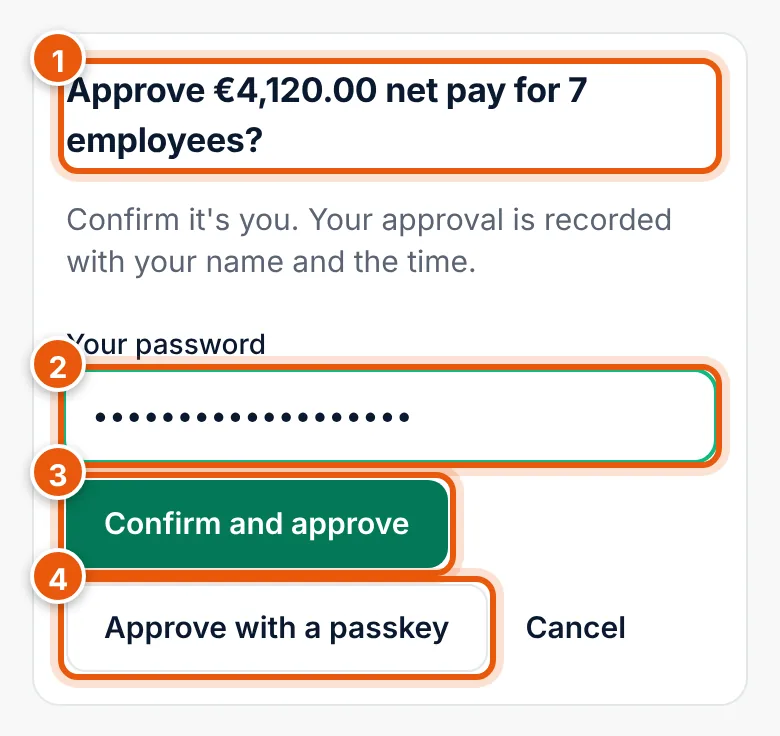
What you approve (1), Your password (2), Confirm and approve (3), Approve with a passkey (4). The app confirms (1). Your decision is listed under Who approves (2) with your name and the time.
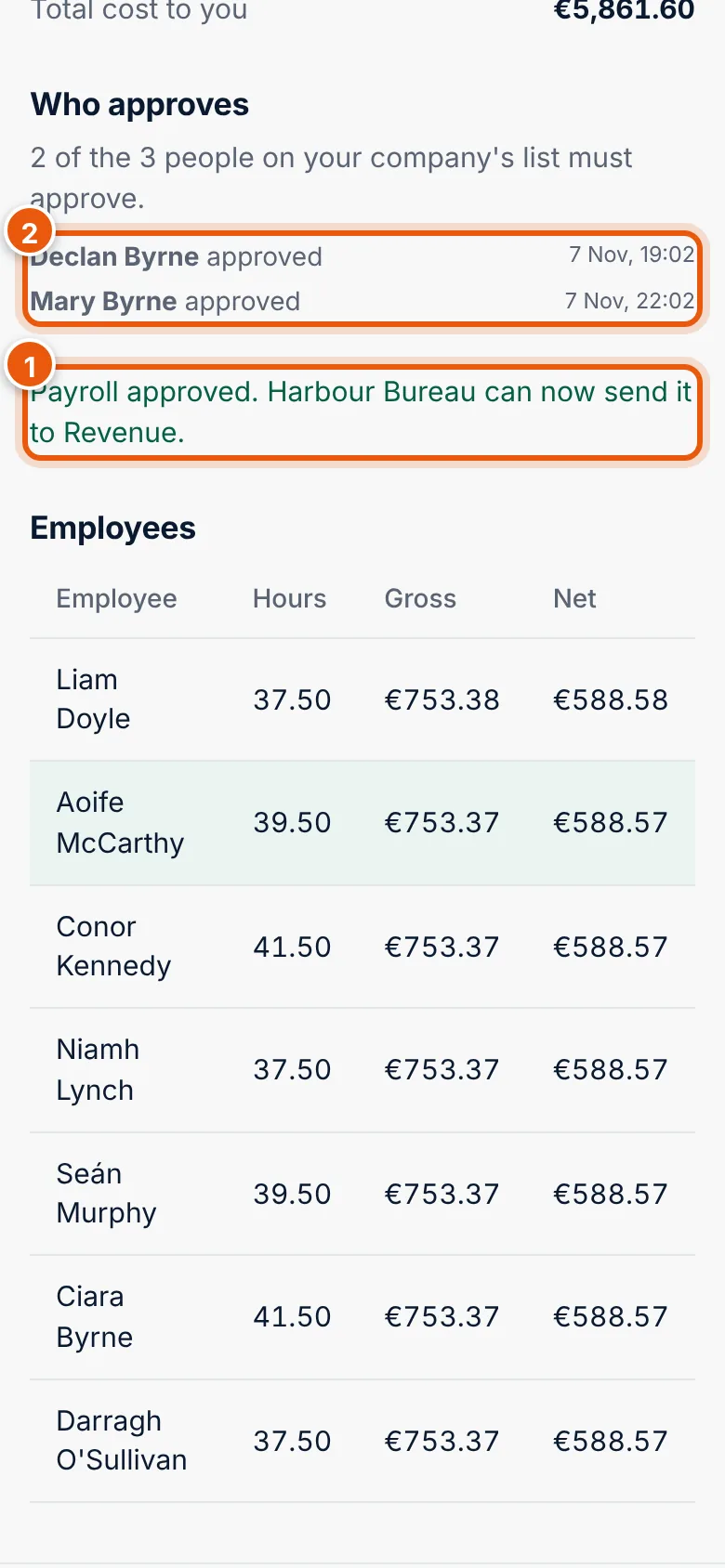
The confirmation (1) and the decisions (2). - If yours was the last approval needed: Payroll approved. Harbour Bureau can now send it to Revenue.
- If more are needed: Your approval is saved. Waiting for 1 more. The others on the list still see the request.
The payroll then moves to Earlier in Approvals, and the pay period shows Approved on Hours.
Request changes
If something is wrong (hours, a person missing, a leaver still paid), do not approve.
- Choose Request changes.
- In What needs to change? (1), say exactly what is wrong, for example who, which day and how many hours.
- Choose Send to your bureau (2).
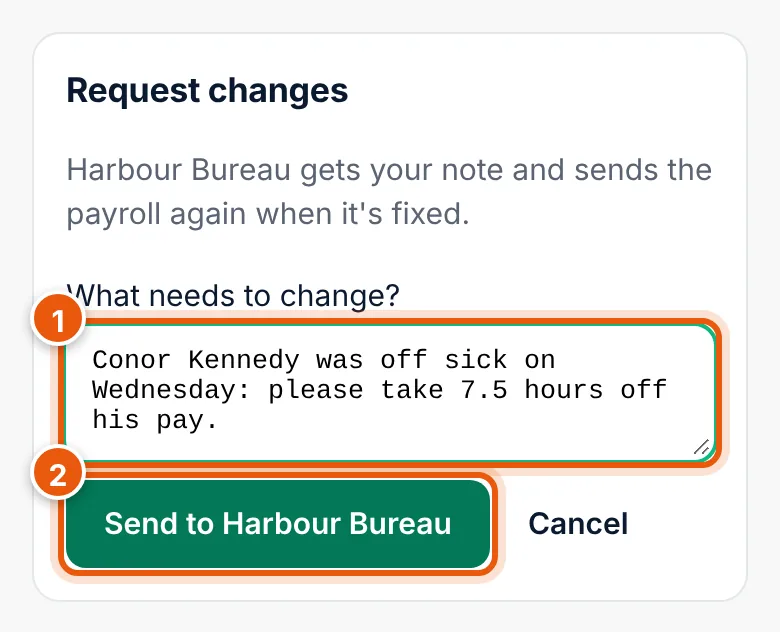
The app says Sent back to your bureau with your note. They'll send it again when it's fixed. The payroll shows Changes requested until your bureau sends a corrected version.
Earlier payrolls
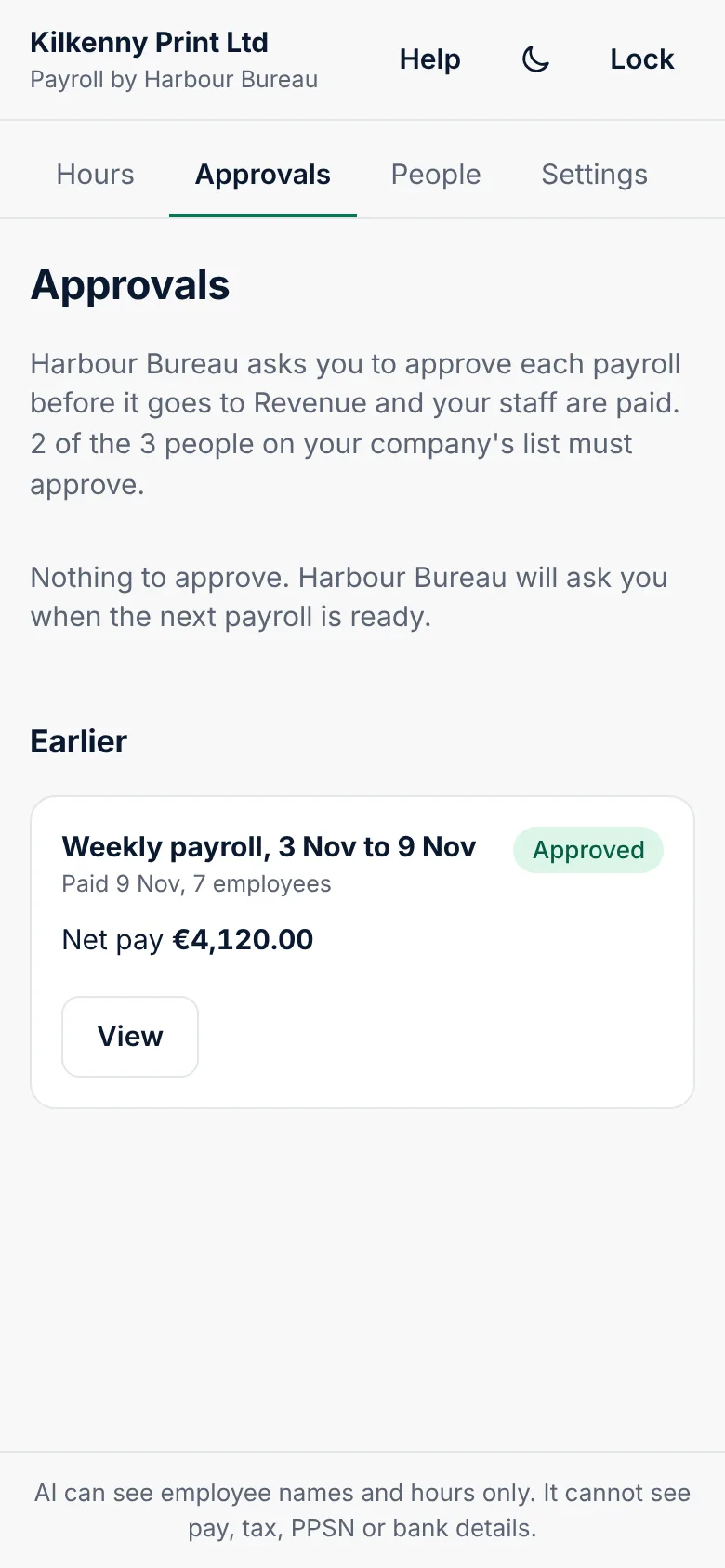
Under Earlier you see payrolls that were approved or sent back. Choose View to see the figures and who decided what.
Messages
| Message | What to do |
|---|---|
| Nothing to approve. | Your bureau will ask you when the next payroll is ready. |
| You can see this payroll, but you're not on your company's list of people who approve it. | Ask your bureau to add you to the approvers. |
| You approved this payroll. Waiting for 1 more. | Nothing: the others on the list still have to answer. |
| Your bureau changed this payroll while you were looking at it. Check the new figures. | The page now shows the new figures. Check them again. |
| You already answered this request. / This payroll is no longer waiting for approval. | Someone (maybe you, on another phone) already decided, or your bureau withdrew the request. |
| Say what needs to change. | Enter a note before sending it back. |
| That password is not correct. | Enter your password again, or use a passkey. |
| Payroll approval in this app isn't switched on yet. | Your bureau will tell you when it is. Until then, give your approval to your bureau as agreed with them. |