

RPNs from Revenue
An RPN (Revenue Payroll Notification) tells you how to tax one employee: tax credits, rate band, USC and the tax basis. Revenue issues a new one when anything changes. Get RPNs before every payroll, so each calculation uses the latest figures.
RPNs also show people Revenue has registered for this employer who are not on your list yet: new starters. You choose who to add.
Get RPNs
Open the client and choose RPN in the menu. There are two ways:
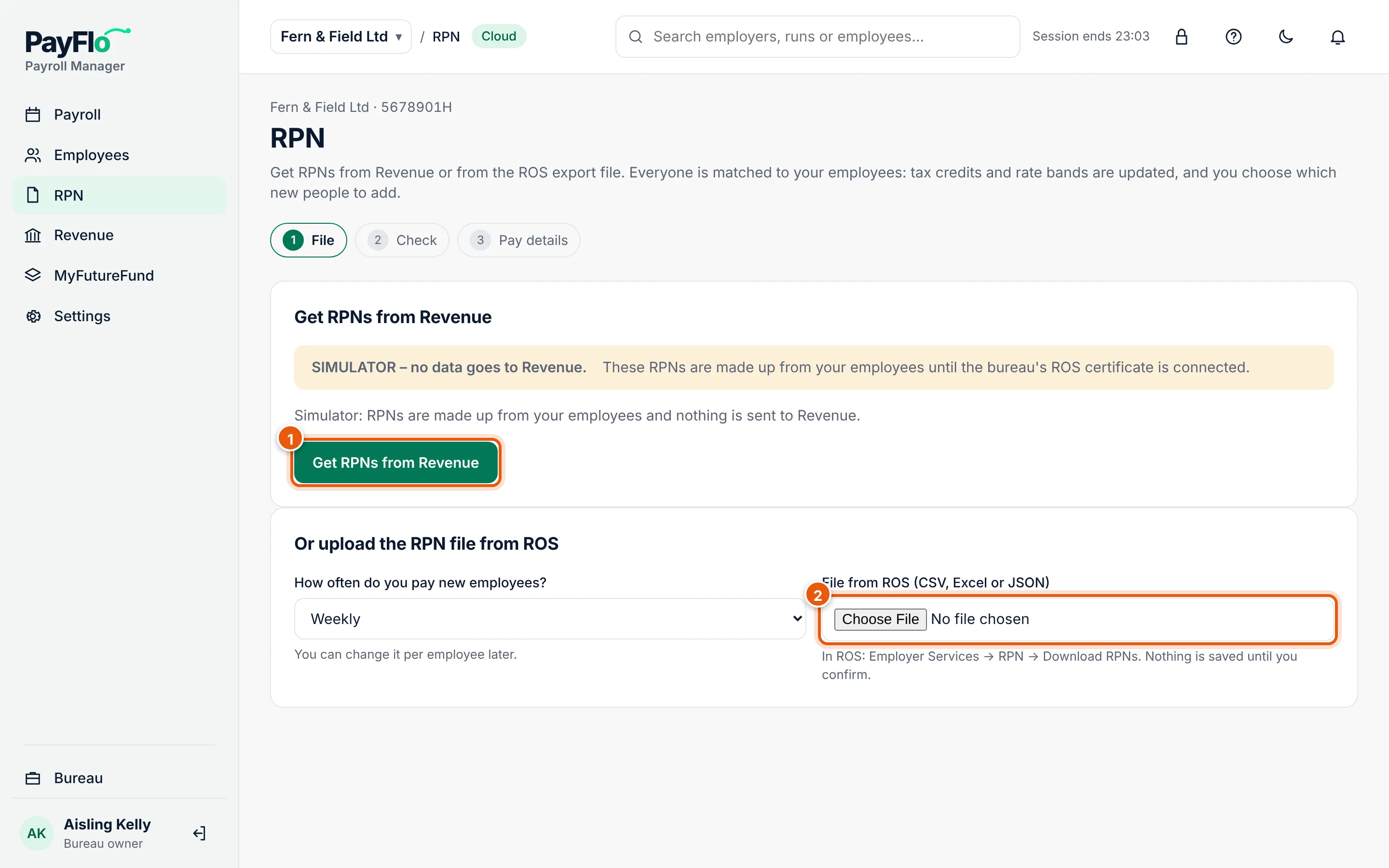
- Get RPNs from Revenue asks Revenue directly, through your bureau's ROS certificate. One click, no file.
- Or upload the RPN file from ROS: in ROS go to Employer Services → RPN → Download RPNs, save the file (CSV, Excel or JSON) and choose it under File from ROS. First choose How often do you pay new employees?; you can change it per employee later.
Nothing is saved until you confirm in the next step.
Check
Cloud matches every RPN to the client's employees and shows what would change:
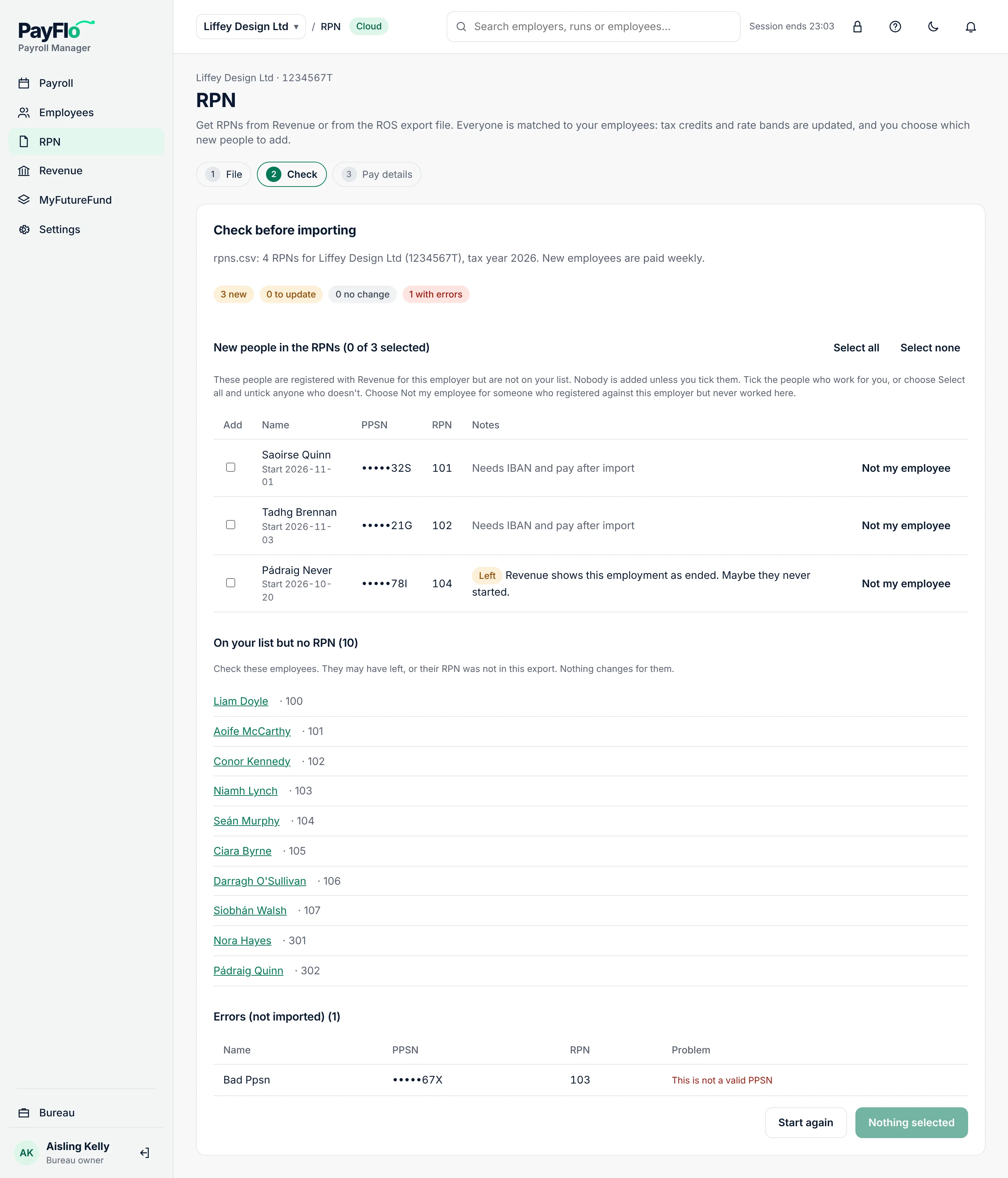
- New people in the RPNs: registered with Revenue for this employer but not on your list.
- Tax instructions to update: existing employees whose credits, rate band or tax basis changed. These are always updated.
- On your list but no RPN: check these people. They may have left, or their RPN was not in this export. Nothing changes for them.
- Errors (not imported): rows that cannot be used, with the reason, for example "This is not a valid PPSN".
Choose who to add
Nobody new is added unless you tick them. This matters because Revenue sometimes lists people who never started.
- Tick each person who works for the client (1). A click anywhere on the row ticks it. Or choose Select all and untick anyone who should not be added.
- Look at the Notes: Left means Revenue shows the employment as ended (maybe they never started); Possible match means the person may already be on your list under another PPSN, with a link to see them.
- If someone does not work for this client at all, choose Not my employee (3). They are not added and not offered again.
- Choose Add selected (N) (2). If existing employees are updated too, the button says so, for example Add selected (2) and update 5. Confirm the question.
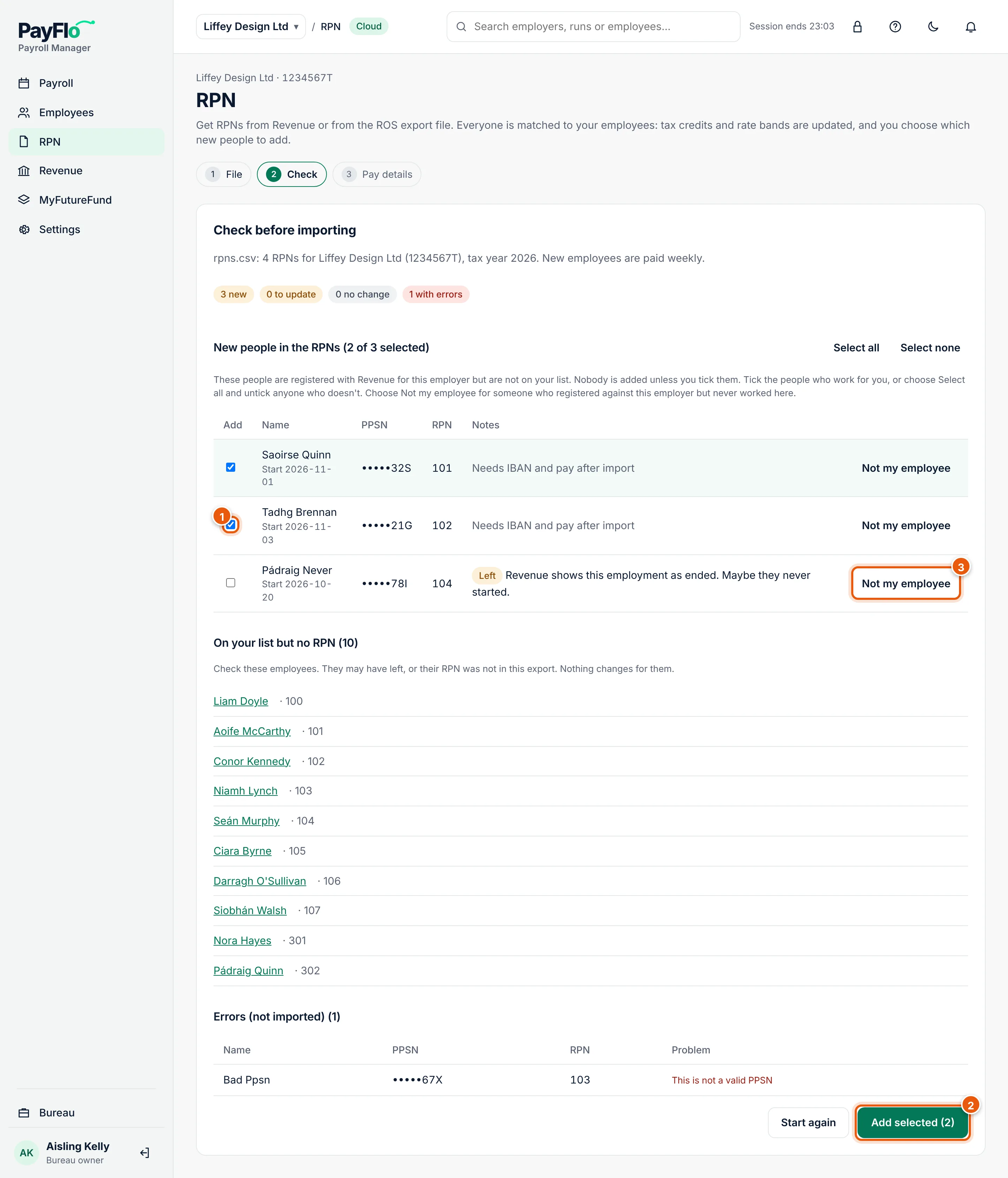
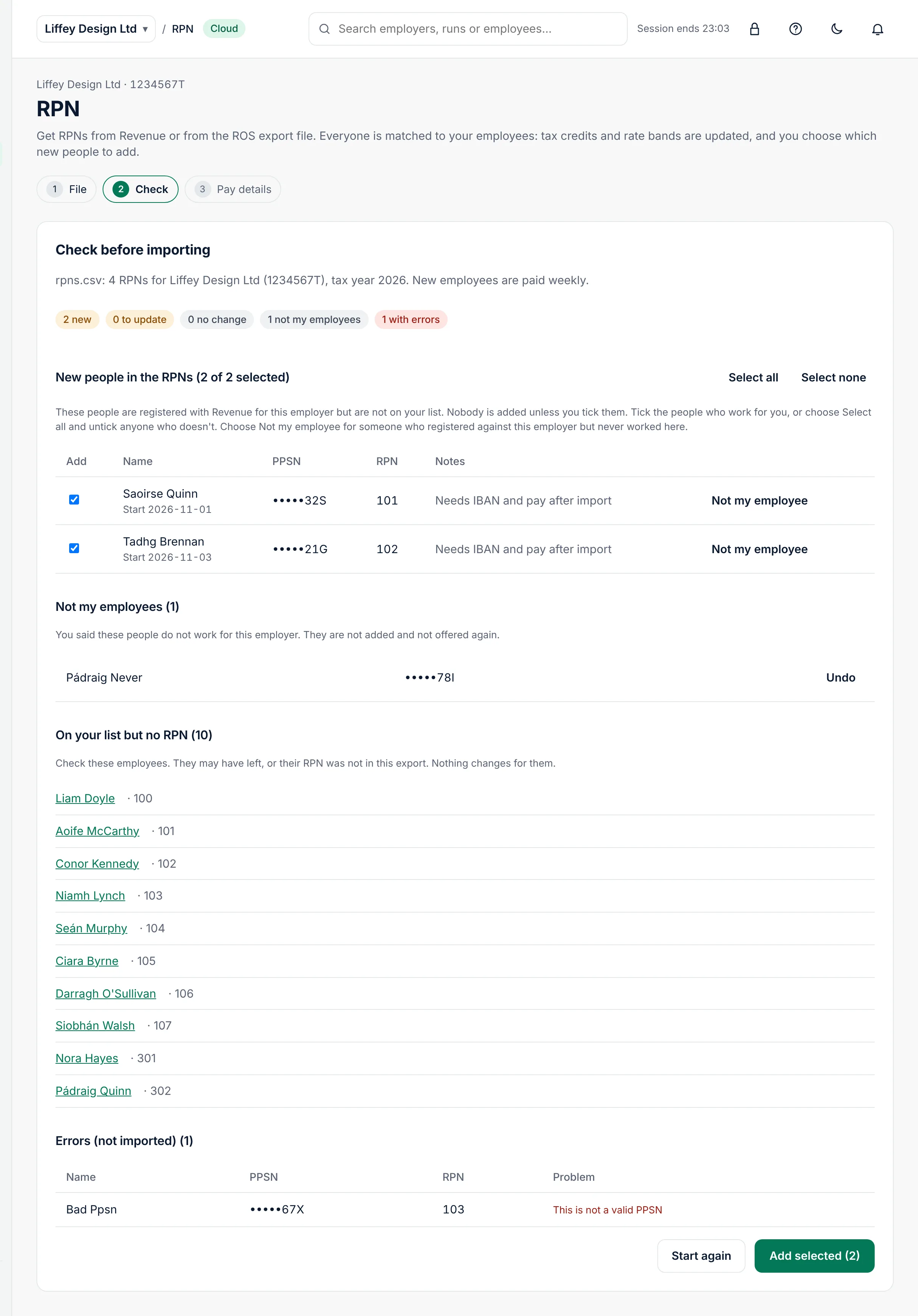
People you marked Not my employee are listed under Not my employees, so nobody wonders where they went. Undo brings someone back.
Pay details
An RPN has no bank account and no pay. After adding new people, Cloud asks Complete bank and pay details now?
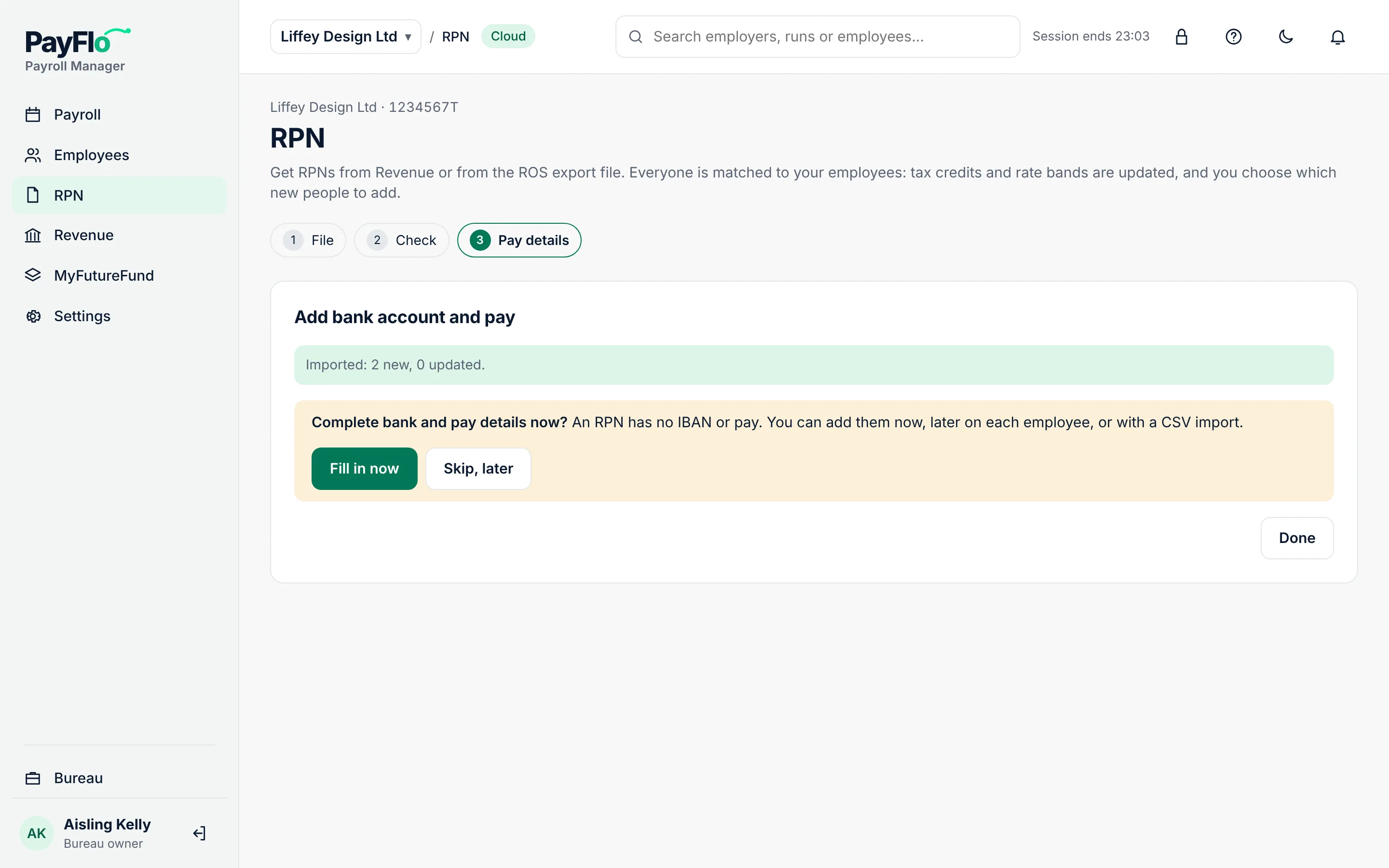
- Fill in now shows a row for each new person: IBAN, BIC (optional), Gross pay per period (€) and Email (optional).
- Skip, later leaves them Incomplete. You can add the details on each employee later, or with a CSV import.
- Choose Fill in now.
- Type the details, or copy rows from Excel (IBAN, BIC, pay in that order) and paste into the first IBAN box: Cloud fills several rows and columns at once.
- Choose Save. Each saved row shows Saved.
- Choose Done.
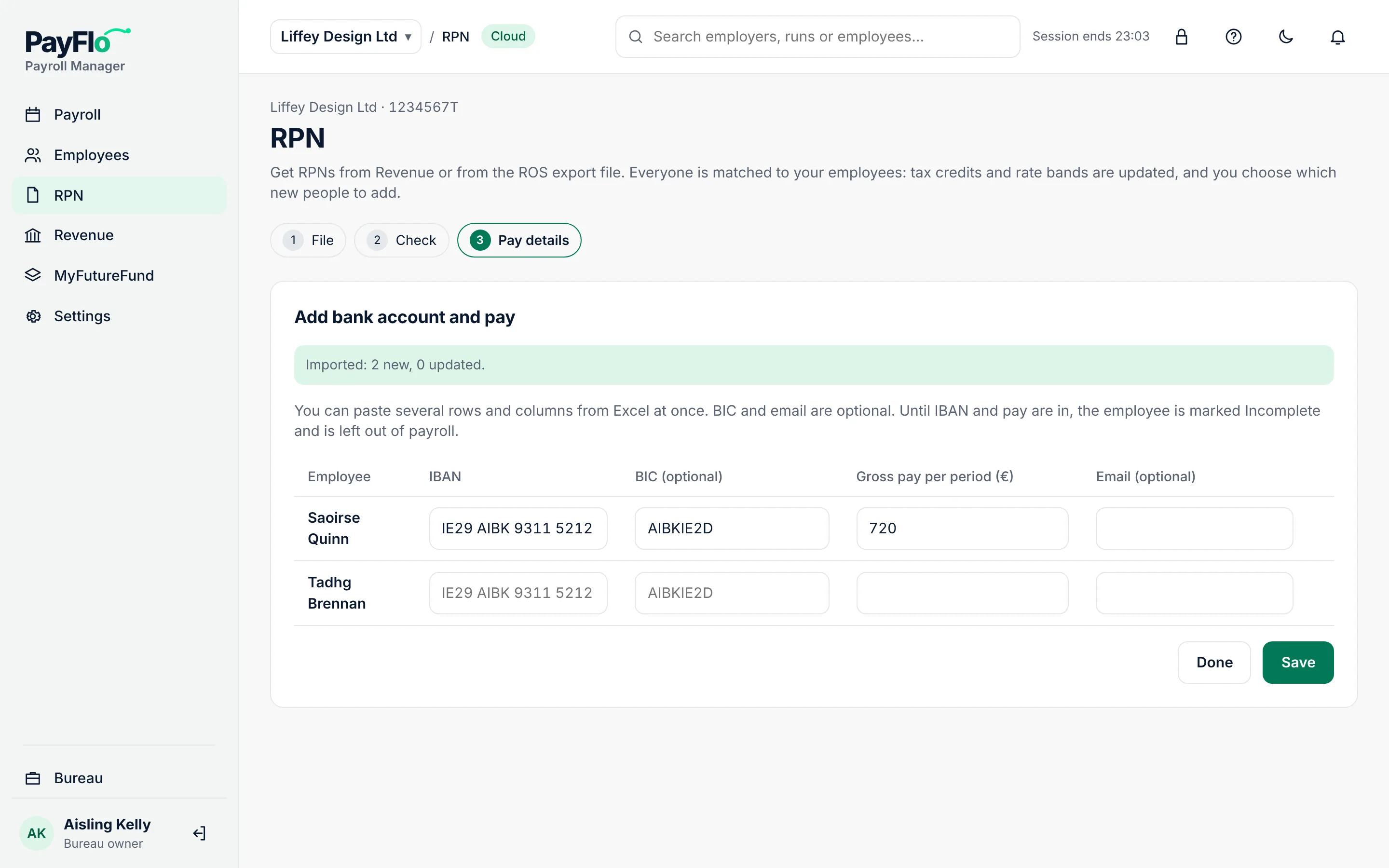
Until the IBAN and pay are in, a person shows Incomplete and is left out of payroll.
RPNs straight from Revenue
With Get RPNs from Revenue, the check shows "From Revenue" and the tax year:
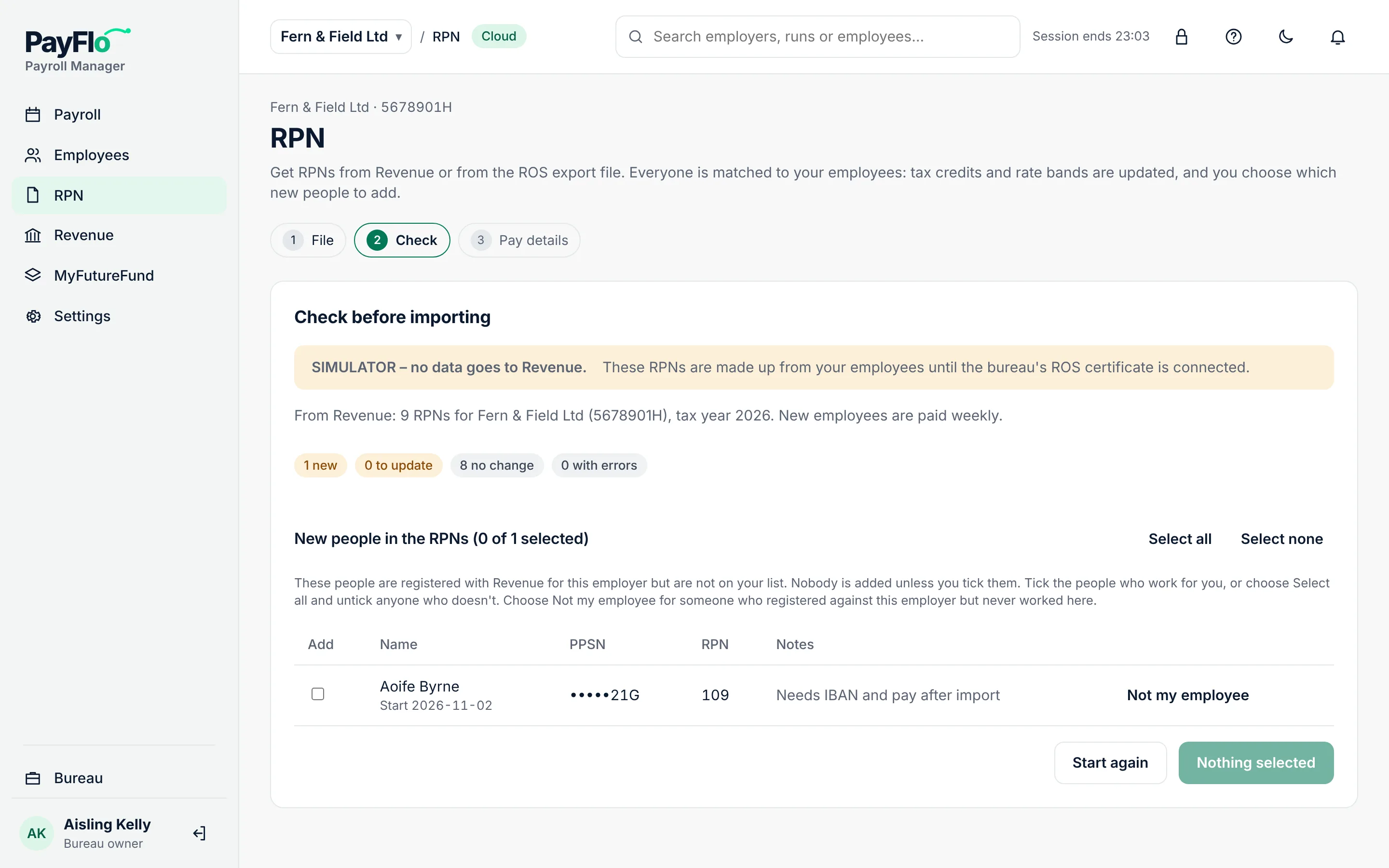
Each request is listed on the client's Revenue page under RPN requests, with its result and status (Ready to check, Applied, Failed).
If something goes wrong
| Message | What to do |
|---|---|
| This RPN file is for a different employer | Download the RPNs for this employer from ROS. Check the employer registration number. |
| This does not look like an RPN export from ROS | Use the file from Employer Services → RPN → Download RPNs, not a report. |
| The file has more than 2000 RPNs | Download fewer at a time and import each file. |
| Payroll Manager is not connected to Revenue yet | Upload the ROS file instead, or ask your bureau owner to add the ROS certificate. |
| These RPNs were already applied | Someone imported them already. Choose Get RPNs again for the latest. |