

Run a payroll
A payroll run is one pay period for one client: for example "Weekly, 9 to 15 Nov 2026, paid 13 Nov". You create it as a draft, add what changed this period, calculate, check and approve it, then produce payslips, the bank file and the Revenue submission.
Before you start
- Get the latest RPNs for the client: RPNs from Revenue.
- Check that new starters have an IBAN and pay (no one marked Incomplete on the Employees page).
Start a payroll
- Open the client with the employer switcher. Cloud opens its Payroll page, with the client's payroll runs.
- Choose New payroll.
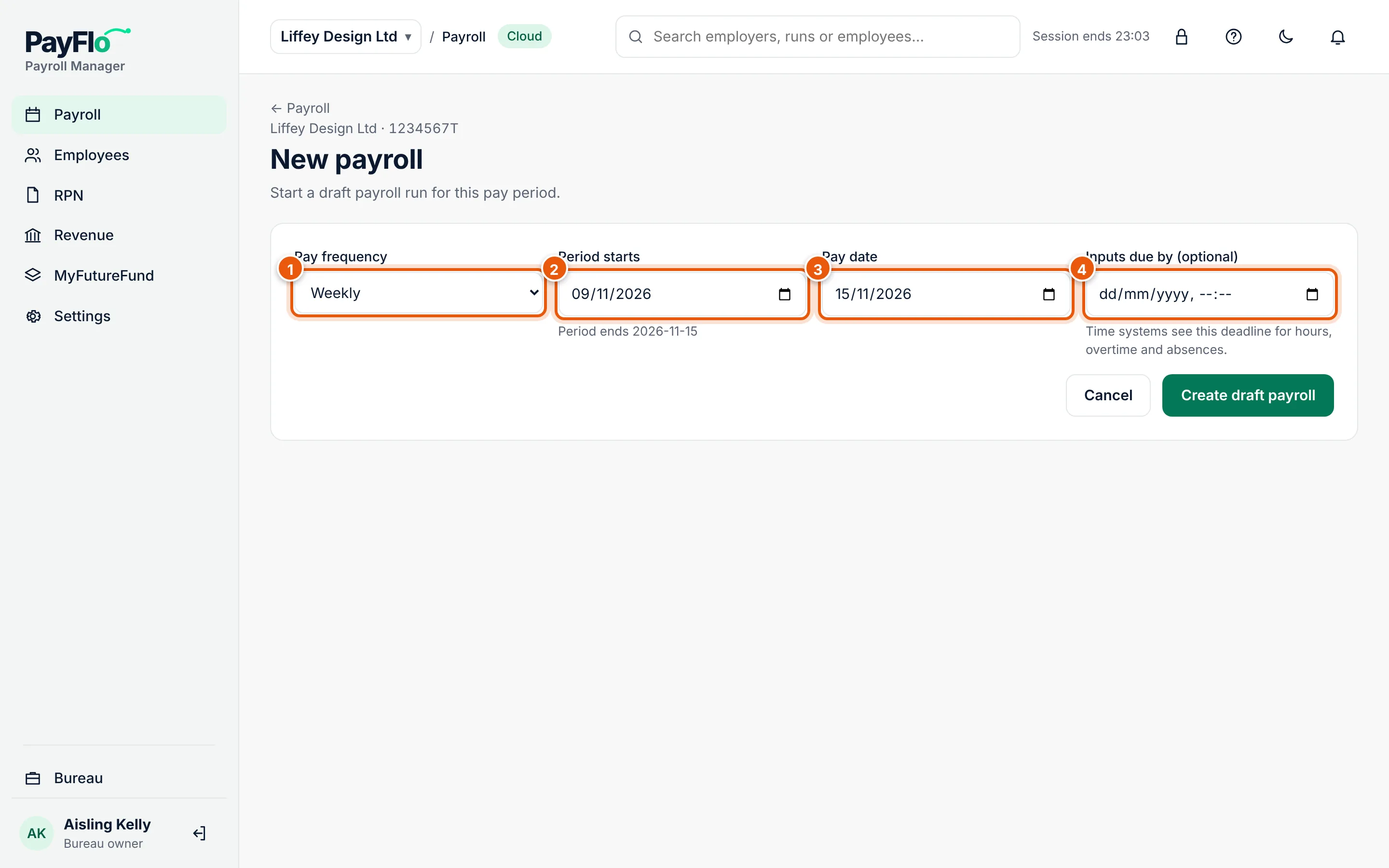
- Check the Pay frequency (1). Only employees with this frequency are in the run.
- Enter the first day of the period under Period starts (2). Cloud shows when the period ends.
- Enter the Pay date (3).
- Optional: Inputs due by (4), the deadline for hours, overtime and absences. Time systems and the client's Employer app see it.
- Choose Create draft payroll.
If a run for that period already exists, Cloud says so; open the existing run from the Payroll page instead.
The payroll run page
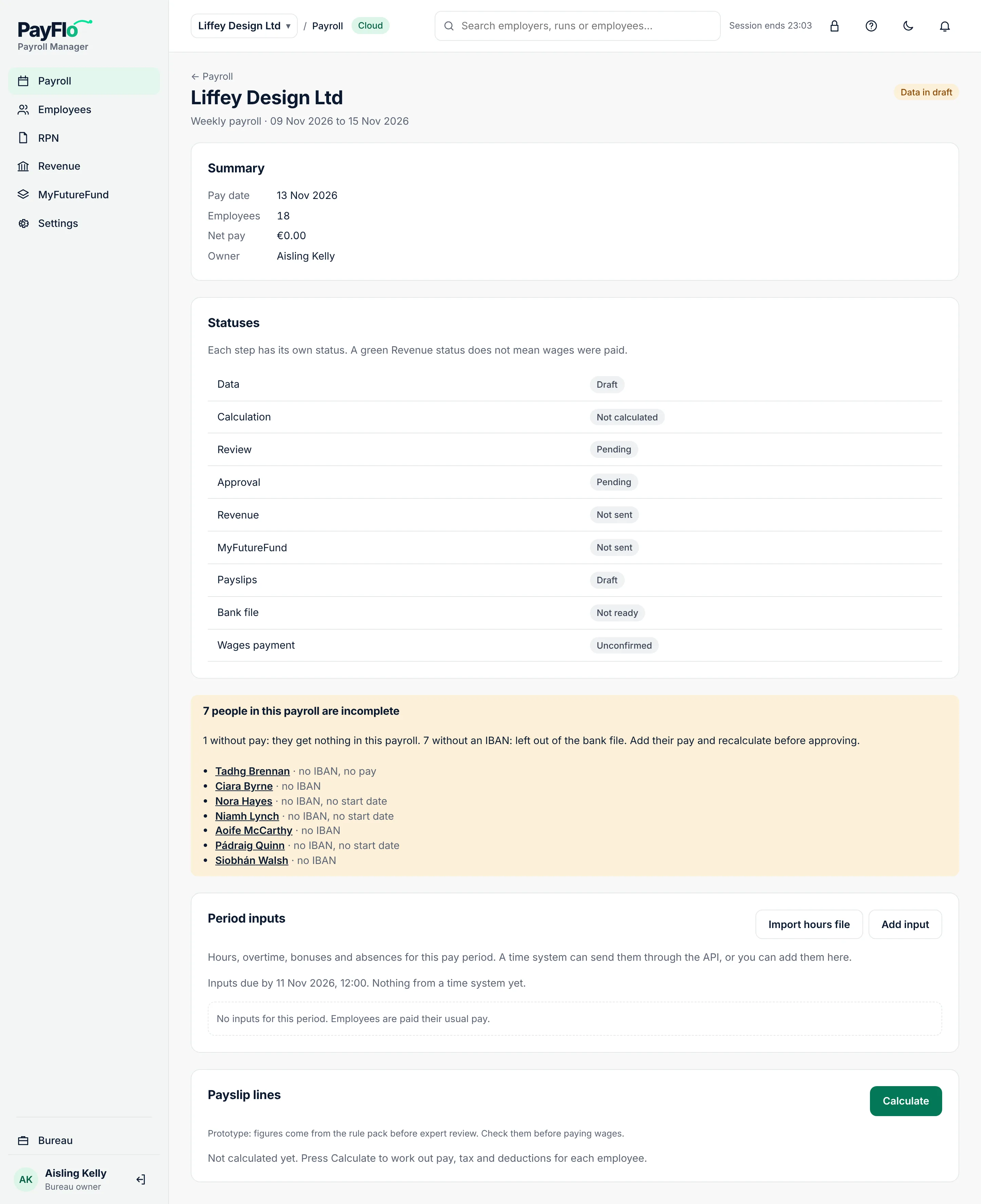
From top to bottom:
- Summary: pay date, number of employees, net pay and the owner (the person in your bureau responsible for the run).
- Statuses: one line for each step: data, calculation, review, approval, Revenue, MyFutureFund, payslips, bank file and wages payment. See the statuses.
- Incomplete people, if any (see below).
- Period inputs: hours, overtime, bonuses and absences for this period, and, if the client uses AI, Timesheet photos.
- Payslip lines: the calculation.
- Review and approval, then Bank file and Revenue once the payroll is approved.
Add hours and changes for the period
Employees are paid their usual gross pay unless you add something for this period. Under Period inputs:
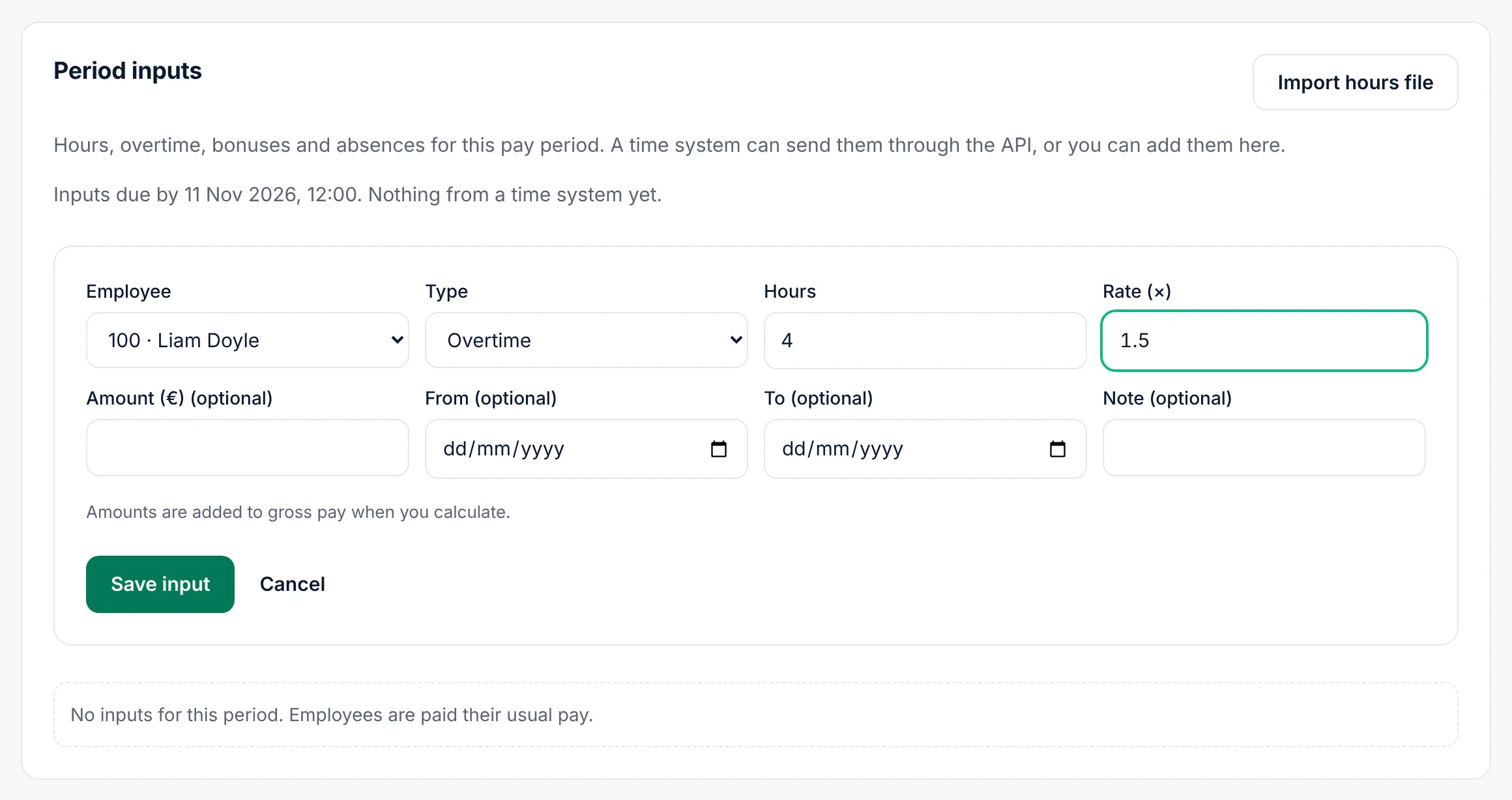
- Choose Add input.
- Choose the Employee and the Type:
- Hours: hours worked, for people paid by the hour.
- Overtime: hours and a Rate (×), for example 4 hours at 1.5, or an amount.
- Bonus: an amount in euro.
- Absence: the Absence type (annual leave, sick leave, unpaid leave, parental leave, public holiday or other) and the number of days.
- Optional: From and To dates and a Note.
- Choose Save input.
Each input shows where it came from: Manual, File import, Timesheet scan or From time system. Remove deletes one. The Total line adds up hours, overtime, extra pay and absence days.
Other ways to bring hours in, all described in Hours and timesheets:
- Scan a timesheet: a photo of a paper timesheet, read by AI and checked by you.
- Import hours file: a spreadsheet or CSV of hours.
- The client sends hours from the Employer app.
- An HR or time system sends them through the API (API keys).
Calculate
Choose Calculate under Payslip lines. Cloud works out every employee's pay with the signed Irish tax rules for the pay date.
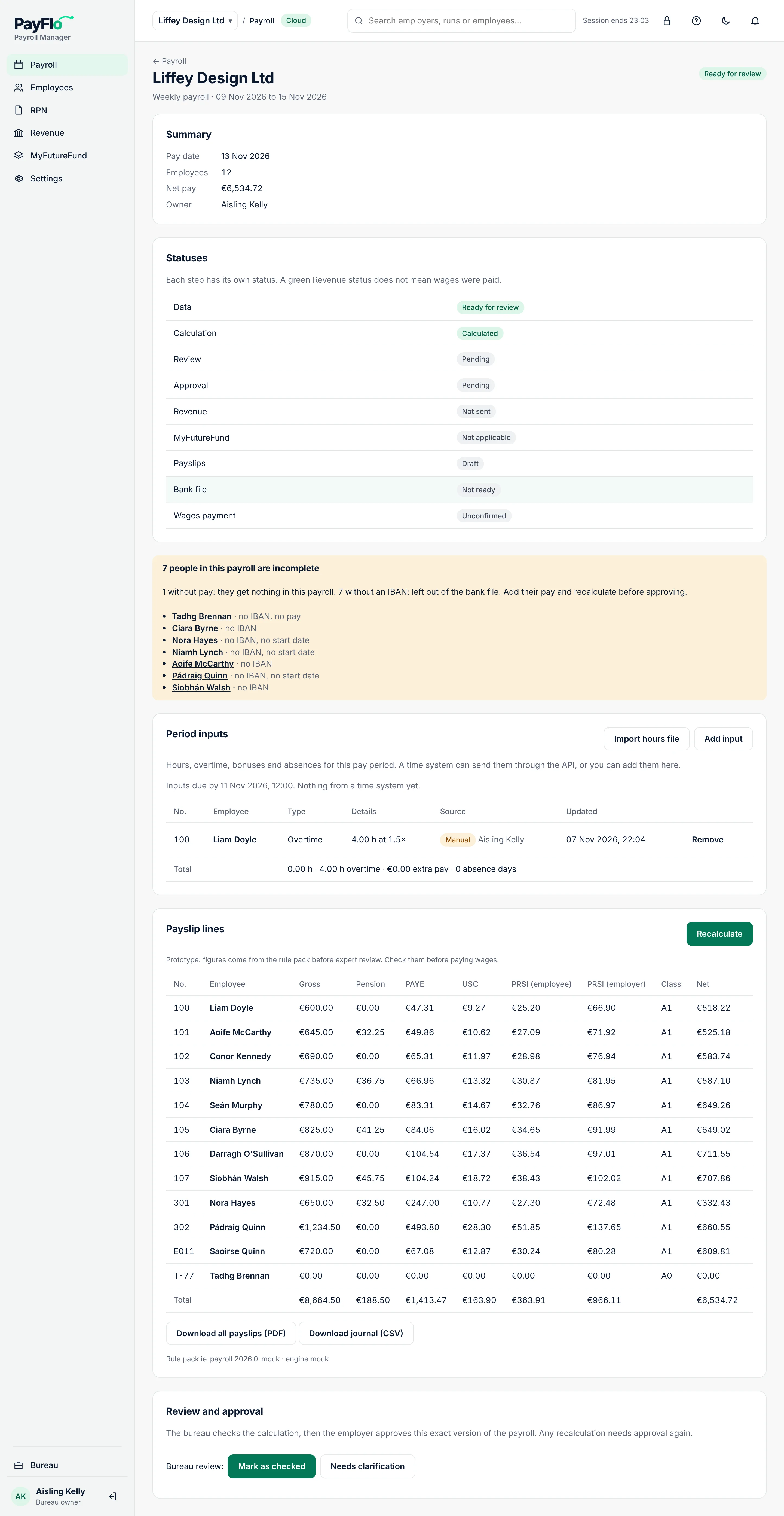
The Payslip lines table shows, for each employee: Gross, Pension, PAYE, USC, PRSI (employee), PRSI (employer), the PRSI Class, MyFutureFund contributions (when the client has members) and Net, with a Total line. Under it: the rule pack used for the calculation.
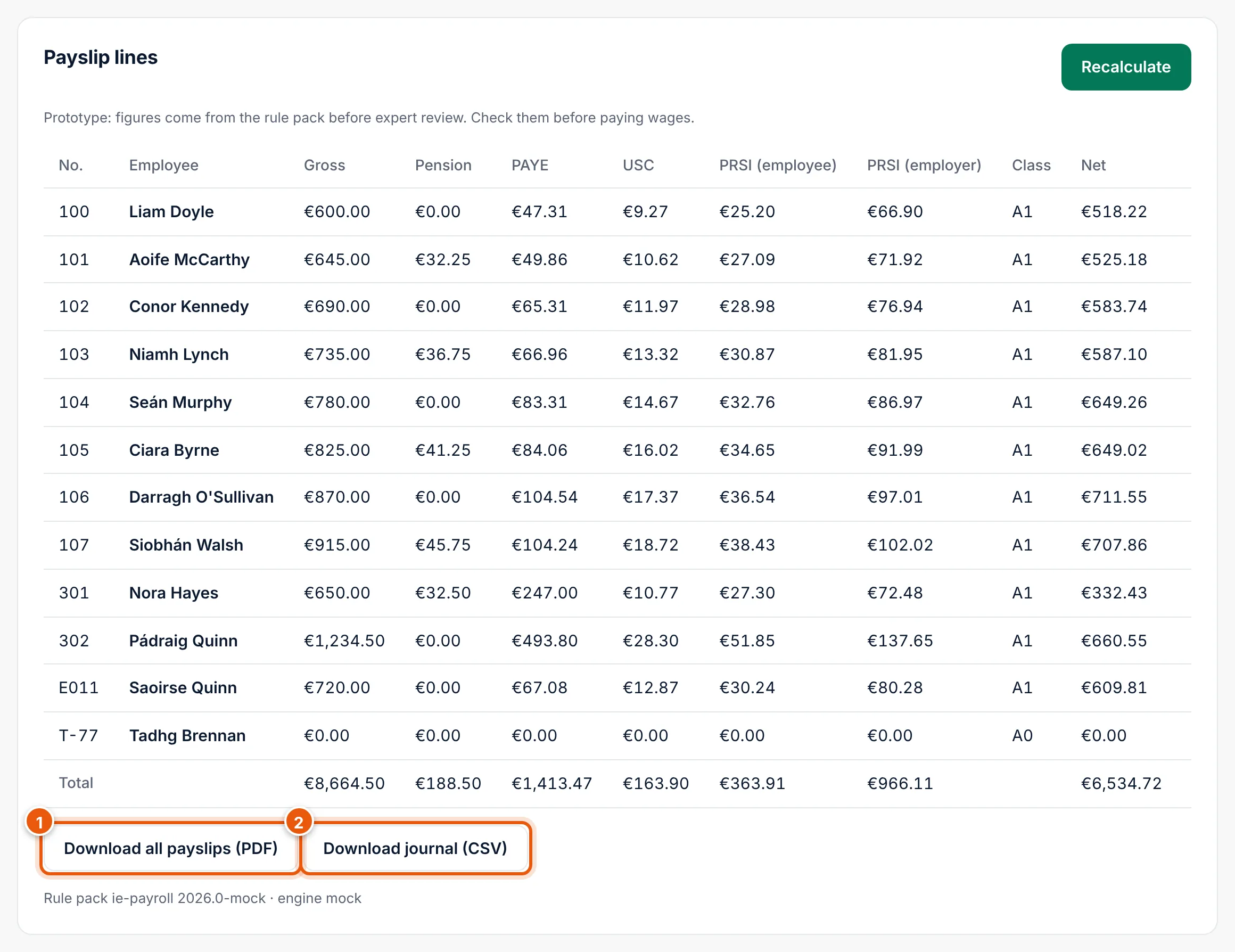
- Download all payslips (PDF): one PDF with every payslip. Each line also has its own PDF link. See Payslips and journal.
- Download journal (CSV): the payroll journal for your accounts.
Recalculate after changes
Every change after the calculation (an input, an employee's pay, a new RPN) marks the payroll Recalculation required: "Inputs changed after the calculation. Recalculate before review and approval." Choose Recalculate.
People marked incomplete
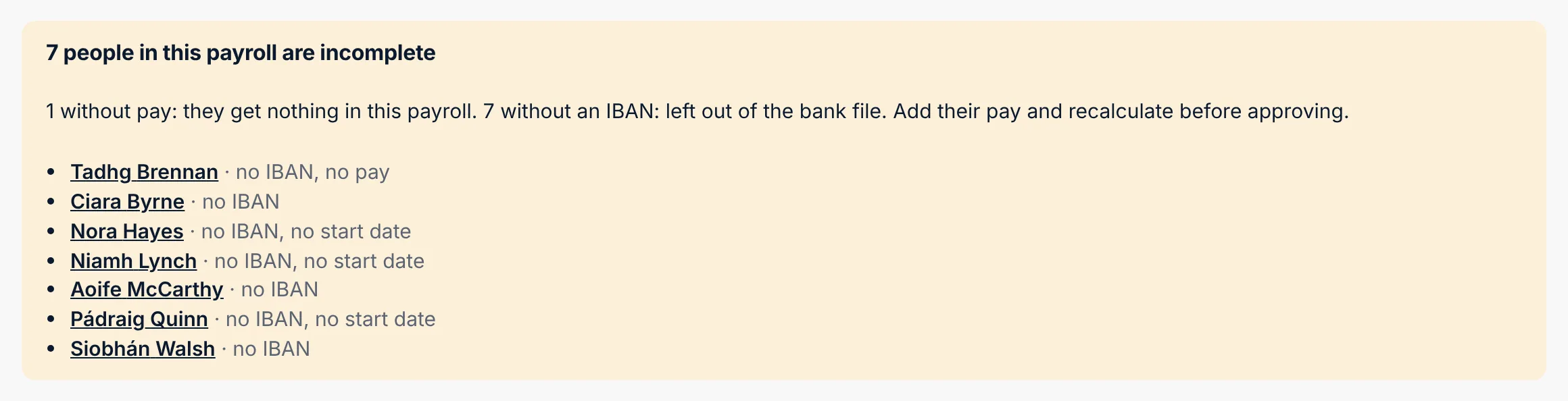
If someone has no pay or no IBAN, a yellow box lists them, for example "7 people in this payroll are incomplete. 1 without pay: they get nothing in this payroll. 7 without an IBAN: left out of the bank file." Choose a name to open the employee, add what is missing, and recalculate.
Next steps
If the calculation fails
| Message | What to do |
|---|---|
| There are no active employees with this pay frequency | Add or import employees with this frequency first, or check the frequency of the run. |
| The tax rules for this period are not available yet | The pay date is outside the tax rules Cloud has. Try again later, or check the pay date. |
| The calculation failed for one of the employees | The message names the problem. Usually a missing or wrong tax instruction; check the employee's Tax instructions. |
| Someone else changed this payroll | Reload the page to see the latest version, then try again. |