

Employer app
The Employer app is the part of Payroll Manager for your company, the employer. Your payroll bureau runs your payroll in Payroll Manager Cloud. You use this app on your phone to send them the hours your staff worked, from a photo of a paper timesheet or from a spreadsheet.
The app opens in your phone's browser and you can add it to your home screen, so it works like an ordinary app. There is nothing to download from an app store.
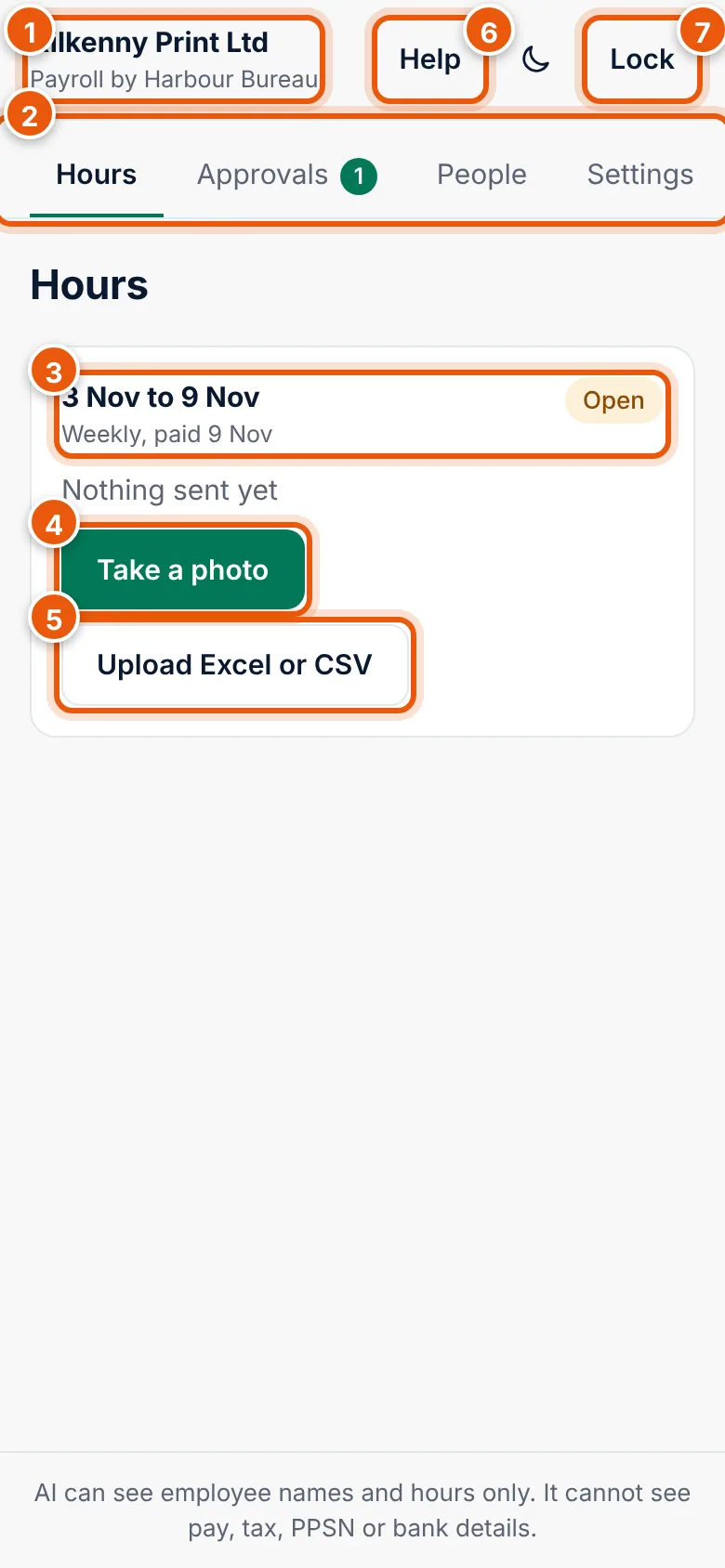
What you can do
| Task | Page |
|---|---|
| Join with the code from your invitation and set a PIN | Join the Employer app |
| Sign in, lock and unlock the app, use a passkey | Sign in and unlock |
| See your pay periods and what you have sent | Hours and pay periods |
| Photograph a paper timesheet | Photograph a timesheet |
| Check what AI read and send the hours | Check the hours and send them |
| Send hours from an Excel or CSV file | Send hours from a file |
| Invite colleagues and choose what they can do (employer admin) | People and permissions |
| Check the figures and approve a payroll, or send it back | Approve payroll |
| PIN, passkey, export your data, leave your bureau | Settings |
| Something does not work | Problems and messages |
Who does what
- Your payroll bureau opens each pay period, calculates the pay, deals with Revenue and MyFutureFund, and decides who your company's employer admin is.
- The employer admin (one person per company) invites colleagues to the app and chooses what each of them can do.
- Users do what the admin allows: send hours, see hours, approve payroll or export data.
AI and your data
You see this line at the bottom of every screen of the app.
Quick start for a new employer
- Open the invitation email from your bureau, or go to employer.payflo.ie and enter the code they gave you. See Join the Employer app.
- Choose a password and a PIN.
- Add the app to your home screen.
- When your bureau opens a pay period, choose Take a photo and photograph the timesheet. See Photograph a timesheet.
- Check the rows marked Check, then choose Send hours. See Check the hours and send them.