

Revenue
Every payroll is reported to Revenue in real time as a payroll submission (PSR), and Revenue tells you how to tax each employee through RPNs. Payroll Manager does both through your bureau's ROS certificate.
Open a client and choose Revenue in the menu to see that client's connection, RPN requests and payroll submissions. Bureau → Overview shows the connection for the whole bureau, and the Revenue overview (from the Overview page) lists all clients.
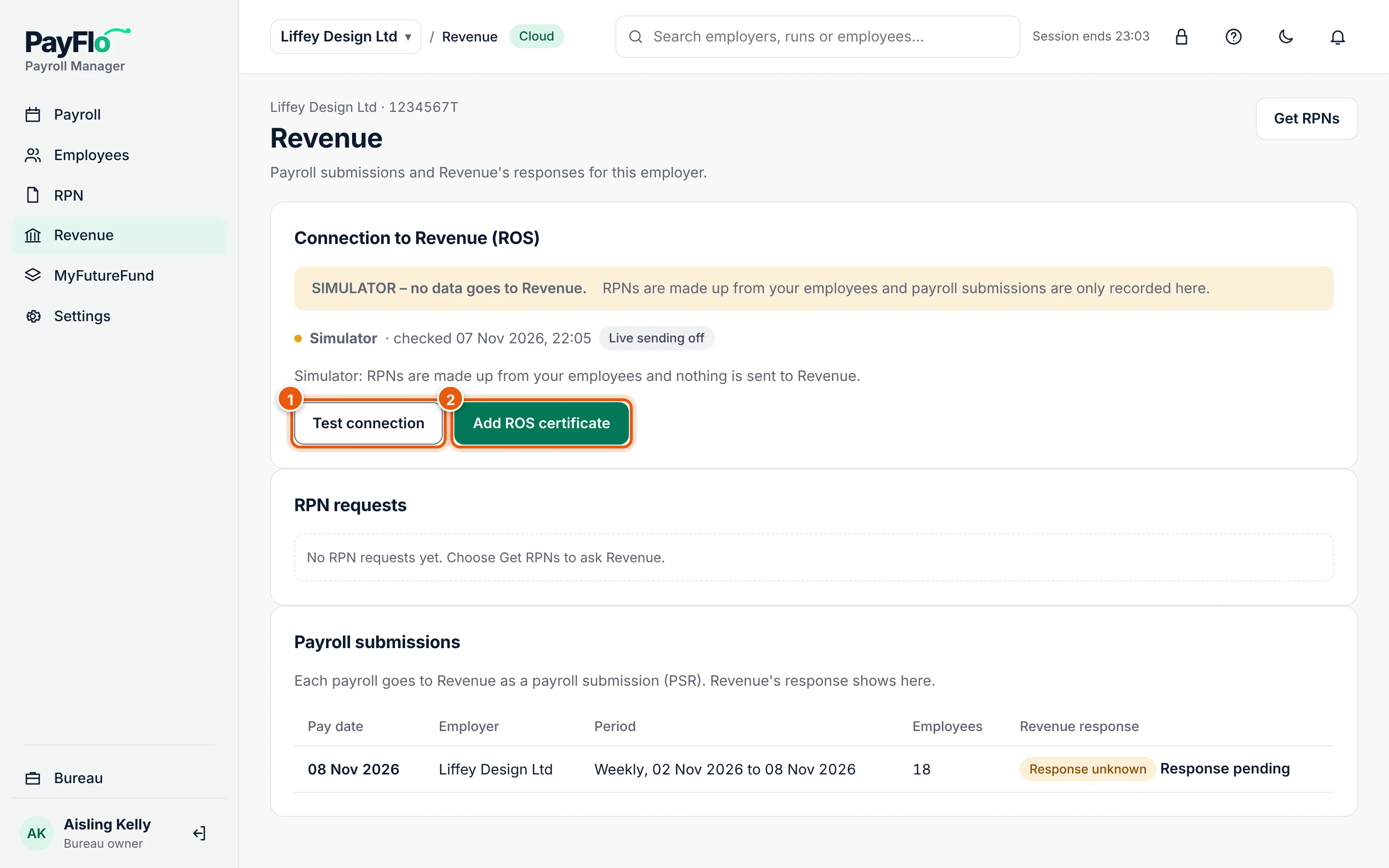
Connect to Revenue (ROS certificate)
Your bureau connects once, with the ROS certificate of the bureau (as an agent) or of the employer. Only the bureau owner and administrators can do this.
- Open any client and choose Revenue.
- Under Connection to Revenue (ROS), choose Add ROS certificate (2).
- Choose the certificate file under ROS certificate (.p12). In ROS it is the
.p12file in your ROS certificate folder. - Enter the Certificate password: the password you set when you downloaded the certificate from ROS.
- Choose Save certificate, and confirm it's you with your password or passkey.
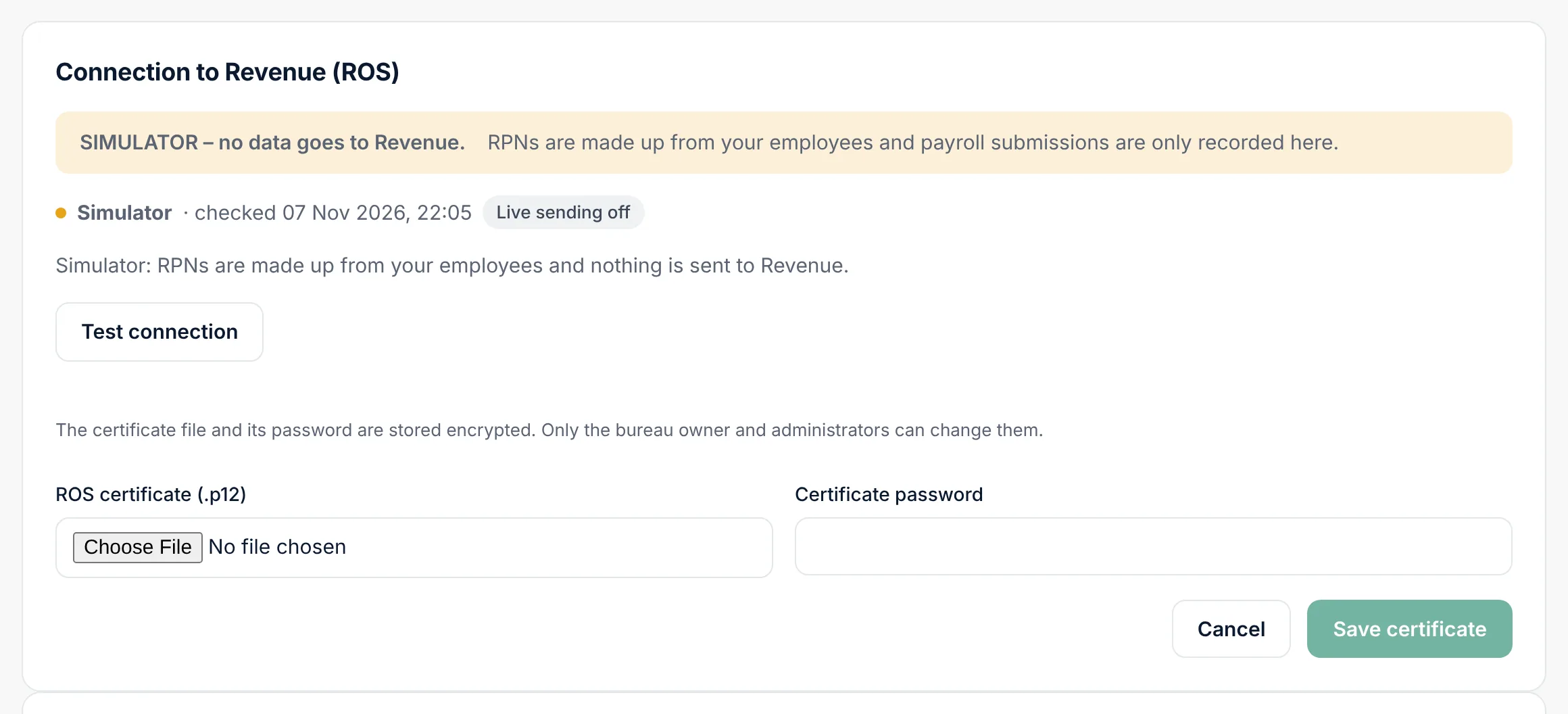
The certificate file and its password are stored encrypted. The page then shows the certificate, when it is valid until and when it was added.
- Test connection (1) checks the connection now and shows when it was last checked.
- Replace certificate when you renew it in ROS. Remove certificate disconnects Payroll Manager from Revenue.
| Connection status | Meaning |
|---|---|
| Simulator | No certificate; nothing goes to Revenue |
| Connected (Revenue test environment) | Certificate works against Revenue's test service |
| Certificate expired | Renew it in ROS and choose Replace certificate |
| Connection problem | Choose Test connection; if it stays, check the certificate |
Get RPNs
Get RPNs at the top of the page opens the client's RPN page. Each request is listed under RPN requests with when, the result and the status (Ready to check, Applied, Failed).
Prepare the payroll submission (PSR)
After the payroll is approved:
- Open the payroll run.
- Under Bank file and Revenue, choose Prepare PSR.
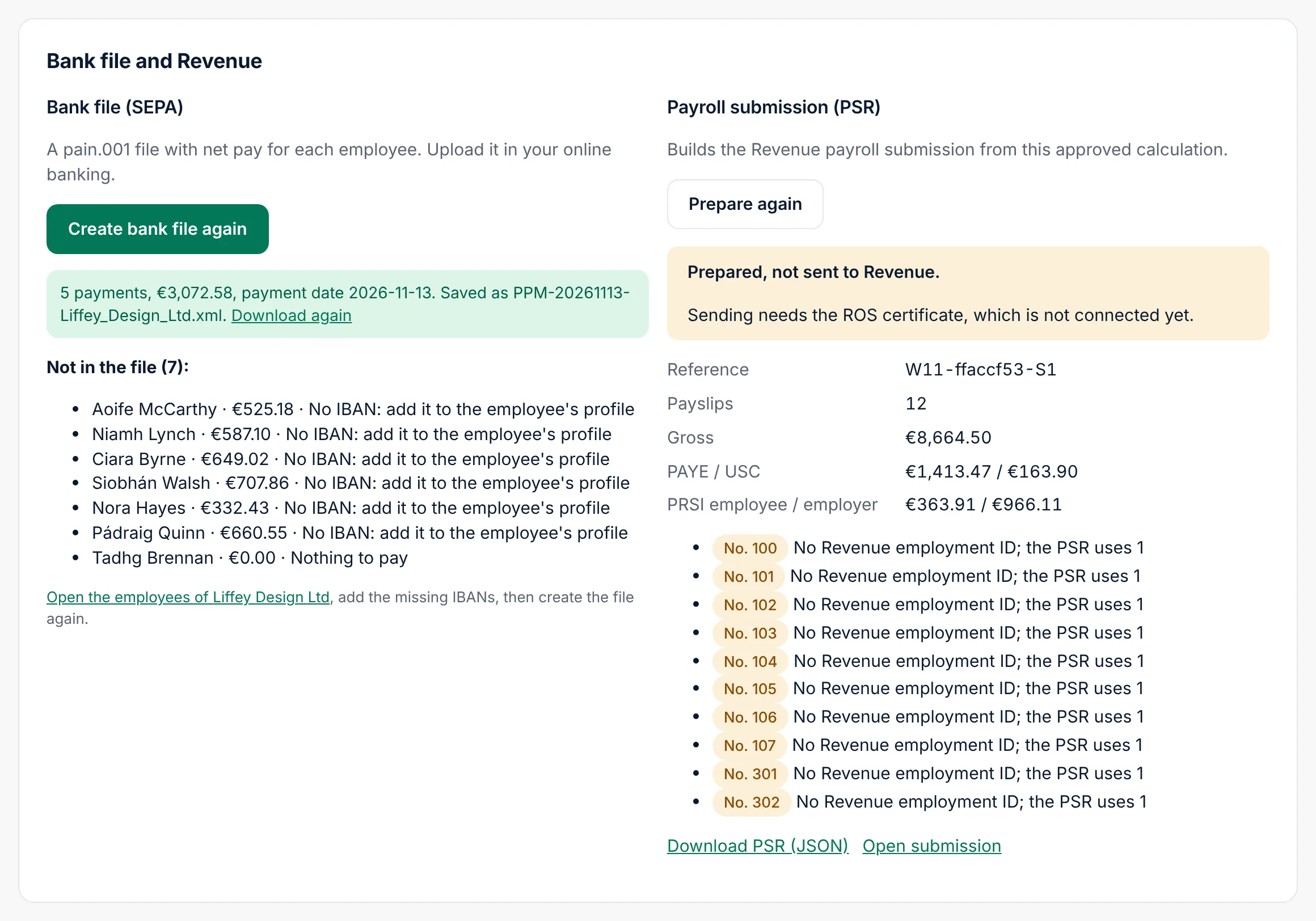
Cloud builds the submission from the approved calculation and shows its Reference, the number of Payslips, Gross, PAYE / USC and PRSI employee / employer. Warnings are listed under it, for example "No Revenue employment ID; the PSR uses 1": add the employment ID from the RPN to the employee to avoid it.
- Download PSR (JSON) saves the submission file.
- Open submission shows the submission and its history.
- Prepare again rebuilds it, for example after a fix.
Payroll submissions and Revenue's response
The client's Revenue page lists every payroll submission with the pay date, period, number of employees and Revenue response:
| Response | Meaning |
|---|---|
| Not sent | Prepared but not sent |
| Sending | On its way |
| Response unknown | Sent, but no answer from Revenue yet. This is not a rejection: do not send it again before you know |
| Accepted | Revenue accepted the submission |
| Partially accepted | Some payslips were accepted, some not; open the submission |
| Rejected | Revenue rejected it; open the submission for the reasons |
When the response is unknown
Open the submission. It works like a case: who is looking after it (Case owner), when the next update is due (Next update), a timeline of everything that happened (Submission activity), the Evidence (request summary, connection log, validation report) and what happens next.
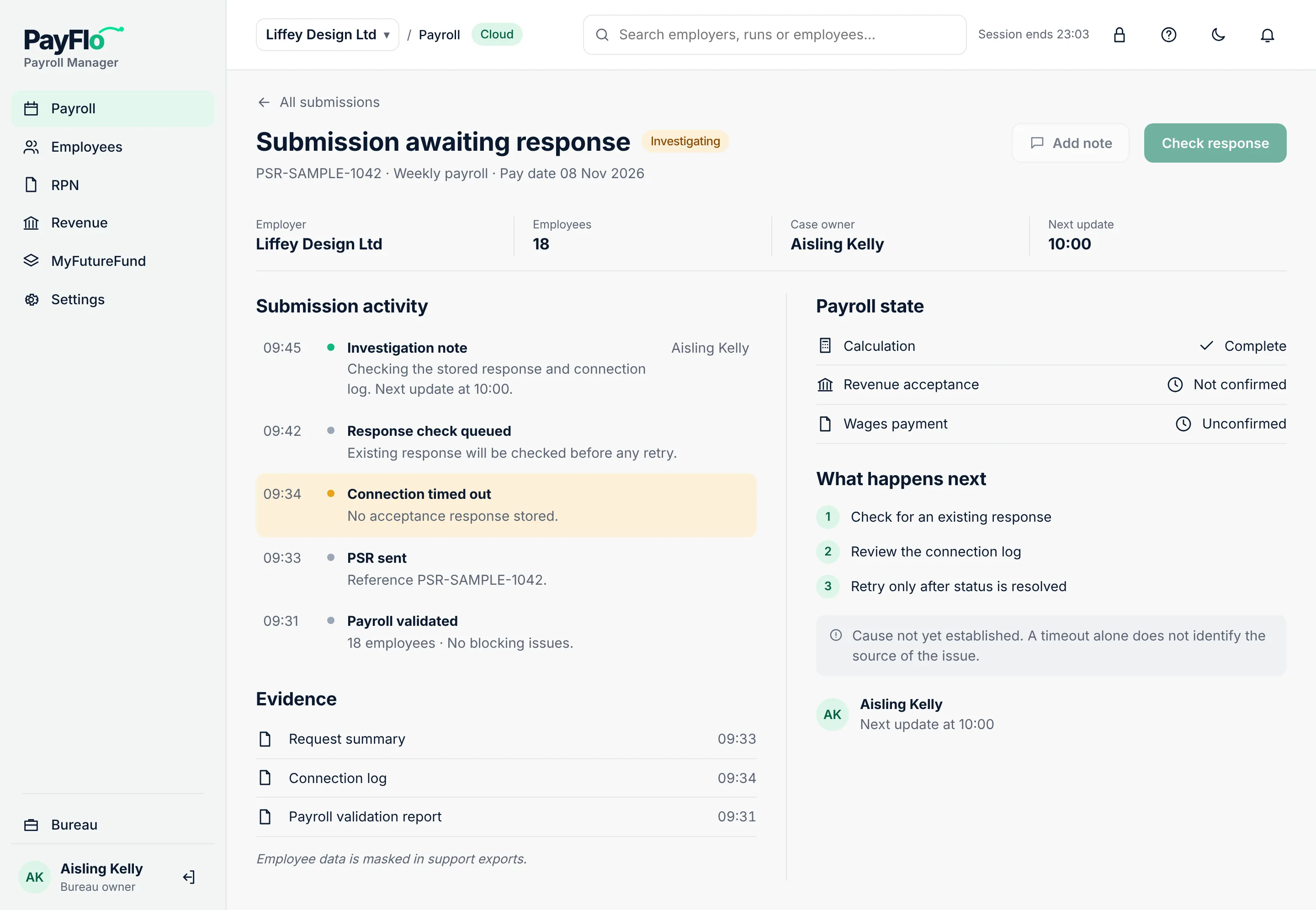
Payroll state keeps three things apart: whether the calculation is complete, whether Revenue confirmed acceptance, and whether the wages were paid. A timeout does not mean Revenue rejected the submission, and retrying too early can report the payroll twice, so the next step is always to check for an existing response first.
Related
- RPNs from Revenue
- Review and approval
- Glossary: PSR, RPN, ROS