

Bureau overview
The Bureau menu shows all your clients together. Use it at the start of the day to see which payrolls are due, which are stuck, and what your team changed.
To open it, choose Bureau in the employer switcher at the top of the menu, or Back to … at the bottom of the menu takes you back to the client you were working on. See Find your way around.
Overview
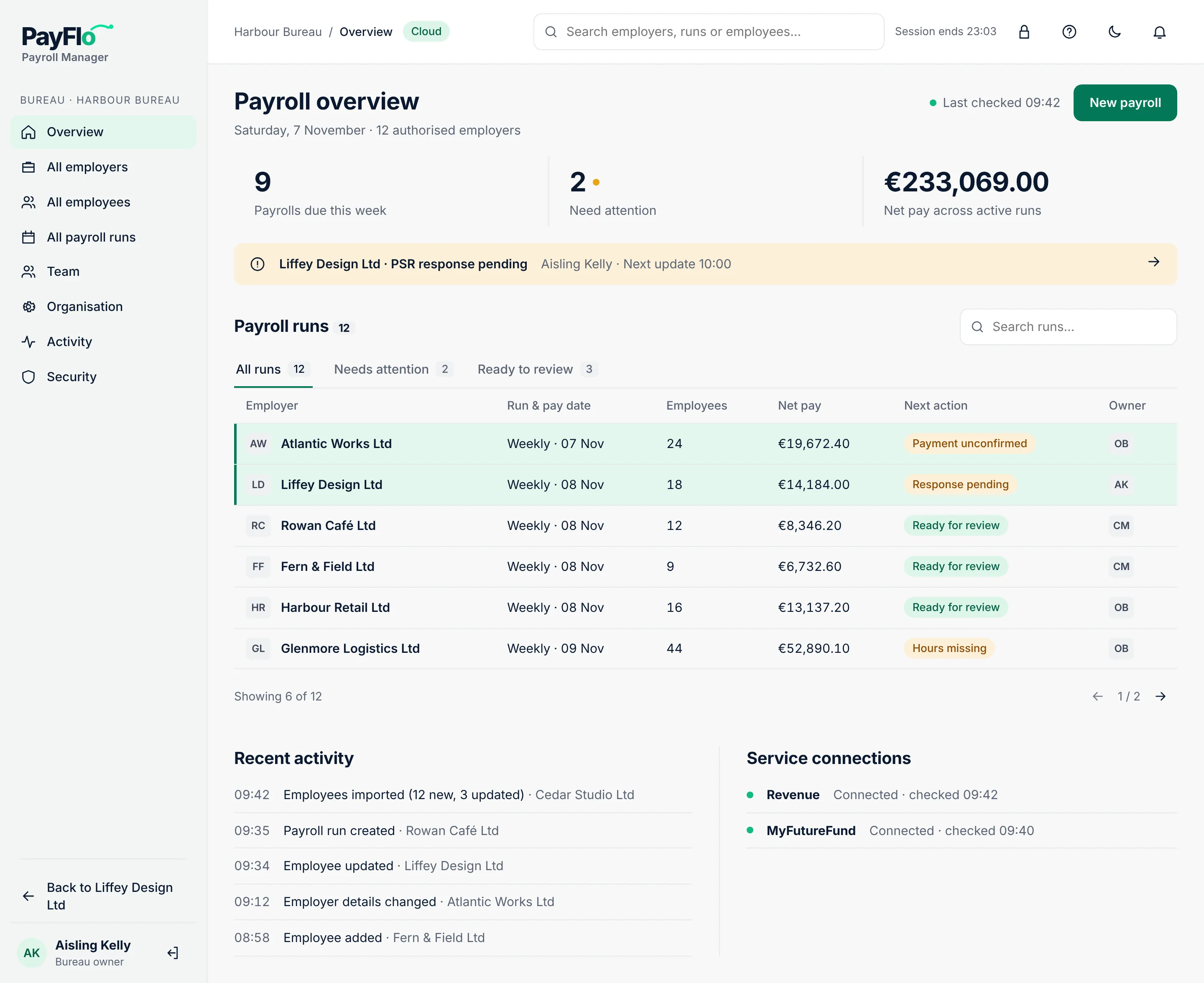
From the top:
- Payrolls due this week, Need attention and Net pay across active runs for all the clients you can work on.
- A yellow alert when something waits on someone else, for example PSR response pending while Revenue has not answered a submission yet. Choose the arrow to open that run.
- Payroll runs: every active run, with tabs for All runs, Needs attention and Ready to review. Choose a row to open the run.
- Recent activity: the latest changes by your team.
- Service connections: whether Revenue and MyFutureFund answered the last check, and when.
New payroll starts a payroll for any client.
What the Next action column means
| Next action | What to do |
|---|---|
| Data in draft | Hours and other inputs are still being entered. See Run a payroll. |
| Hours missing | The client hasn't sent hours for some people. See Hours and timesheets. |
| RPN review | New tax credits from Revenue wait for you. See RPNs from Revenue. |
| Ready for review | Calculated; a reviewer at the bureau checks it. See Review and approval. |
| Awaiting approval | The client still has to approve. |
| Ready for Revenue | Approved; the payroll submission can be sent. See Revenue. |
| Response pending | Sent to Revenue; waiting for the answer. |
| Payslips to publish | Payslips are ready to give to employees. See Payslips and journal. |
| Payment unconfirmed | The bank file was made, but nobody has marked the wages as paid. See Bank file (SEPA). |
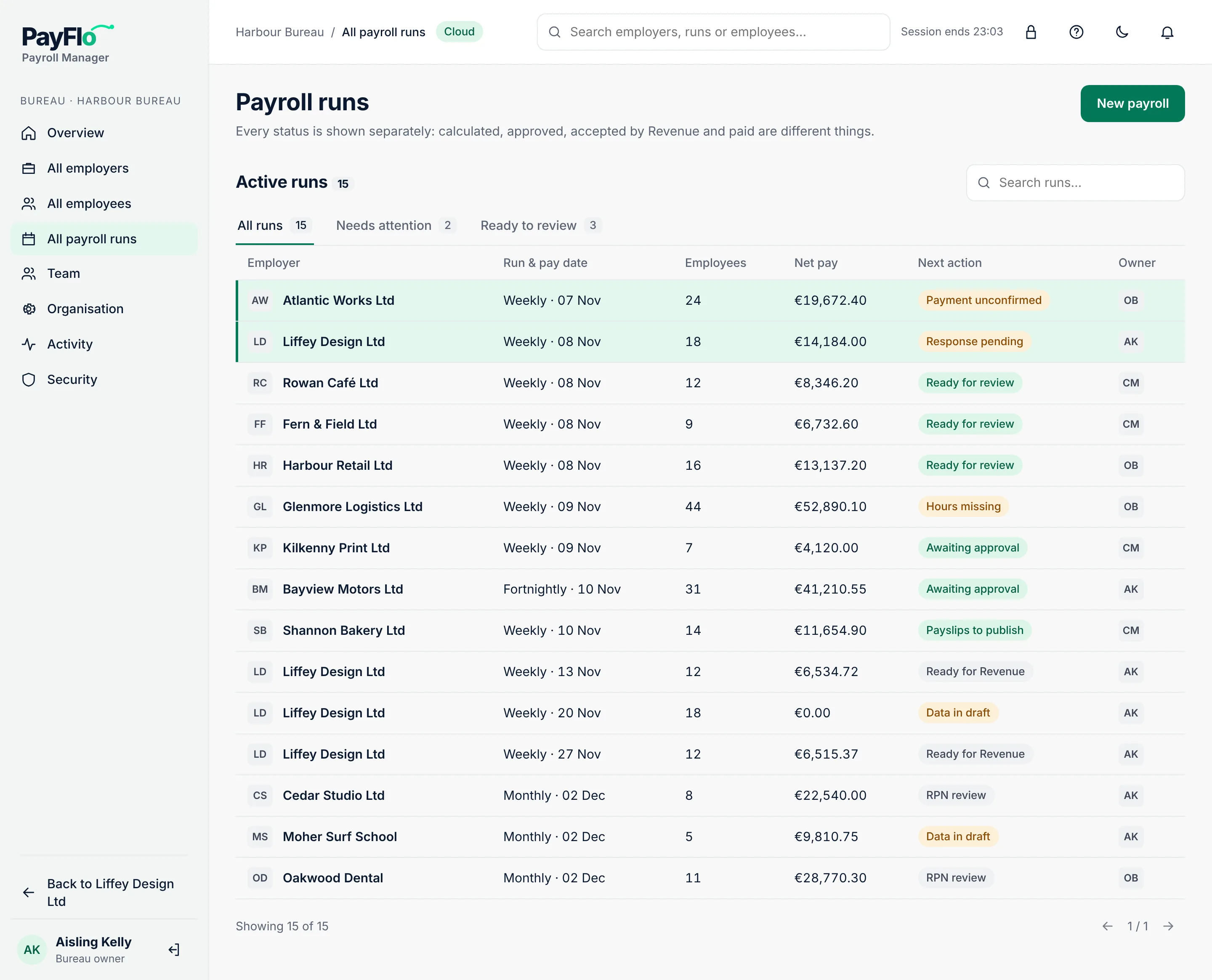
The Owner column shows the initials of the colleague looking after the run.
All employers
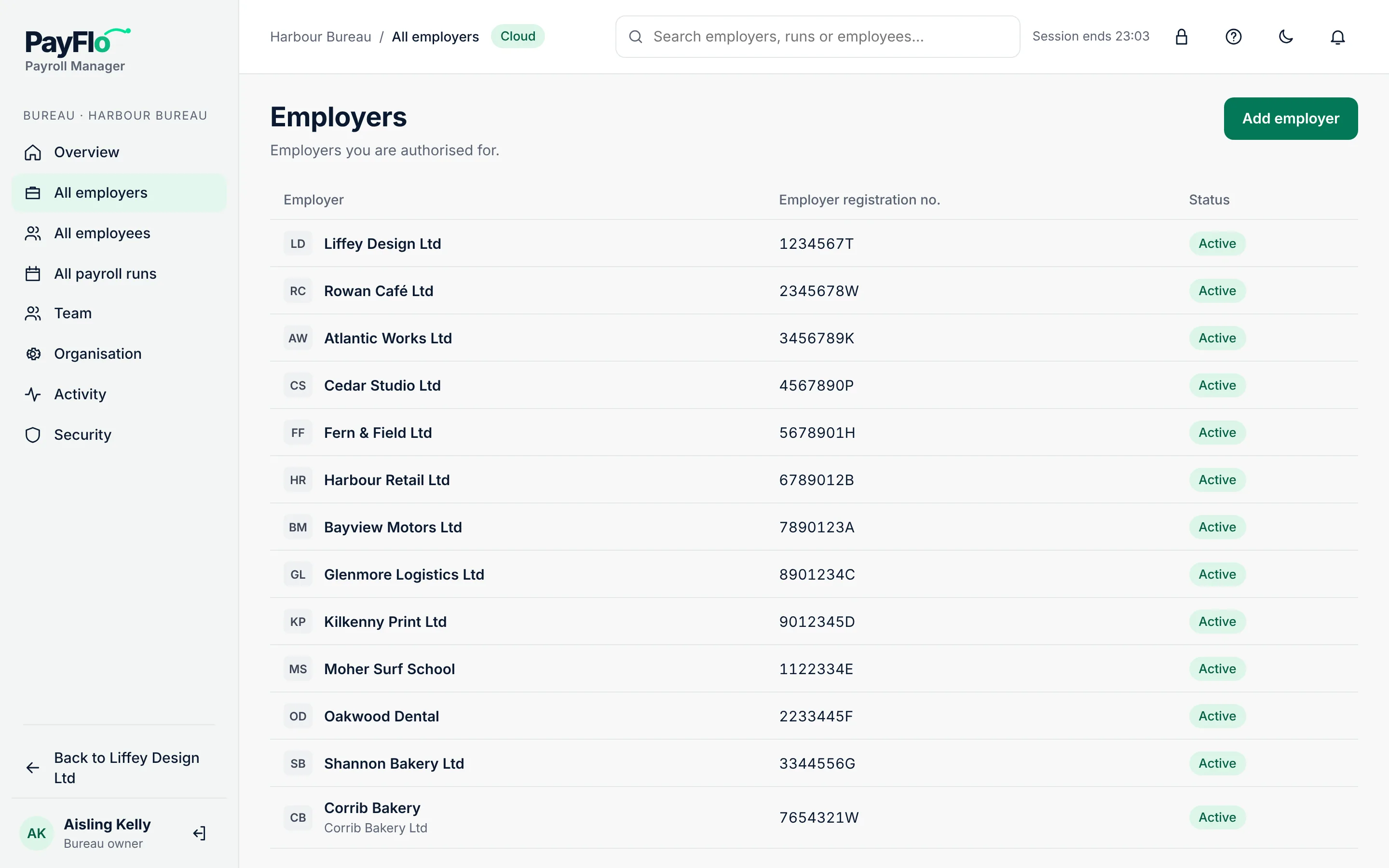
All employers lists every client you can work on, with the employer registration number and the status (Active or Archived). A yellow timesheet question next to a name means AI was unsure about something on a timesheet photo; see Hours and timesheets. Choose a client to open it. Add employer starts the wizard in Add a client.
All employees
All employees is one list of the people of every client: Name, No., Employer, PPSN, Bank account, Frequency and Status. Search by name, payroll number, department or full PPSN, then choose the name to open the person. To add someone, pick the client in Add an employee to. See Employees.
All payroll runs
All payroll runs shows every active run, not only this week's. Each status is shown on its own: calculated, approved, accepted by Revenue and paid are different steps.
Activity
Activity is the log of who changed what and when: When, What and Employer. For example Employer added, Employee changed, Employees imported, Payroll run created.
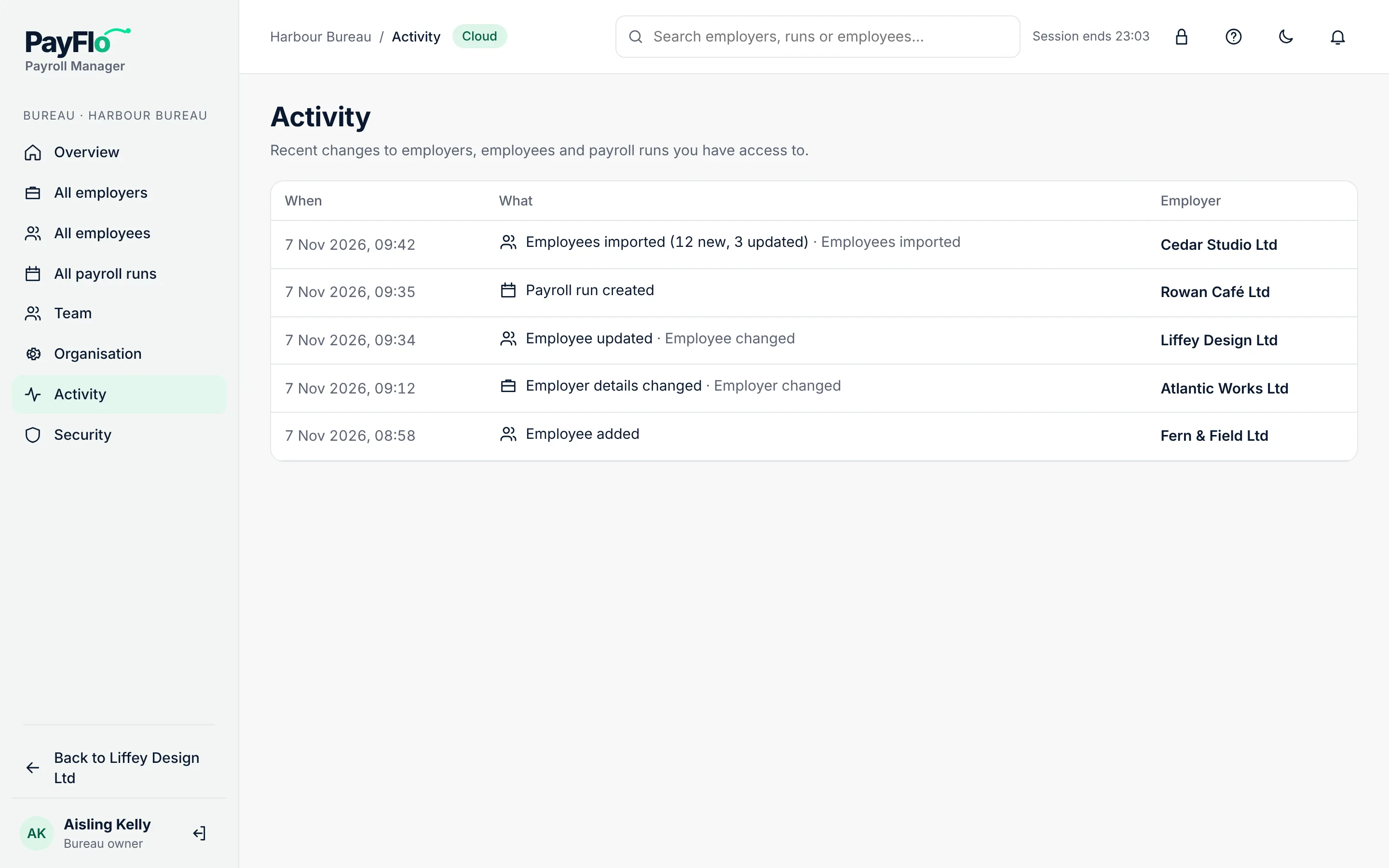
Nobody can edit or delete an entry. Approvals are recorded on the payroll run itself, with who approved and when; see Review and approval.