

Employees
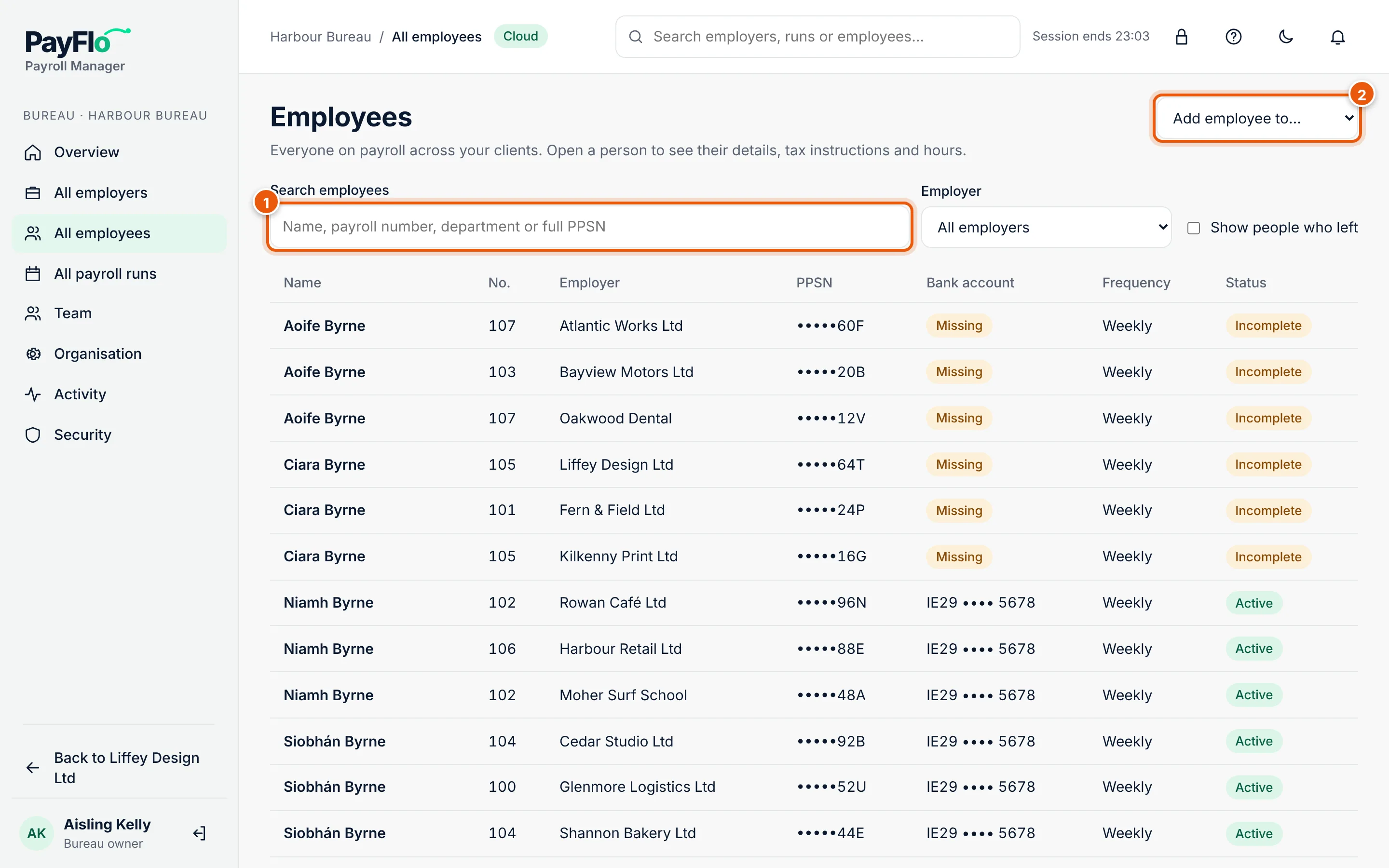
Open a client with the employer switcher and choose Employees in the menu. The list shows each person's payroll number, department, PPSN (partly hidden), bank account, pay frequency, gross pay per period and status.
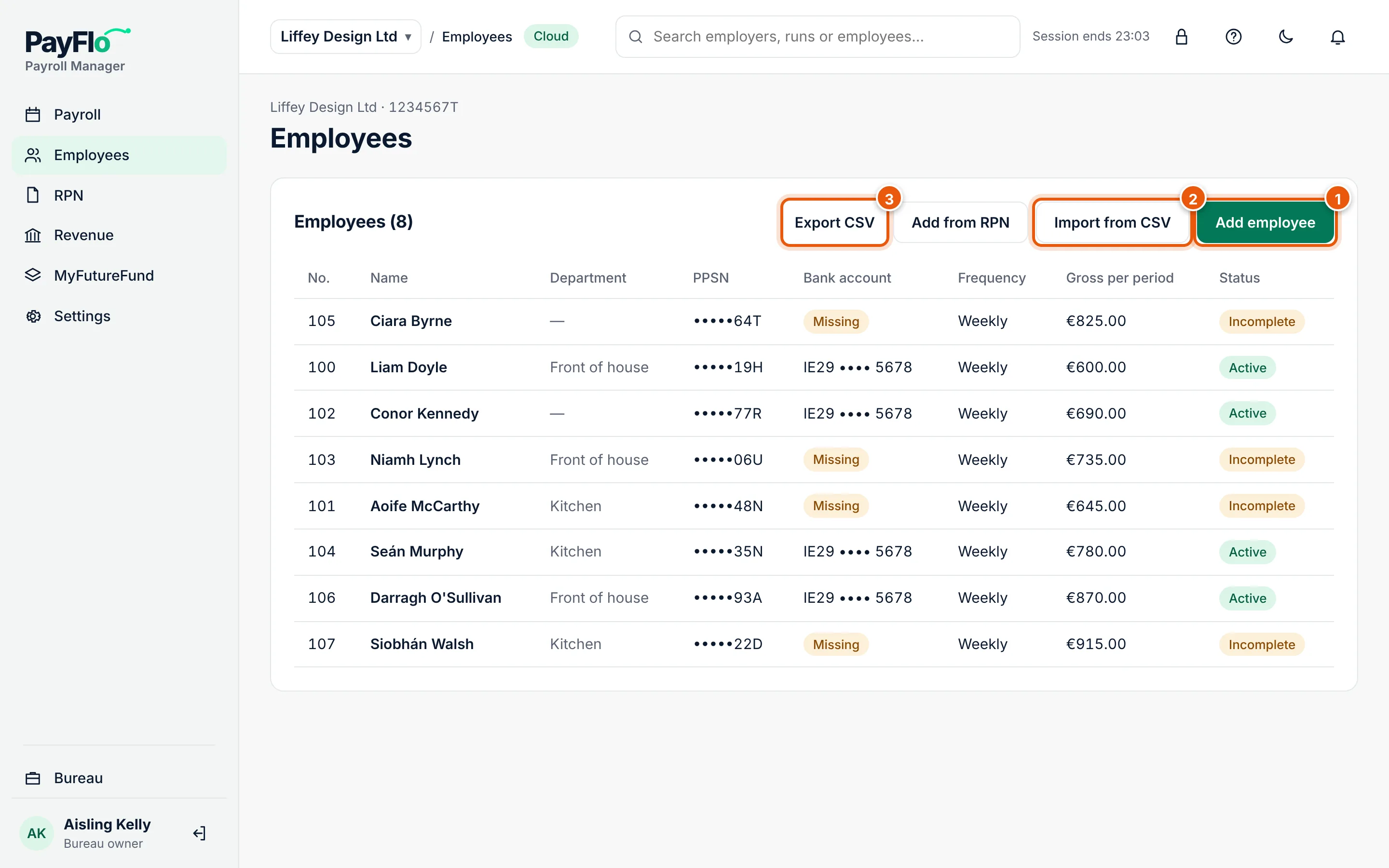
- Add employee: one person by hand.
- Import from CSV: many people at once from your previous payroll software. See Import employees from a CSV file.
- Export CSV: the whole list as a CSV file in the import layout.
Add from RPN brings in new starters from Revenue. For most clients this is the quickest way; see RPNs from Revenue.
Statuses
| Status | Meaning |
|---|---|
| Active | Ready to be paid |
| Incomplete | Something needed for payroll is missing, usually the IBAN or the pay. The person is left out of payroll until it is filled in. |
| Left | Has left the company; no longer paid |
A yellow Missing in the bank account column means there is no IBAN yet.
Open an employee
Choose a name. The employee's page has three tabs, the same as in Payroll Manager Desktop (1):
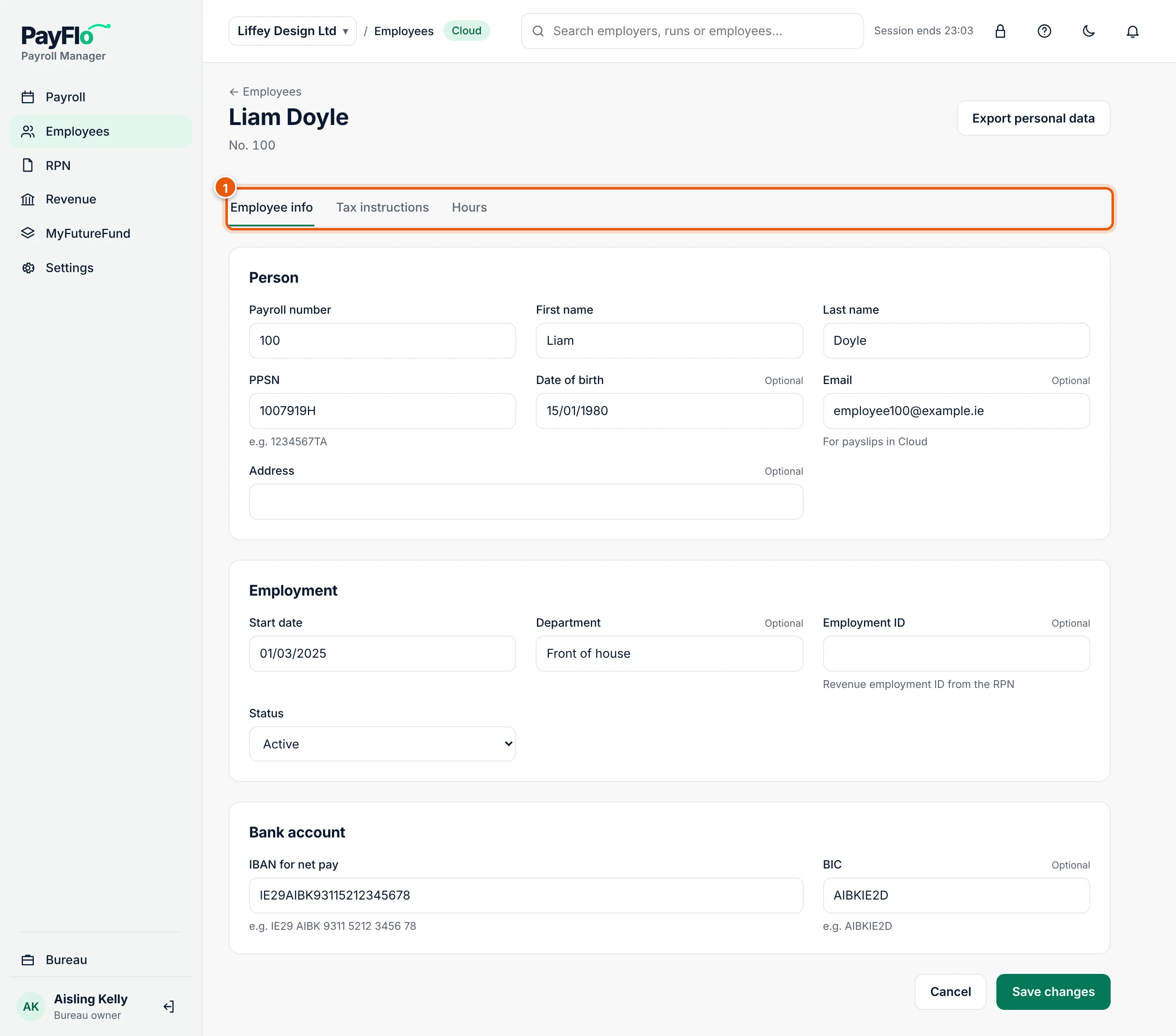
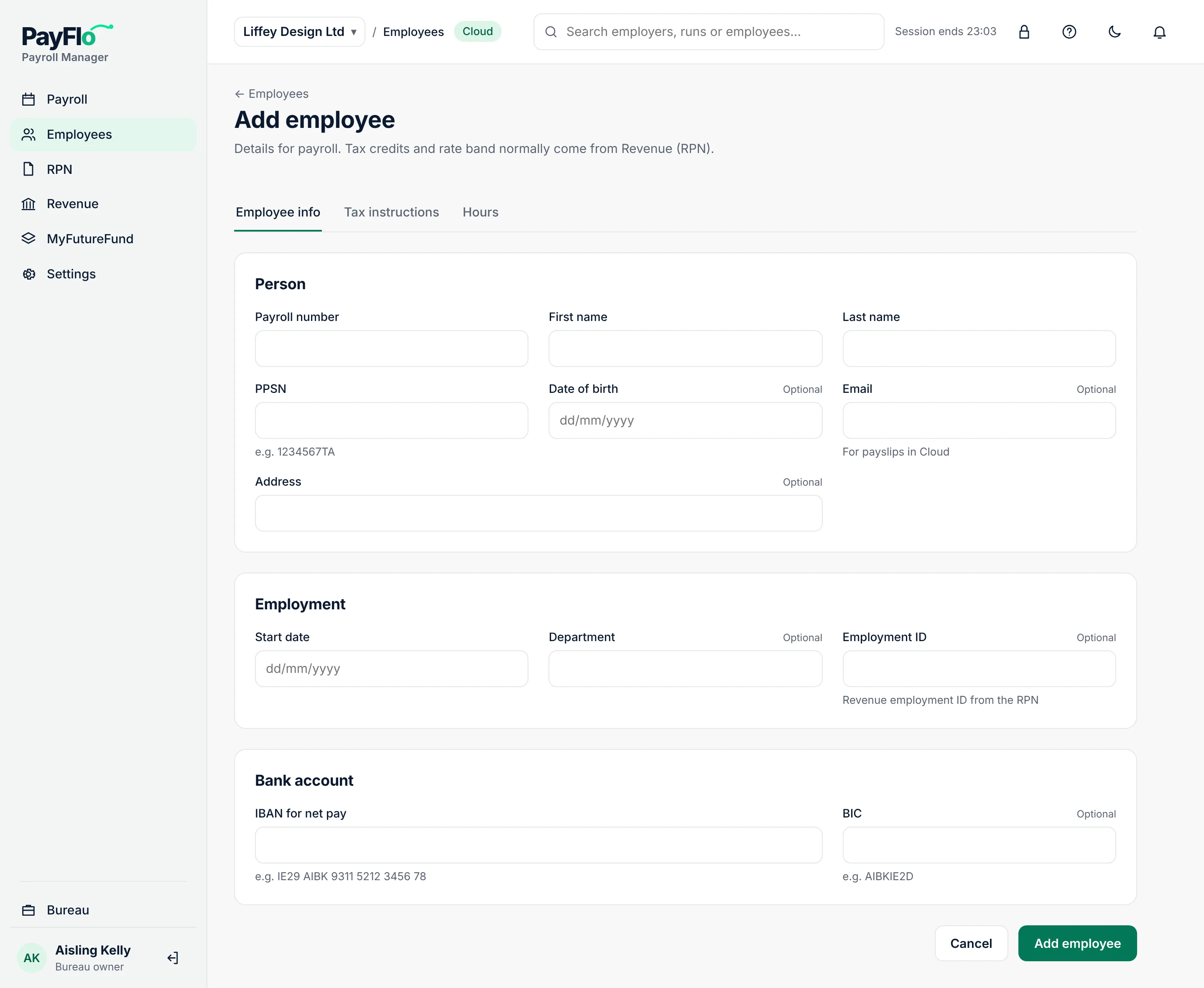
- Employee info: the person, the employment and the bank account.
- Tax instructions: pay and tax, year-to-date figures and annual leave.
- Hours: the working week and the hours for each pay period.
If something is missing for payroll, a yellow Incomplete banner at the top says what to fill in.
Employee info
| Field | Notes |
|---|---|
| Payroll number | Your number for the person; must be unique for the client |
| First name, Last name | As on the RPN |
| PPSN | Personal Public Service Number, for example 1234567TA |
| Date of birth | Optional, dd/mm/yyyy |
| Optional. For payslips in Cloud | |
| Address | Optional |
| Start date | dd/mm/yyyy |
| Department | Optional, for your own grouping |
| Employment ID | Optional. The Revenue employment ID from the RPN; needed when someone has two employments with the client |
| Status | Active or Left the company |
| IBAN for net pay, BIC | The account the wages go to. For an Irish IBAN the BIC is optional |
Tax instructions
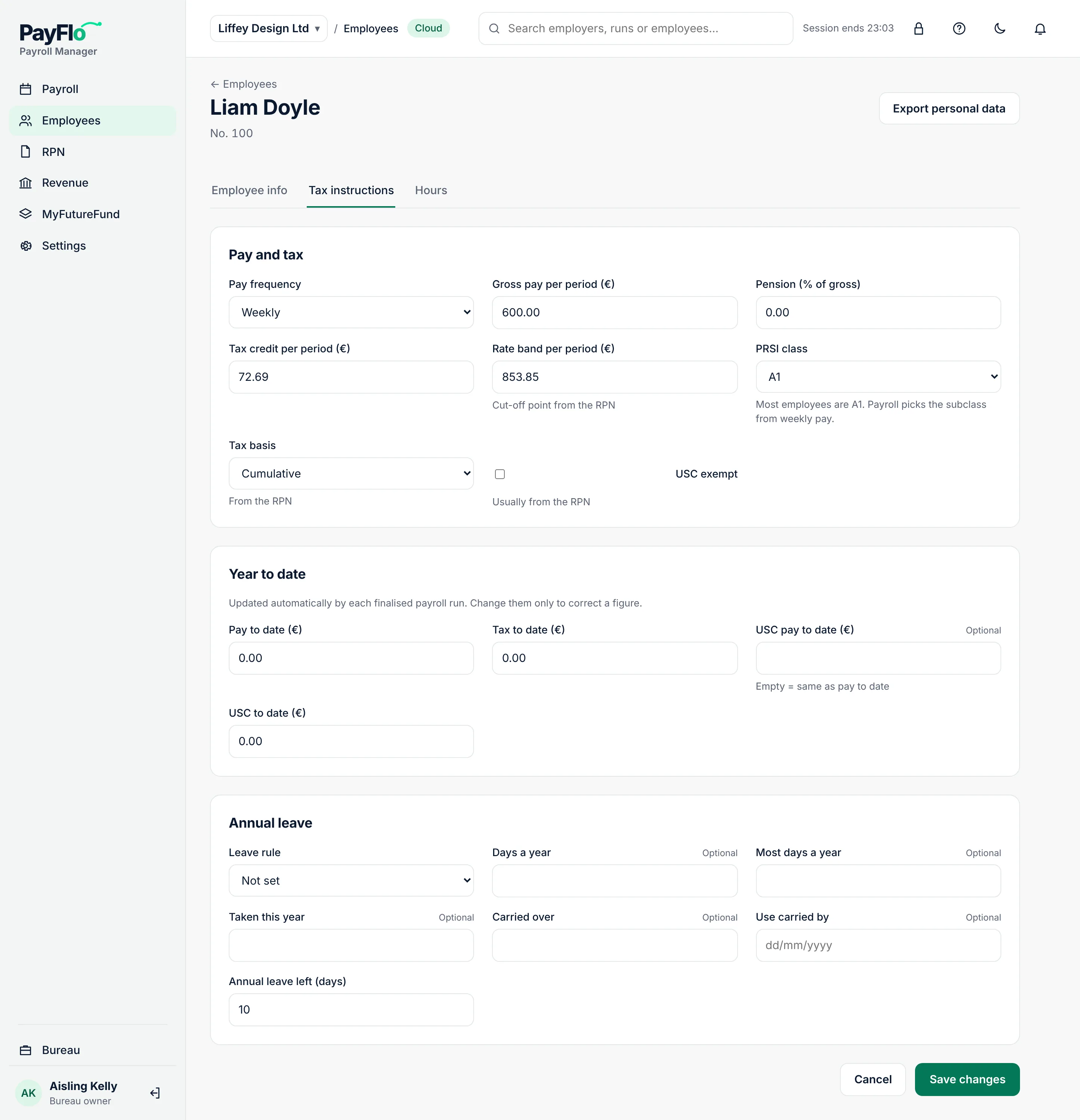
| Field | Notes |
|---|---|
| Pay frequency | Weekly, Fortnightly, Four-weekly or Monthly |
| Gross pay per period (€) | The usual pay. Hours, overtime and bonuses for a period are added in the payroll run |
| Pension (% of gross) | Employee pension contribution |
| Tax credit per period (€) | From the RPN, shown per pay period |
| Rate band per period (€) | The cut-off point from the RPN, per pay period |
| PRSI class | Most employees are A1. Payroll picks the subclass from weekly pay |
| Tax basis | Cumulative, Week 1 (non-cumulative) or Emergency, from the RPN |
| USC exempt | Usually from the RPN |
| Year to date | Pay, tax and USC pay so far this tax year. Each finalised payroll updates them. Fill them in only for someone paid earlier this year in another payroll, or to correct a figure |
| Annual leave | Leave rule (As company policy, Statutory or Contract days), days a year, taken, carried over and Use carried by |
Hours
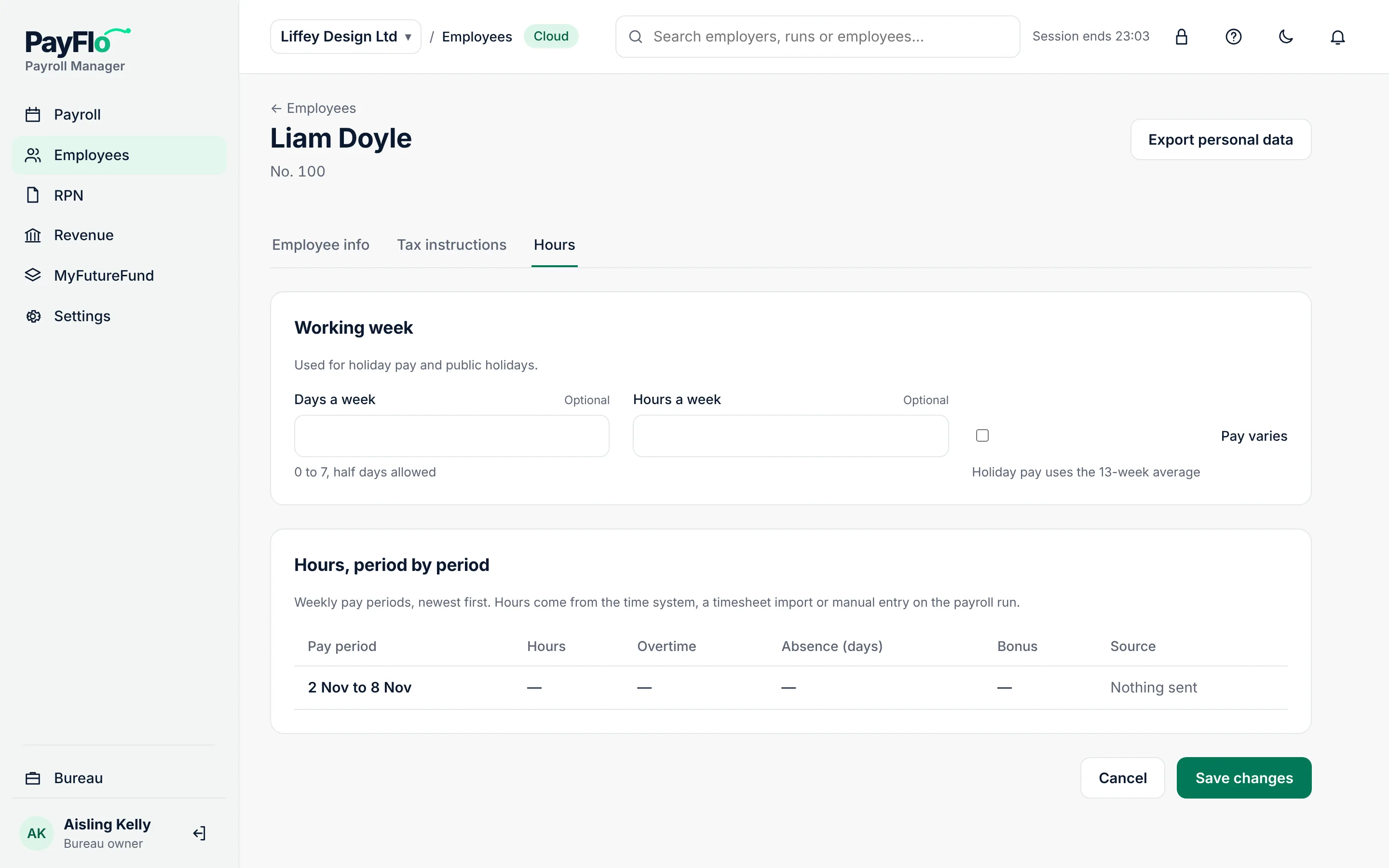
- Working week: Days a week (half days allowed) and Hours a week, used for holiday pay and public holidays. Tick Pay varies if holiday pay should use the 13-week average.
- Hours, period by period: hours, overtime, absence and bonus for each pay period, and where they came from (time system, manual, imported).
Save
Choose Save changes. If a field on another tab has an error, Cloud opens that tab and marks the field. Every change is kept in the client's history.
Add an employee by hand
- On the client's Employees page choose Add employee. (From All employees you can choose the client under Add employee to….)
- Fill in Employee info: payroll number, first and last name, PPSN, start date, IBAN.
- On Tax instructions, fill in the pay frequency, gross pay, tax credit, rate band, PRSI class and tax basis from the RPN.
- Choose Add employee.
When someone leaves
- Open the employee, on Employee info set Status to Left the company.
- Enter the Leaving date. The final pay uses it.
- Choose Save changes.
The list then shows the person as Left, and they are not paid for periods after the leaving date.
All employees across your clients
Choose Bureau, then All employees, to see everyone on payroll in every client you may work on. Search by name, payroll number, department or full PPSN (1), filter by employer, or tick Show people who left.
Export
- Export CSV on the client's Employees page downloads all employees in the import layout (payroll number, first name, last name, PPSN, …). You can change the file and import it again.
- Export personal data on an employee's page downloads everything held about that person, for a data access request under GDPR.