

Set up the Employer app for a client
The Employer app lets a client send hours and photos of paper timesheets to your bureau from a phone. Each client has exactly one employer admin, whom only your bureau chooses. The employer admin then invites their own colleagues and decides what each of them may do.
For what the client sees, see the Employer app help.
Invite the employer admin
Open the client and choose Settings.
Scroll to Employer app. Until someone is invited, Employer admin shows Not set yet and Missing.
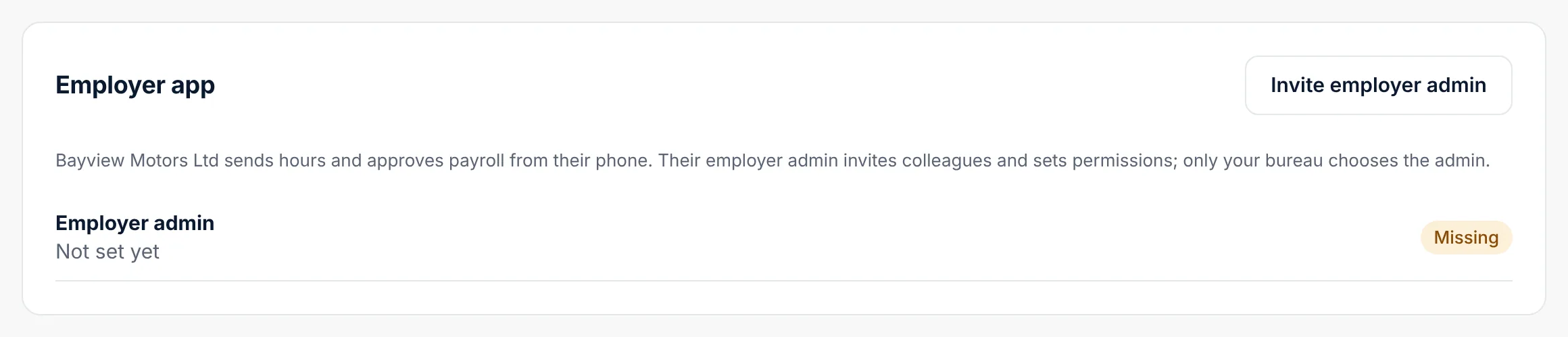
Choose Invite employer admin.
Enter the person's Name and Email. Make them the employer admin is ticked.
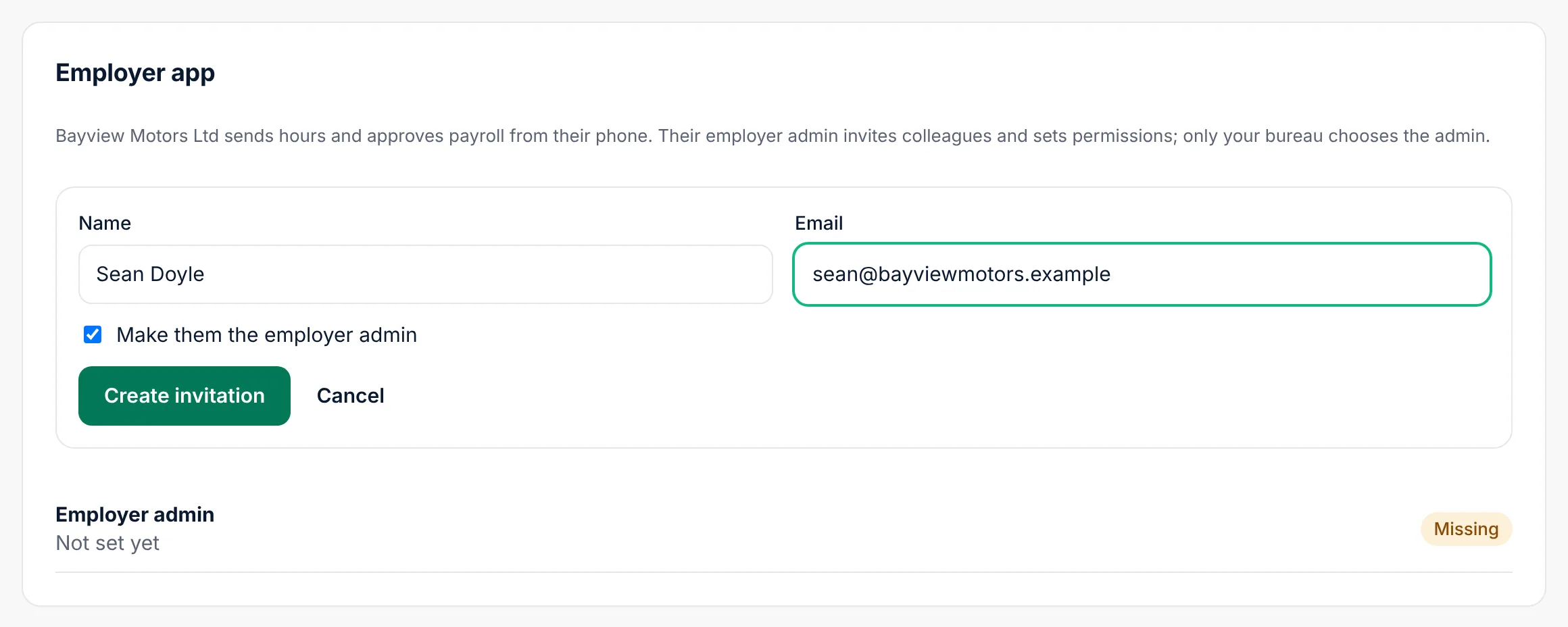
Choose Create invitation.
Cloud emails the invitation and shows the invitation code and the link. The code works once, for 4 hours.
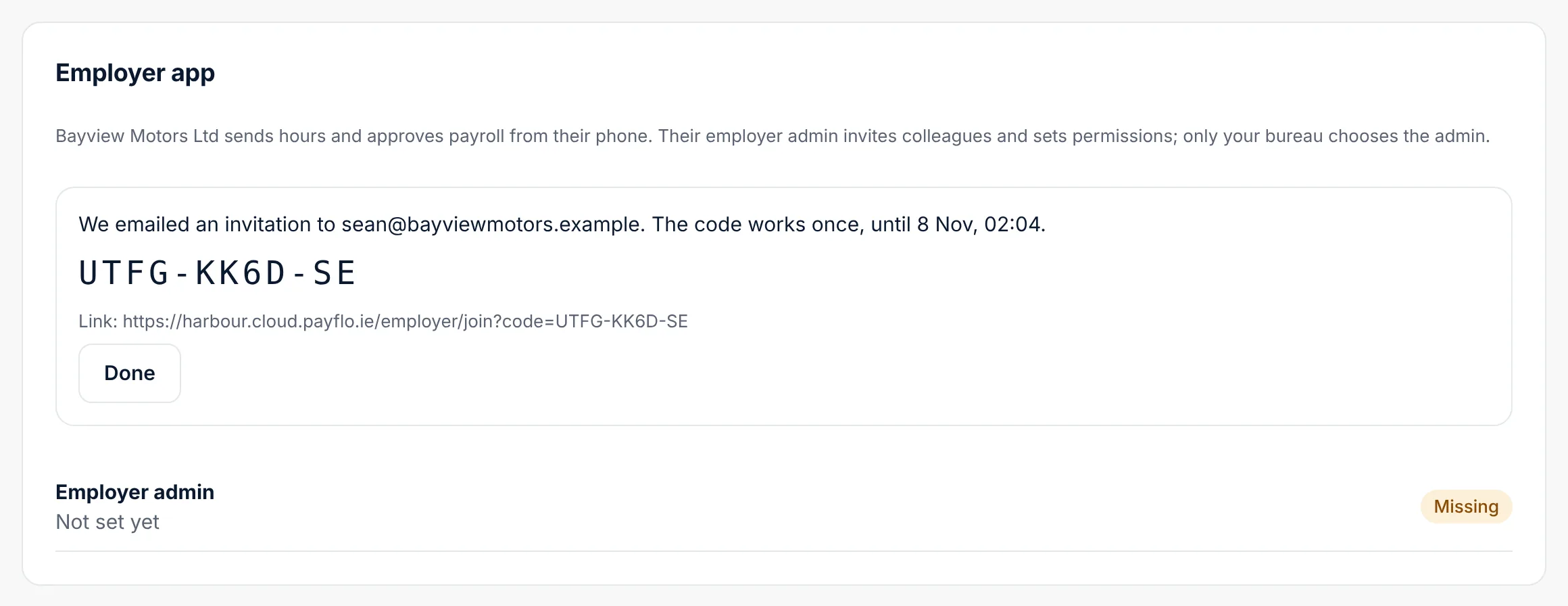
If the email did not go out, Cloud says "Give this to …": pass the code or the link to the person yourself. Choose Done.
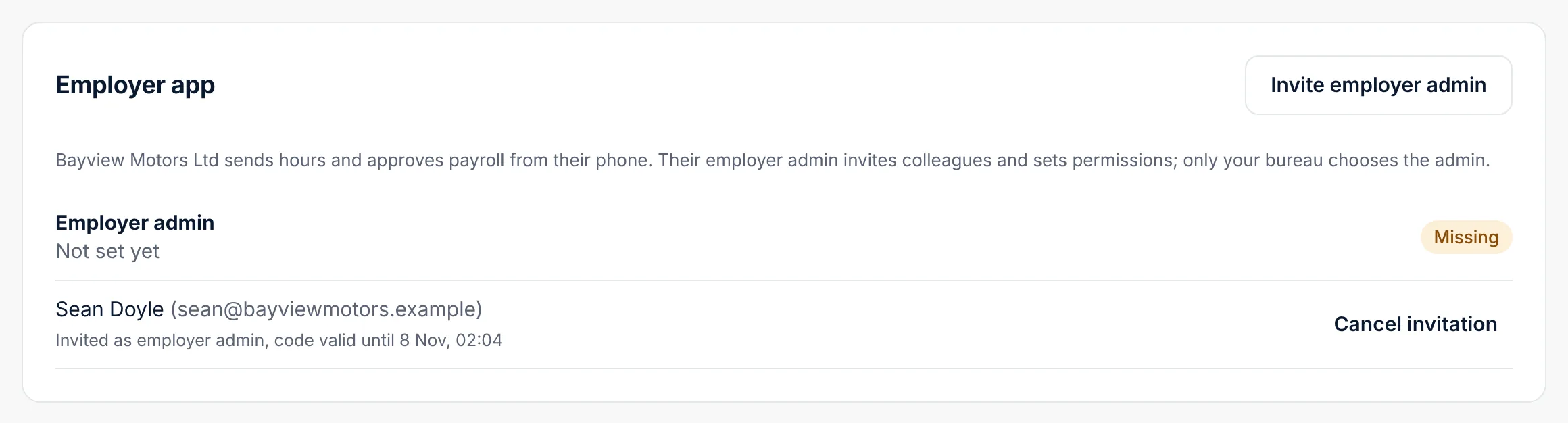
The invitation stays on the list until it is used. Cancel invitation withdraws it.
What the client does next
- The employer admin opens the link (or goes to your address,
…/employer/, and enters the code). - They choose a password and, if they want, a PIN for quick unlocking on their phone.
- They can now send hours, take photos of timesheets and invite colleagues. See Join with an invitation.
Change or remove users
The Employer app section lists everyone who uses the app for this client and what they may do (Submit hours, Approve payroll, View hours, Export data).
- Make admin moves the employer admin role to another user. There is always only one employer admin.
- Remove takes someone out of the Employer app for this client.
Timesheet questions from the client
When the client cannot match a name on a timesheet to an employee (a new starter, or handwriting nobody can read), they flag it for you. Flags appear on your Overview, in All employers and at the top of the client's Payroll page as Timesheet questions. See Hours and timesheets.