

Find your way around Cloud
Cloud works like Payroll Manager Desktop: you choose one employer (client) at a time, and the menu on the left is about that employer. Your bureau's own pages are one click away under Bureau.
The screen
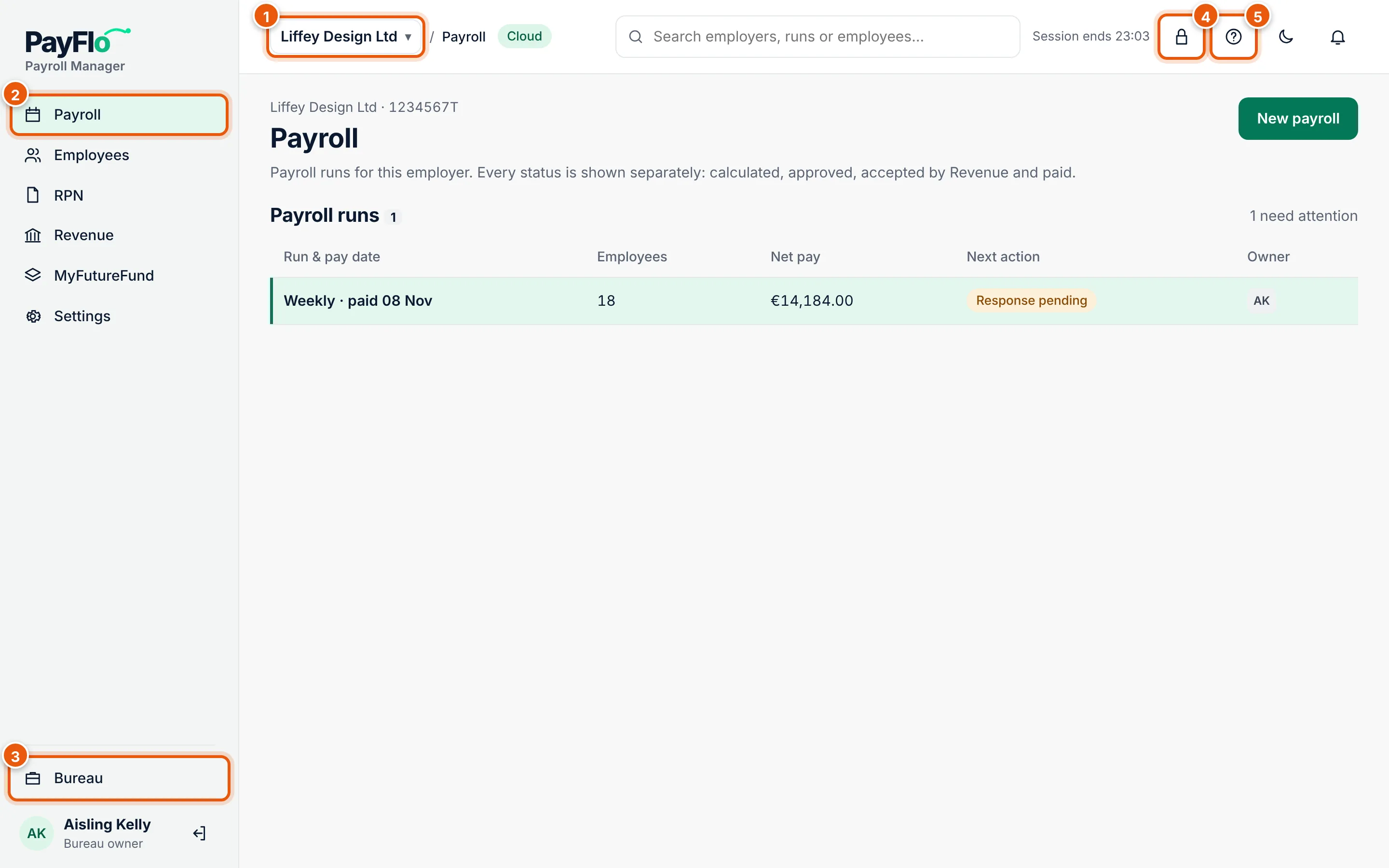
- The employer switcher in the top bar shows which client you are working on. Choose it to switch to another client.
- The employer menu: everything about the chosen client.
- Payroll: the client's payroll runs and New payroll. This is where Cloud opens.
- Employees: the client's employees, adding and importing them.
- RPN: tax credits and new starters from Revenue.
- Revenue: the connection to ROS, RPN requests and payroll submissions.
- MyFutureFund: auto-enrolment pensions.
- Settings: company details, bank account, client approval, the Employer app and the change history.
- Bureau switches the menu to your bureau's pages. See The Bureau menu.
- Lock now covers the screen at once, for example when you leave your desk. See Sign in and security.
- Help opens the help for the page you are on, in a new tab.
Next to them, Session ends shows when you have to sign in again (60 minutes after signing in), the moon switches between light and dark, and the bell will show notifications.
Switch to another client
- Choose the employer switcher (1 in the picture above).
- Start typing the client's name or registration number, or scroll the list.
- Choose the client. The same page opens for the new client: if you were on Employees, you see the new client's employees.
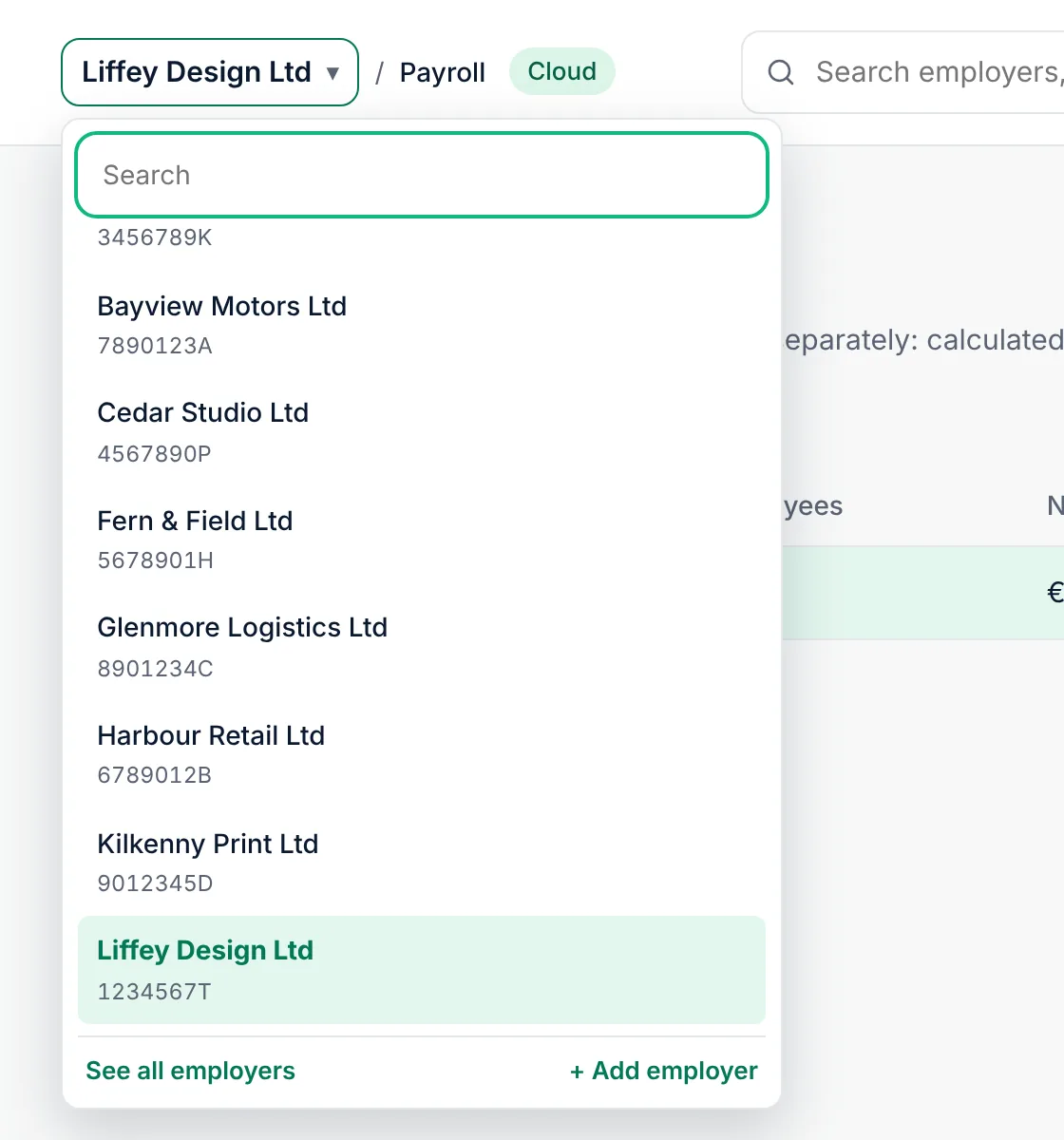
Cloud remembers the last client in this browser. When you open Cloud again, it starts on that client's Payroll page.
The Bureau menu
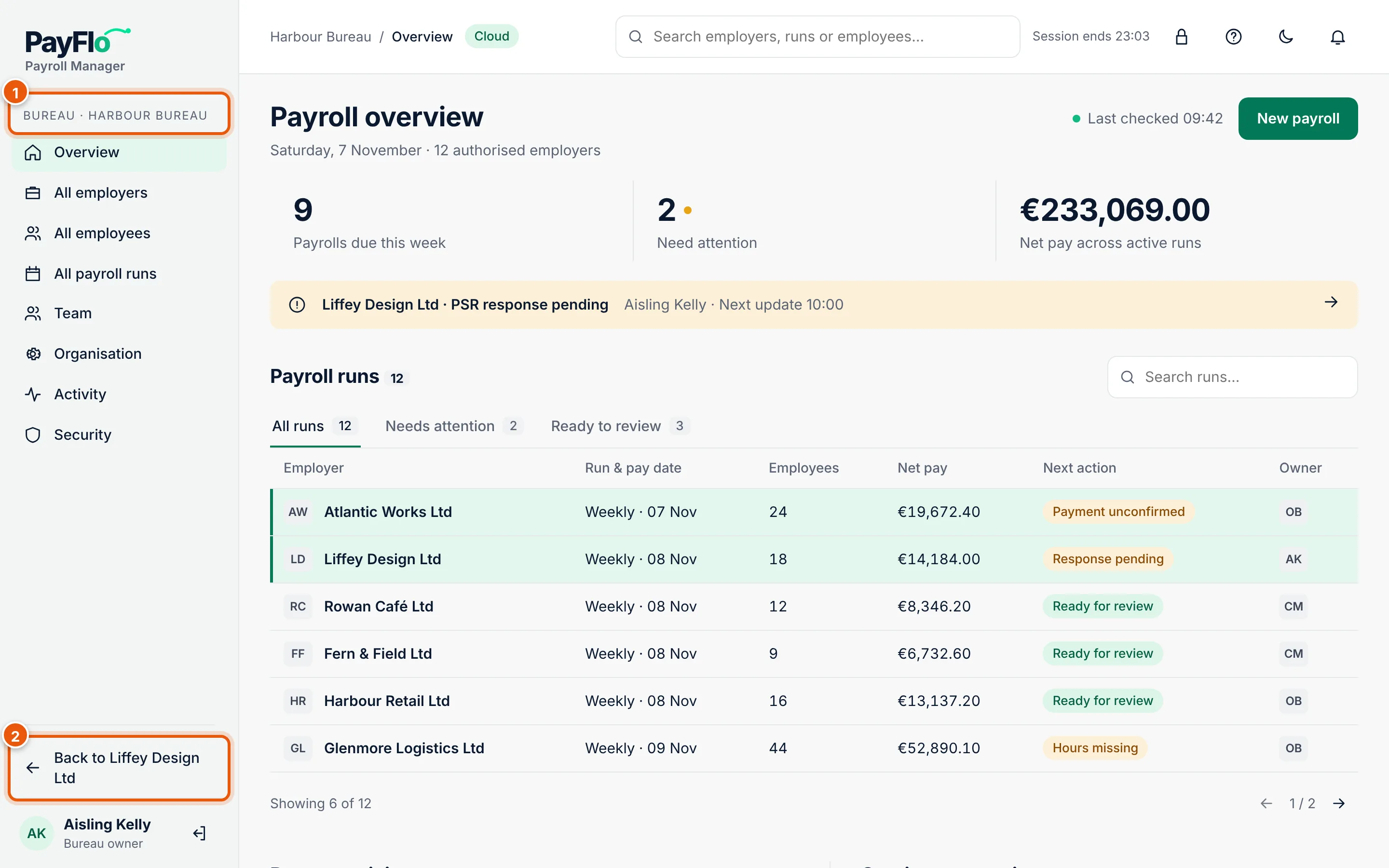
Choose Bureau at the bottom of the menu. The menu now shows your bureau's pages:
| Page | What it is for |
|---|---|
| Overview | Payrolls due this week, runs that need attention, recent activity and the state of the Revenue and MyFutureFund connections |
| All employers | Every client, with status and registration number; Add employer |
| All employees | Everyone on payroll across your clients, with search |
| All payroll runs | Every client's payroll runs in one list |
| Team | People in your bureau and what they may do |
| Organisation | Your licence, the tax rules, data export and import, API keys |
| Activity | Recent changes to employers, employees and payroll runs |
| Security | Passkeys and your password |
Back to … at the bottom (2 in the picture) takes you back to the client you were working on.
On a phone or tablet
Cloud works in a phone browser too. The menu folds away; open it with the menu button in the top-left corner. You can add Cloud to your home screen (in the browser menu, Add to Home screen or Install app); it then opens like an app.