

API keys and webhooks
An API key lets another system, such as an HR system or a time clock, talk to Payroll Manager Cloud without anyone typing. It can add and update employees and send hours, overtime, bonuses and absences for a pay period. A webhook is the other direction: Cloud tells that system when something happens, for example when a payroll is finalised.
Each key works only for your bureau and the clients you choose, and only for the permissions you tick. Only owners and administrators can manage keys.
Make a key
Choose Bureau in the employer switcher, then Organisation, and scroll to API keys.
Choose New API key.
Enter a Name that says which system uses it, for example "BrightHR".
If the system should get events, enter the Webhook address (optional). It must start with
https://.Under Employers it can update, choose All employers, including ones added later, or Only these employers and tick them.
Tick the Permissions the system needs, and no more:
Permission Lets the system Webhook events Employees Add and update employees Employee status Period inputs Send hours, overtime, bonuses and absences Period opened, Inputs accepted, Inputs rejected, Payroll finalised Accounting / payroll read Read employers, employees (without PPSN or bank details), pay runs, journals and payslips Payroll calculated, Payroll finalised Export Download employee and payroll exports 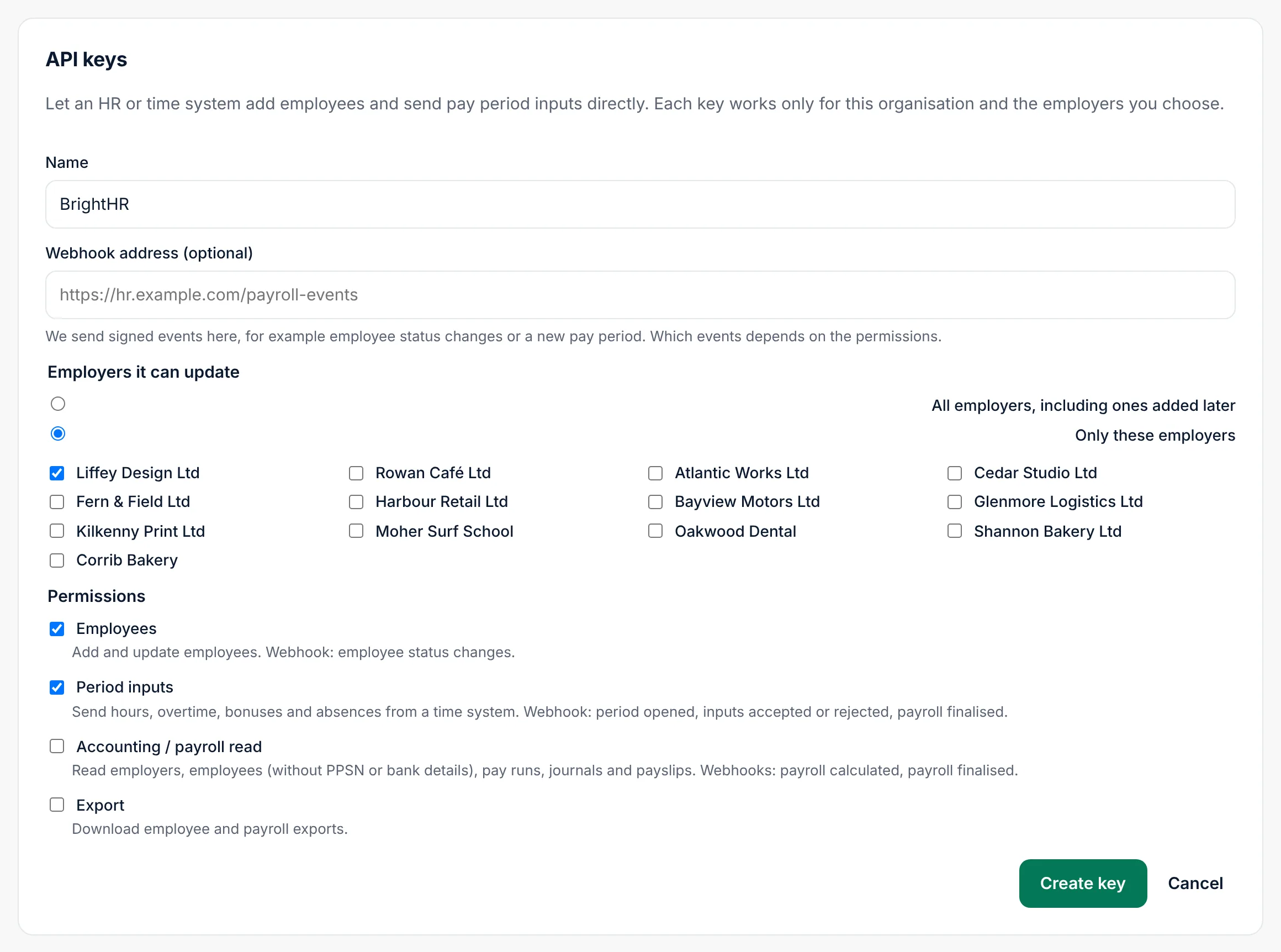
Choose Create key.
Enter your Password and choose Confirm, or choose Use a passkey.
Cloud shows the API key once. It starts with ppm_. Choose Copy, give it to the person setting up the other system, then choose I have saved it. Copy example copies a sample request that adds one employee, so they can test it straight away.
If you entered a webhook address, the Webhook secret (starting with whsec_) is shown too, also only once. The other system uses it to check that each event really comes from Payroll Manager.
The list of keys
The table shows each key's Name, the Employers it works for, its Permissions, when it was Created, when it was Last used, and whether its Webhook is On or Off.
A key that was never used shows Never under Last used. If a system says its key doesn't work, check this column and the permissions first.
Change permissions
Choose On or Off in the Webhook column to open the key. Change the ticks under Permissions, then choose Save permissions. The system needs no new key.
Webhook
In the same panel:
- Turn on (or Change address) sets the webhook address. A new Webhook secret is shown once.
- Send test sends a test event. Test queued. It is sent within about 30 seconds.
- Turn off stops sending events.
- Delivery history lists the last events: Time, Event, Result (Delivered, Waiting or Failed), Attempts and the Response from the other system.
Revoke a key
When a system is replaced, or a key may have got out:
- Choose Revoke next to the key.
- Choose Revoke now, or Keep to cancel. If Cloud asks, confirm it's you with your password.
The key stops working at once. It moves to Revoked keys, with the date, so you can see it was there.
What a system can't do
- See PPSNs or bank details through Accounting / payroll read.
- Approve or finalise a payroll, or send anything to Revenue. People do that in Cloud.
- Reach clients you didn't tick, or another bureau.
Related
- Hours and timesheets: hours from a time system appear as period inputs
- Employees
- Organisation and licence