

Hours and timesheets
Most clients still keep paper timesheets, and every client's sheet looks different. Payroll Manager gives you four ways to get hours into a payroll run, and you always see and check them before they count:
| Way | Who does it | Where |
|---|---|---|
| Scan a timesheet: a photo, read by AI | You, or the client in the Employer app | Payroll run → Timesheet photos |
| Import hours file: a spreadsheet or CSV | You, or the client in the Employer app | Payroll run → Period inputs |
| Add input by hand | You | Payroll run → Period inputs (Run a payroll) |
| A time or HR system sends them | The system, through the API | API keys and webhooks |
Scan a paper timesheet
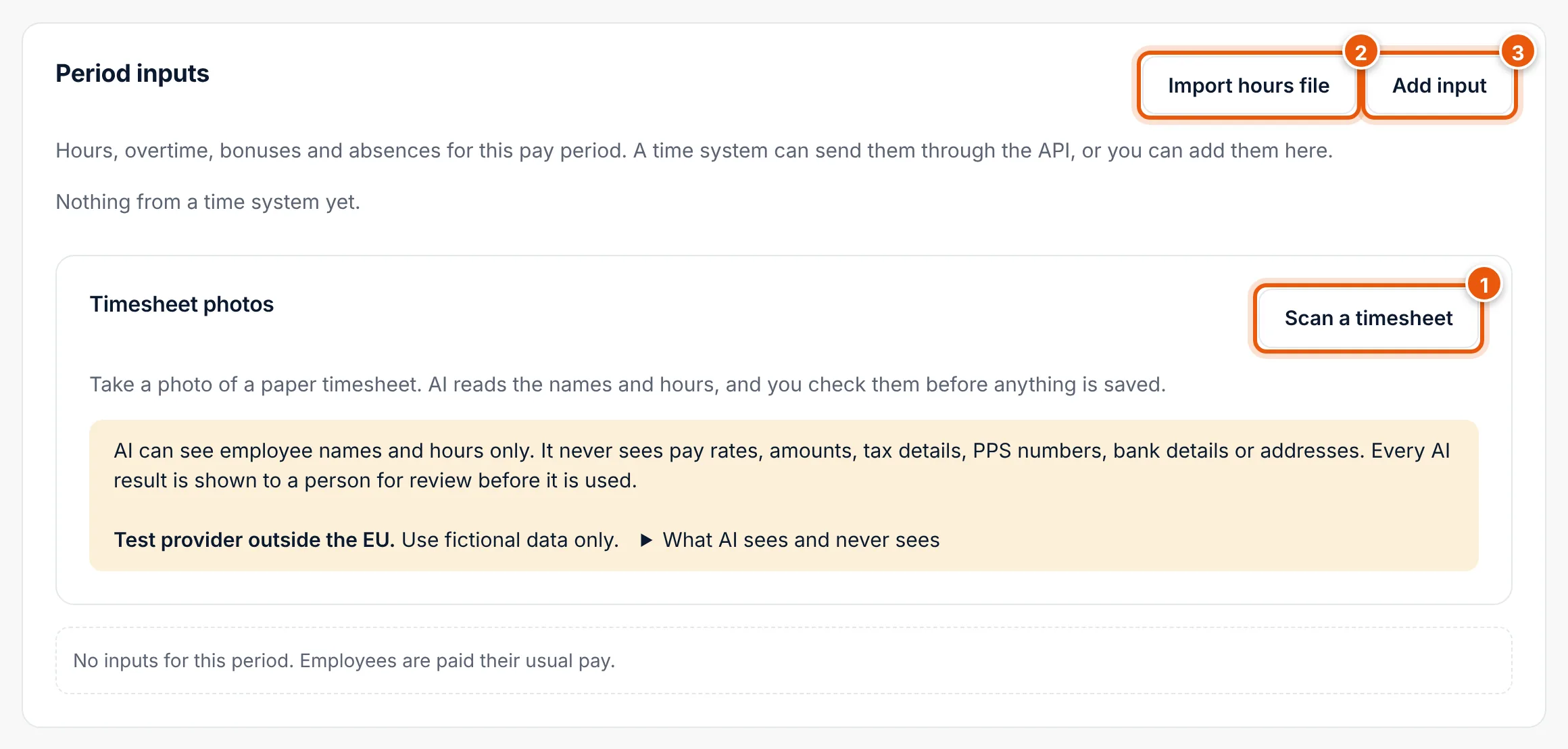
- Open the payroll run (client → Payroll → the run).
- Under Timesheet photos, choose Scan a timesheet (1) and pick the photo. On a phone, the camera opens.
- Take the photo straight from above, in good light, with the whole sheet in the picture.
- JPEG, PNG or WebP, up to 5 MB.
- Wait while AI reads the sheet (up to 30 seconds).
- Check the timesheet opens: the original photo on the left, what AI read on the right.
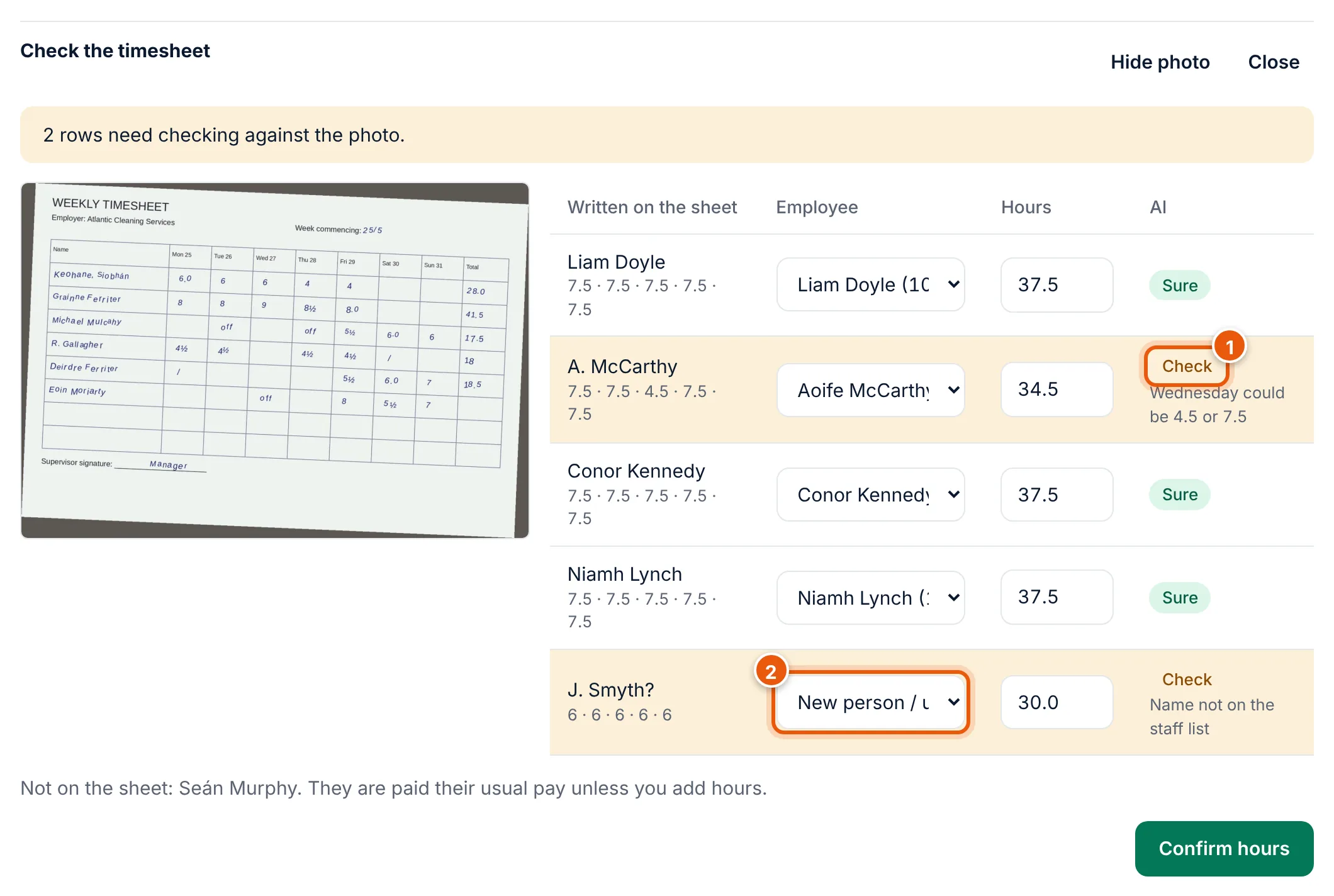
For each row you see Written on the sheet (the name and hours as AI read them), the Employee AI matched it to, the Hours and how sure AI is:
- Sure: the name and the hours were clear.
- Check (1): AI is unsure and says why, for example "Wednesday could be 4.5 or 7.5". Look at the photo and correct the hours.
- A name that matches nobody on the staff list (2), for example a new starter or an unreadable name, is set to New person / unclear name (skip). Choose the right employee, or leave it skipped and contact the client.
Under the table, Not on the sheet lists employees with no row. They are paid their usual pay unless you add hours.
- Correct anything that is wrong. Each person can be on one row only.
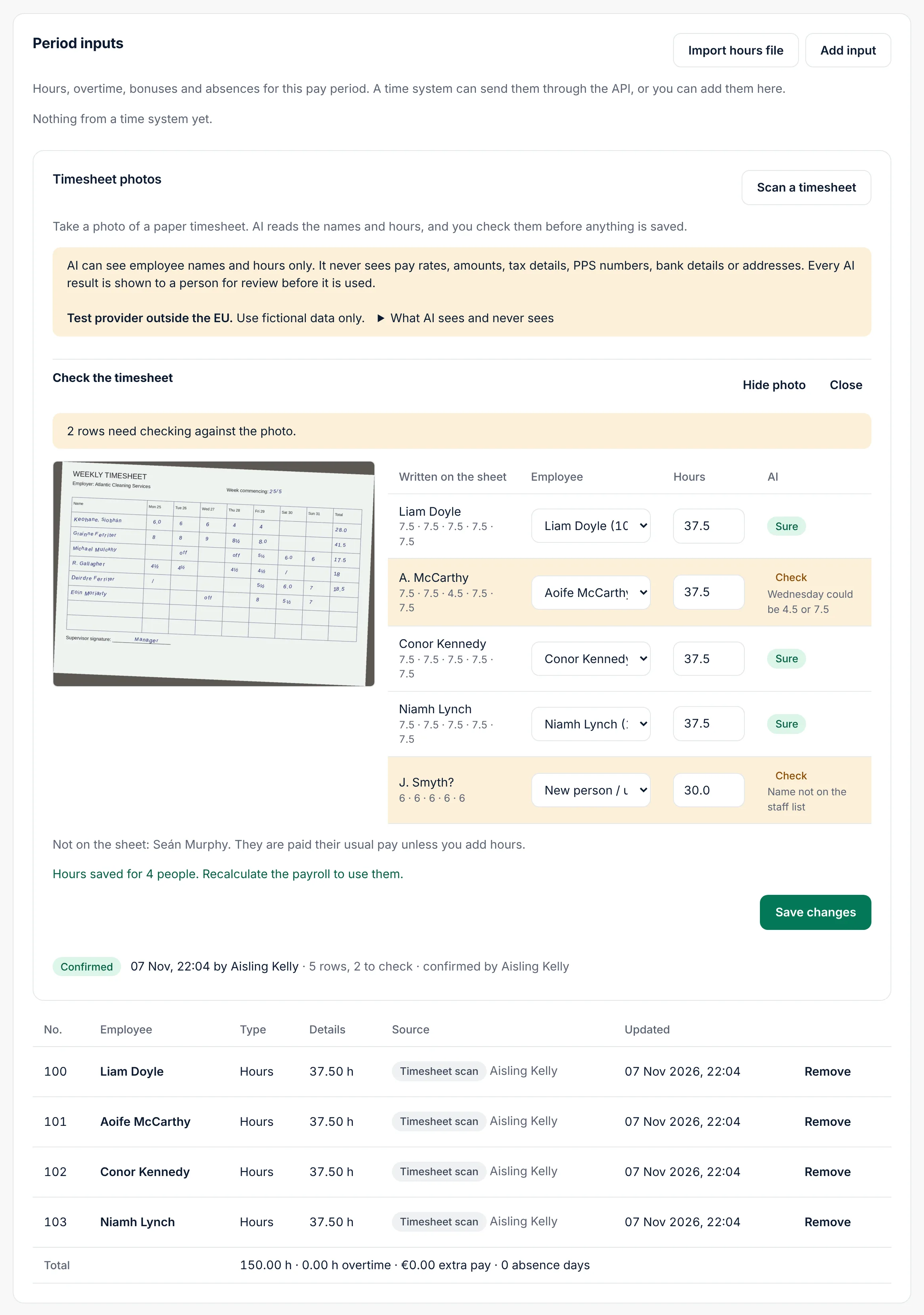
- Choose Confirm hours. Cloud says "Hours saved for N people. Recalculate the payroll to use them."
The hours appear under Period inputs with the source Timesheet scan, and the scan is listed as Confirmed. Open it again to make changes (Save changes).
- Choose Recalculate.
The photo is kept with the payroll as payroll documentation.
If AI cannot read the photo
The scan shows Not read: "AI could not read this photo. Take it again in good light, or add the hours by hand."
Import a spreadsheet of hours
For clients who keep hours in Excel or get an export from a clocking system.
In the payroll run, under Period inputs, choose Import hours file.
Choose the file under Hours file: CSV or Excel (.xlsx), up to 2 MB and 5,000 rows.
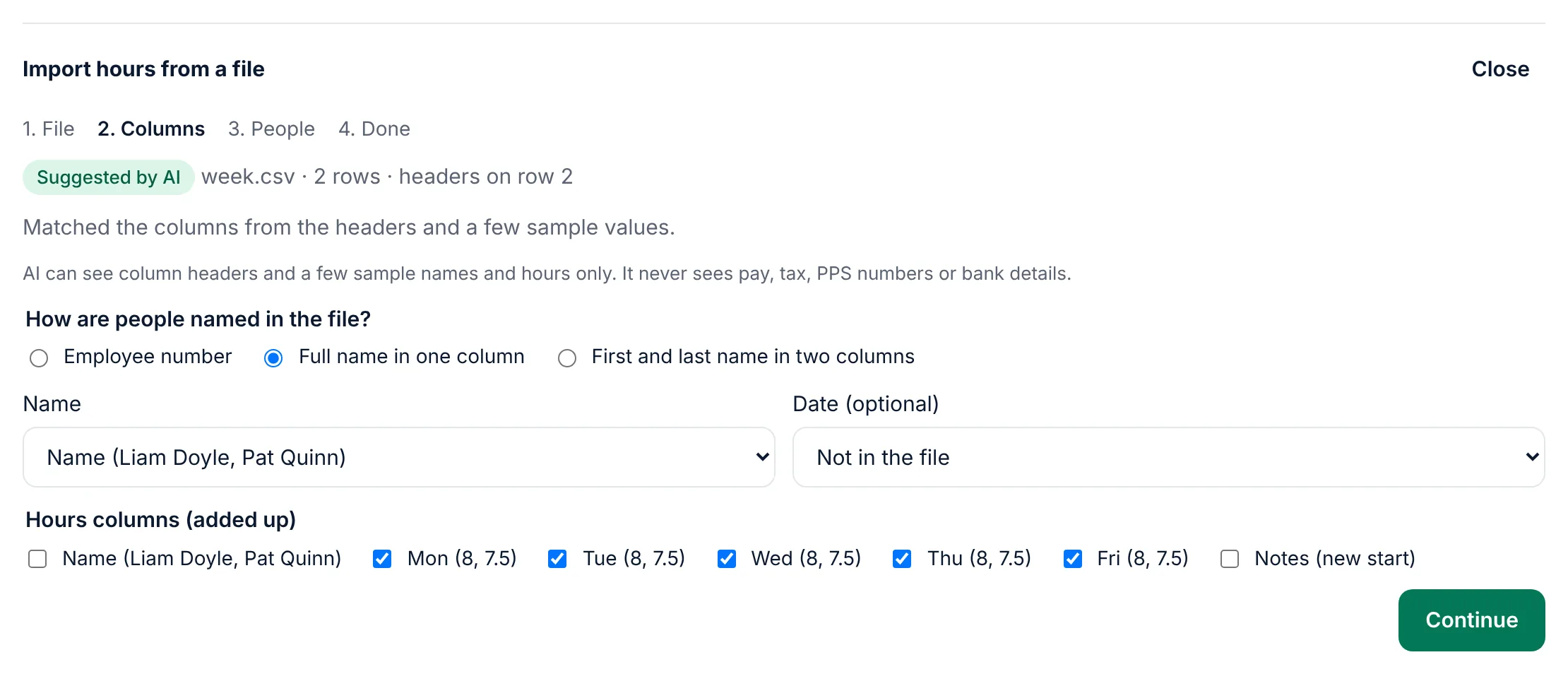
Columns: Cloud finds the header row and suggests what each column is (Suggested by AI when AI is on for the client, otherwise Guessed from the headers). Check:
- How are people named in the file?: Employee number, Full name in one column, or First and last name in two columns, and which column holds it.
- Date (optional): a date column, if there is one.
- Hours columns (added up): tick every column with hours, for example Mon to Fri. Untick notes or totals.
Choose Continue.
People: each name in the file is matched to an employee. Next to each you see why: By name, From an earlier import or timesheet, or Chosen by you. Choose the right person where Cloud could not tell.
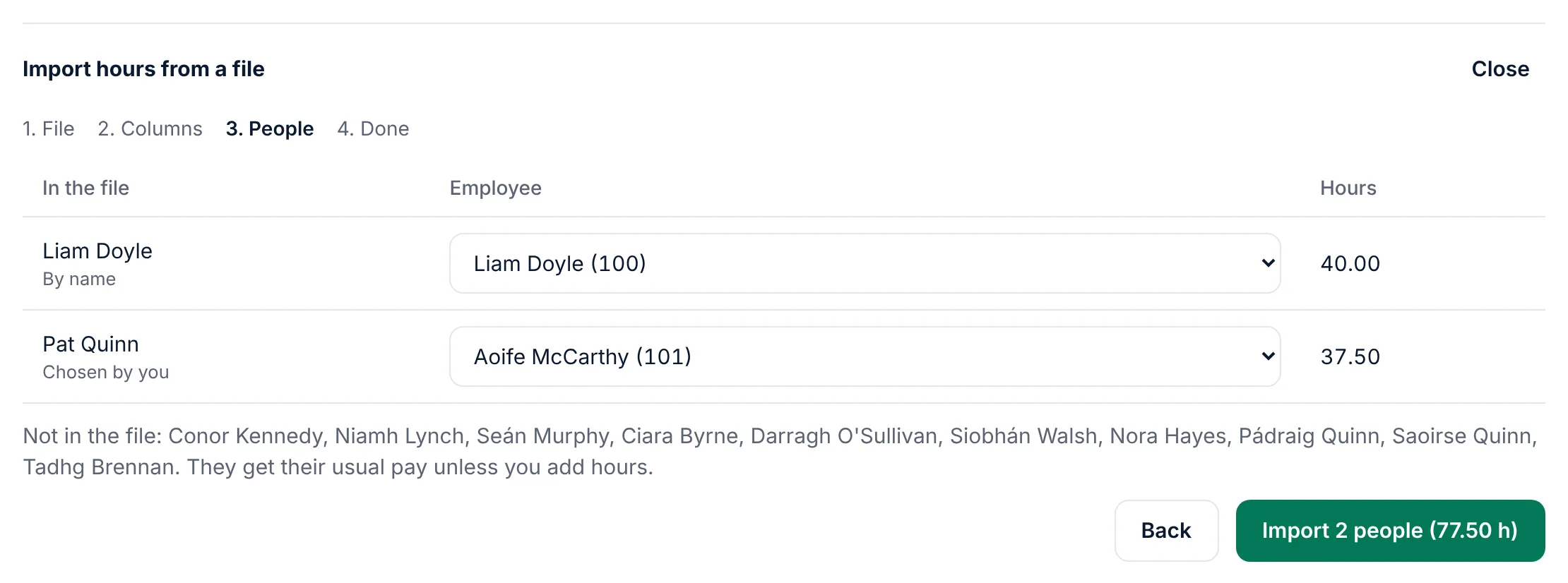
Choose Import N people (… h).

The hours appear under Period inputs with the source File import. The column layout is saved for this client: next time, a file with the same layout goes straight to the people step ("Using the saved layout for this client"), and names you matched by hand are remembered.
Recalculate the payroll.
Timesheet questions from the client
When a client sends hours from the Employer app and cannot match a name (a new person, or a name they cannot read), they flag it for you instead of guessing. Flags show:
- on your Overview, under Open timesheet questions,
- in All employers, next to the client,
- at the top of the client's Payroll page, under Timesheet questions, with the name as written and the client's note (for example "Started Monday").
What to do:
- Contact the client. For a new person you need their PPSN and start date; then add them (usually through RPNs).
- Add their hours to the payroll run.
- Choose Resolve next to the question.