

Client settings
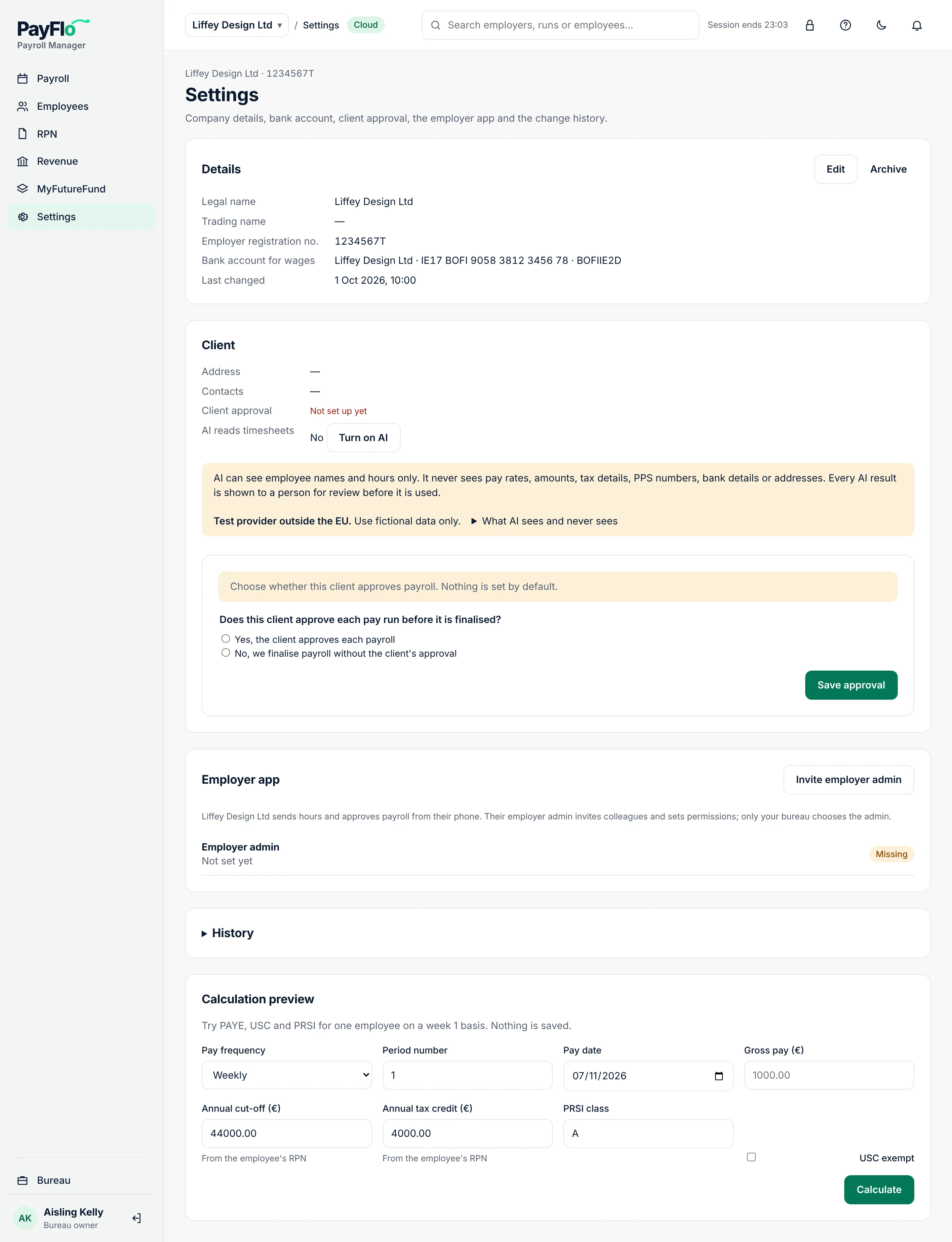
Open a client with the employer switcher and choose Settings in the menu. The page has five parts: Details, Client, Employer app, History and Calculation preview.
Details
Details shows the legal and trading name, the employer registration number, the bank account for wages and when the client was last changed.
To change them:
- Choose Edit.
- Change the Legal name or Trading name.
- Choose Save changes. Cloud shows "Changes saved."
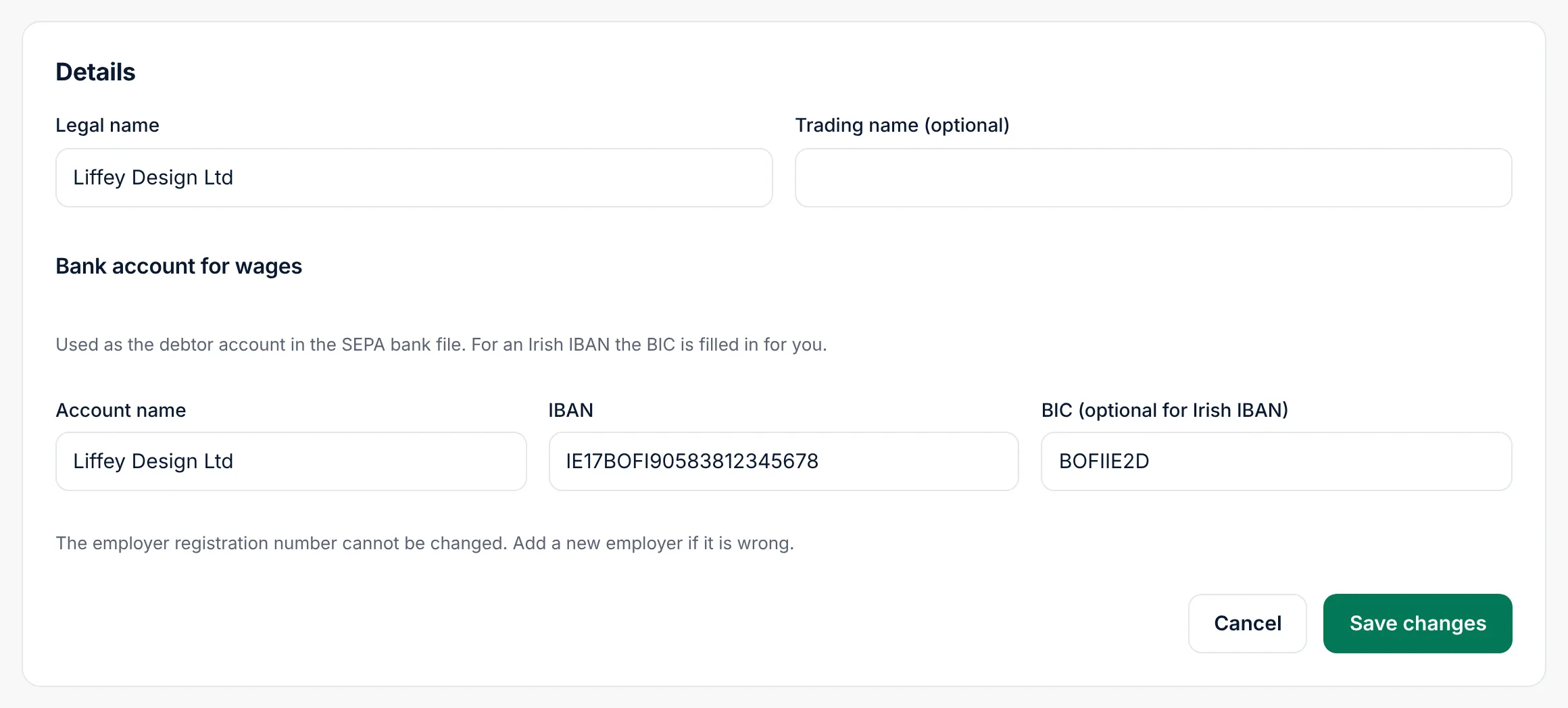
The employer registration number cannot be changed. If it is wrong, add the employer again.
Bank account for wages
This is the account the wages are paid from. It is the debtor account in the bank file.
- Choose Edit.
- Under Bank account for wages, enter the Account name and the IBAN. For an Irish IBAN the BIC is filled in for you.
- Choose Save changes.
Without it, the bank file cannot be created ("Not set. Needed for the bank file.").
Client
Client shows the CRO and VAT numbers, the address, the contacts, the client approval rule and whether AI reads timesheets.
Client approval
Cloud needs to know whether this client approves each pay run before it is finalised. Clients added before this question existed show Not set up yet, and their payroll cannot be approved until you answer.
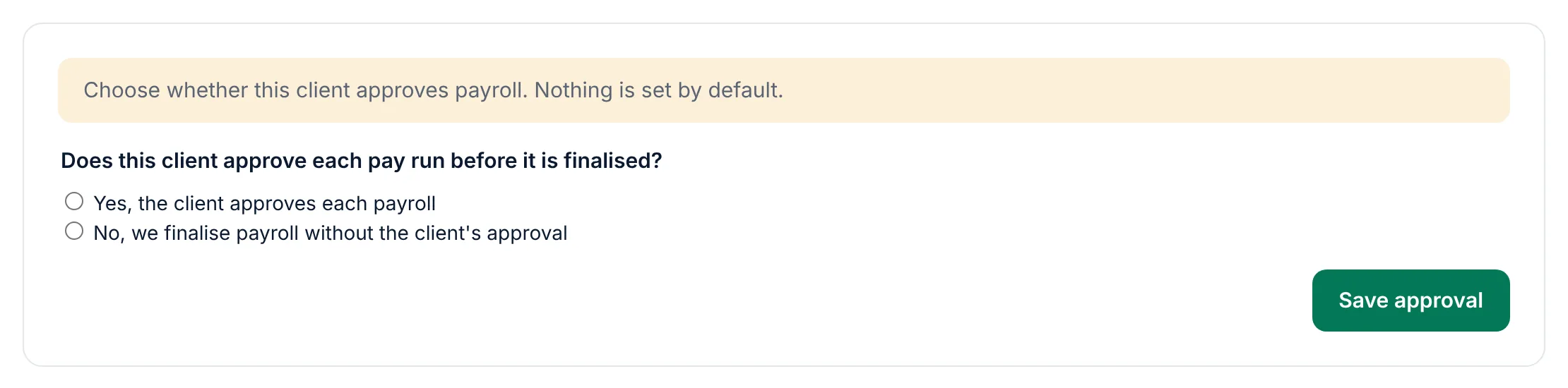
- Choose Yes, the client approves each payroll or No, we finalise payroll without the client's approval. Nothing is chosen for you.
- For Yes, add the people who can approve and how many approvals are needed (see Add a client, step 4).
- Choose Save approval.
To change it later, choose Change approval. Only the bureau owner and administrators can change client approval, and every change is kept in the history.
AI reads timesheets
Shows Yes or No. Choose Turn on AI or Turn off AI to change it. Agree it with the client first: it is their employees' names and hours that AI reads. The yellow note on the page says what AI can and cannot see. See What AI can see.
Employer app
Shows who the client's Employer admin is and who else uses the Employer app. See Set up the Employer app for a client.
History
Choose History to see every change to the client: who changed what and when, with the old and the new value.

Archive a client
When a client leaves your bureau, choose Archive in Details. An archived client stays in the list with the label Archived, with all its payroll history, but you cannot start new payroll runs for it. Restore brings it back.
Before a client leaves, you can give them their data: see Export and import data.
Calculation preview
Try PAYE, USC and PRSI for one employee without saving anything. It is useful to answer a quick question from a client ("what would someone take home on €950 a week?").
- Choose the Pay frequency, the Period number and the Pay date.
- Enter the Gross pay (€).
- Enter the Annual cut-off (€) and Annual tax credit (€) from the employee's RPN, and the PRSI class (usually A). Tick USC exempt if it applies.
- Choose Calculate.
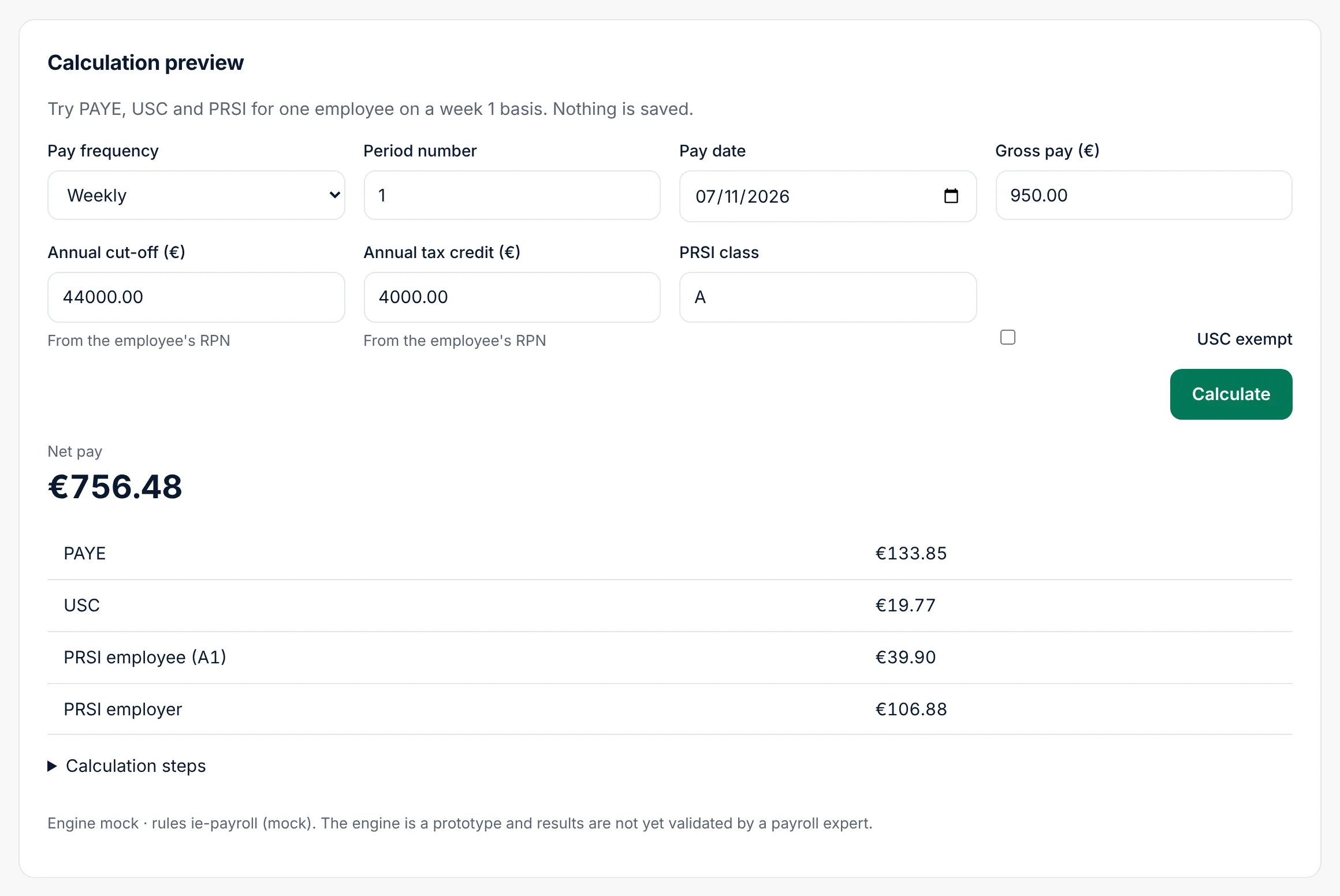
The preview uses the week 1 basis (each period on its own). A real payroll uses each employee's tax basis from the RPN. Calculation steps shows how each figure was worked out.