

Updates and tax rules
Payroll Manager calculates with a signed tax rules pack for the year (PAYE bands, USC, PRSI, sick pay and so on). It checks for new rules and new app versions at start-up, every 4 hours, and before you approve, issue or submit. Every download is checked against Payroll Manager's signature, so nobody can slip in wrong rules.
The Updates & rules page
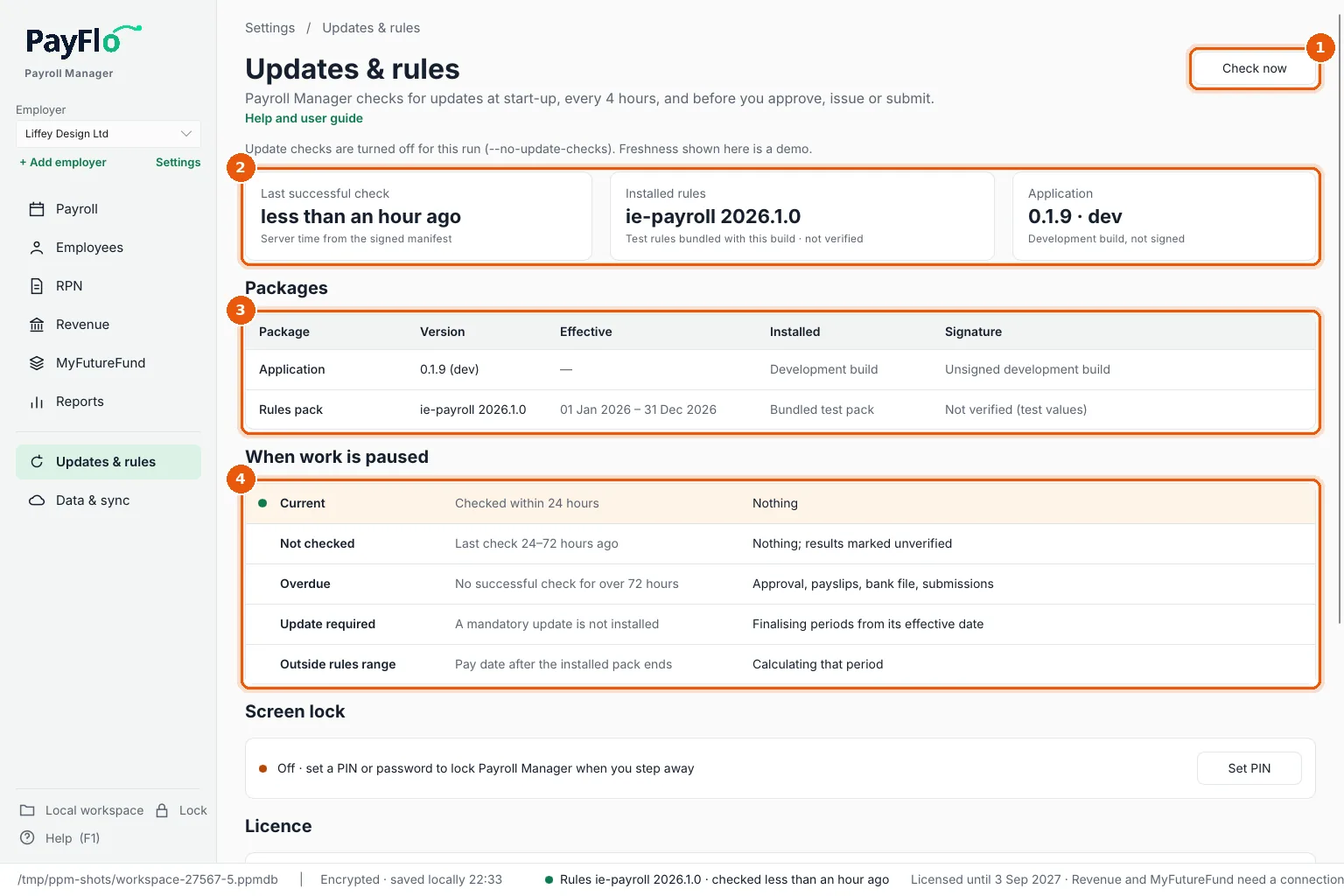
- Check now checks straight away.
- Last successful check, the Installed rules and the Application version.
- Packages: the app and the rules pack, with the dates the rules cover and their signature.
- When work is paused: what each state means and what it stops. The current state is highlighted.
Further down the page: Screen lock (see Screen lock), Licence (see Licence) and About. Help and user guide opens this help.
When work is paused
| State | Means | Paused |
|---|---|---|
| Current | Checked within 24 hours | Nothing |
| Not checked | Last check 24–72 hours ago | Nothing; results are marked unverified |
| Overdue | No successful check for over 72 hours (or the computer's clock was turned back) | Approval, payslips, bank file, submissions |
| Update required | A mandatory update is not installed | Finalising periods from its effective date |
| Outside rules range | The pay date is after the installed rules end | Calculating that period |
Editing and draft calculations always work. When something is paused, the Payroll page and Updates & rules say so in red (1). Connect to the internet and choose Check now (2).
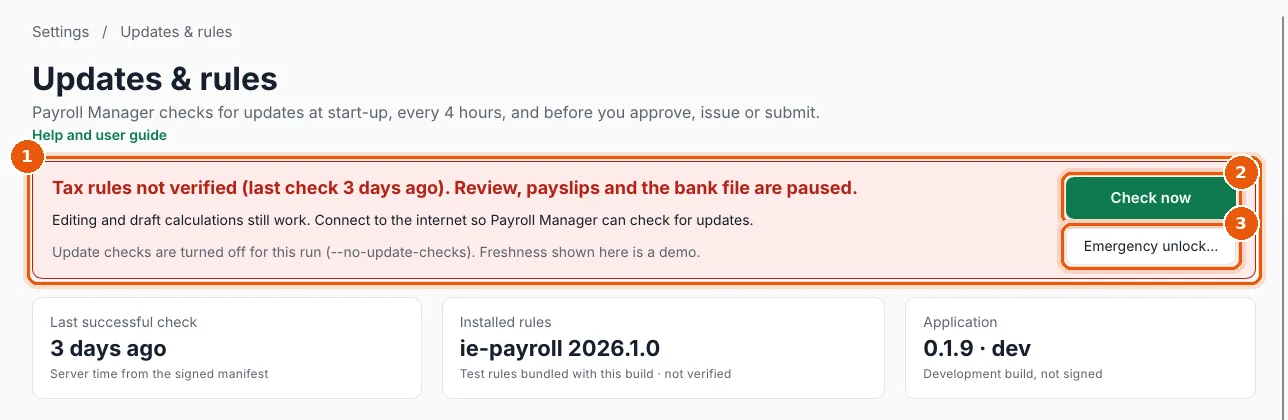
The time of the last check comes from Payroll Manager's signed server time, not your computer's clock.
Install an app update
When a new version is offered, Install and restart appears on this page. Payroll Manager downloads it from updates.payflo.ie, checks it against the signed manifest, installs it and restarts. On Linux (.deb or .rpm) you are asked for your computer password, as for any system update. A Portable copy does not update itself: download the new version.
Emergency unlock
If payday cannot wait and the rules cannot be verified (no internet at the office, or a mandatory update that will not install), you can unlock the current period once.
- On Updates & rules, choose Emergency unlock… (3 in the picture above).
- Enter the Reason (at least 10 characters), for example Payday today, no internet at the office (1).
- Choose Unlock this period (2).
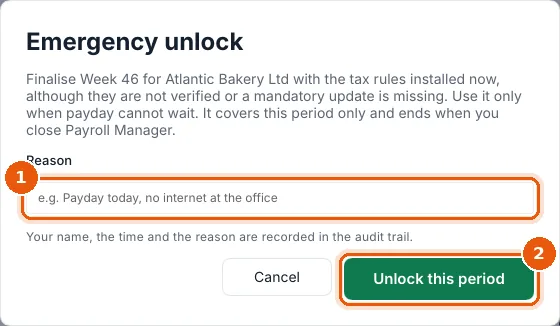
The unlock covers the current period of this employer only, with the tax rules installed now. It ends when you close Payroll Manager. Your name, the time and the reason are recorded in the audit trail. It is not offered when no installed rules cover the pay date at all.