

Payslips
Payroll Manager makes a PDF payslip for every employee: earnings, deductions, net pay, annual leave and sick days left, with pay and tax to date.
Preview a payslip before finalising
- Double-click the employee's name on the Payroll page.
- The Payslip preview on the right shows the payslip for the current period (4).
- Open payslip opens it full size as a draft PDF; Export PDF saves it and shows it in its folder (5).
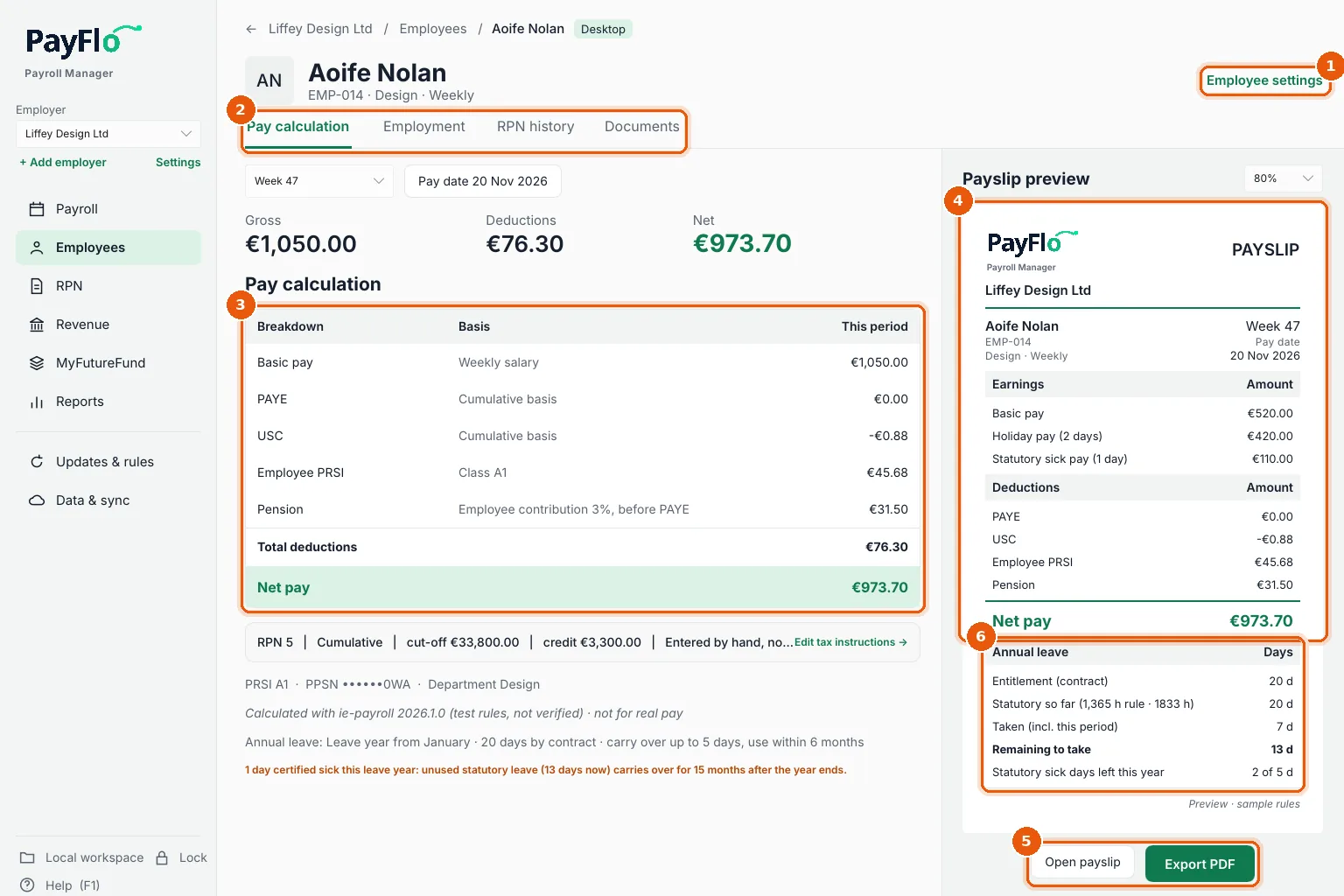
A draft payslip is saved in a folder marked draft, and its amounts can still change until the period is finalised. Do not send drafts to employees.
Save the payslips of a finalised period
Finalise the period (see Review, approve and finalise).
On the Payroll page, choose Payslips · Week … (2).
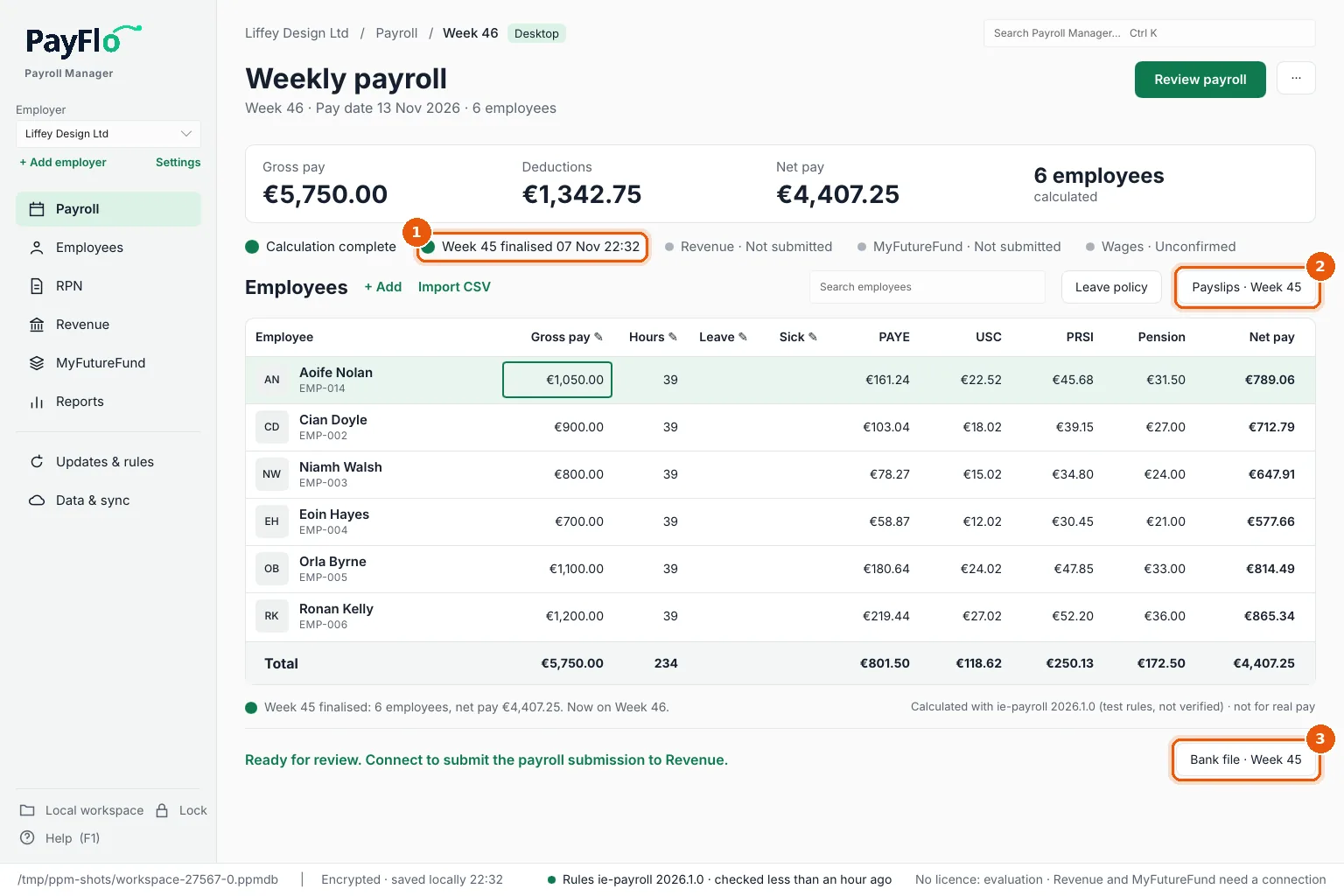
Payroll Manager saves one PDF per employee (for example
EMP-014 Aoife Nolan.pdf) and one file with all of them (All payslips.pdf), and opens the folder.
The files go to Documents → Payroll Manager Payslips → employer → pay date and period. For an earlier period, go to Reports and choose Payslips on that period's row.
What is on the payslip
- Earnings: basic pay, overtime, bonus, holiday pay (with the days), statutory sick pay (with the days), and annual leave paid out to a leaver.
- Deductions: PAYE, USC, employee PRSI, pension, MyFutureFund.
- Net pay.
- Annual leave: entitlement, statutory leave earned so far, days taken (including this period), days carried over and their use-by date, Remaining to take.
- Statutory sick days left this year.