

Run the payroll
The Payroll page holds the current period of the selected employer: one row per employee, with the pay and every deduction worked out as you type.
Before you start
- Import the RPNs from ROS, so the tax credits are current.
- Have the hours, overtime, leave and sick days for the period (timesheets, or what the employer sent you).
Enter this period's pay
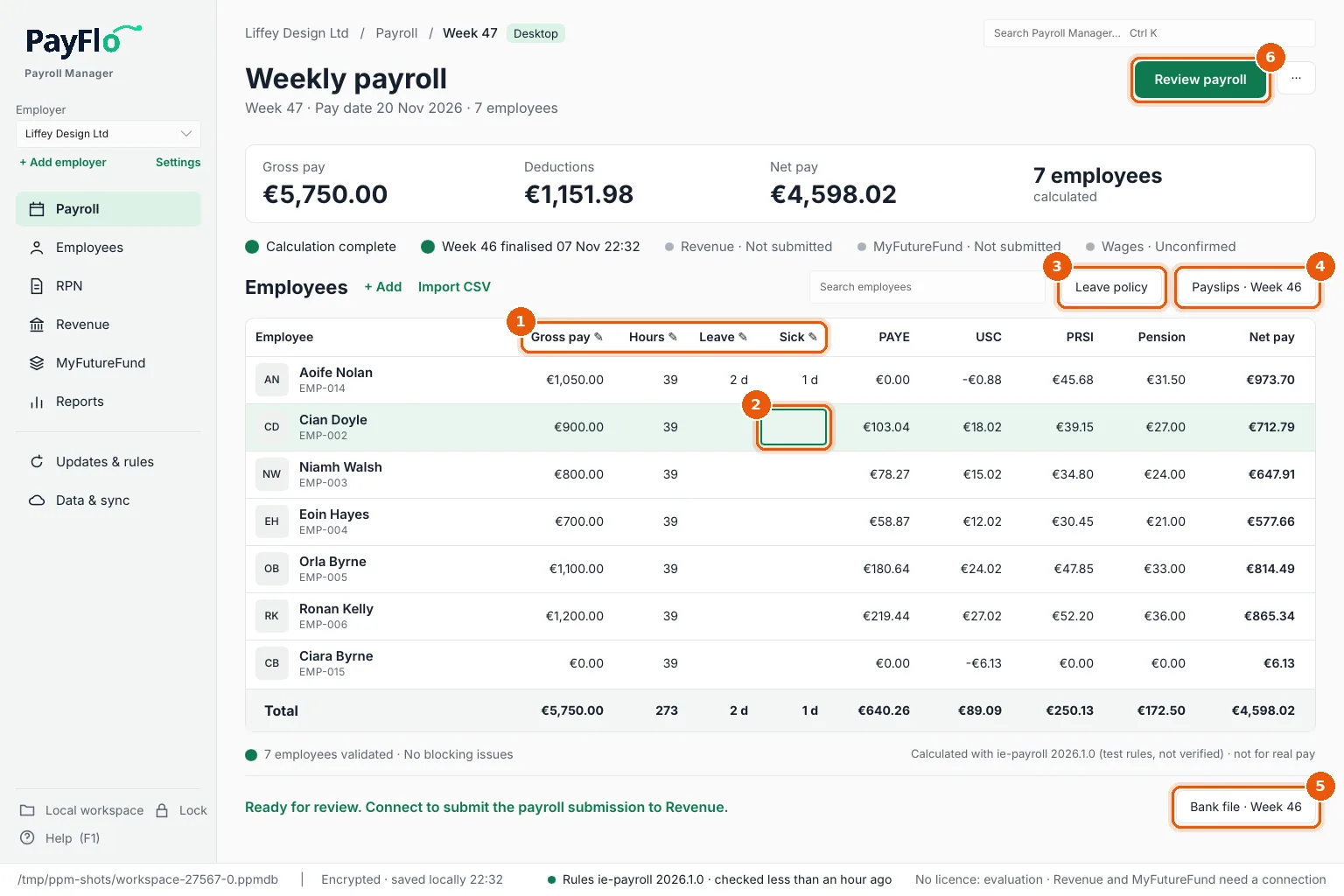
- Columns with a pencil (Gross pay, Hours, Leave, Sick) can be typed in (1). PAYE, USC, PRSI, Pension and Net pay are always calculated.
- Click a cell, or move to it with the arrow keys, and type the new value (2). Enter saves it; Esc cancels.
- Leave: days of annual leave taken this period. They are paid as holiday pay and counted on the payslip.
- Sick: certified sick days. Statutory sick pay is worked out (see Annual leave and sick pay).
- Leave policy (3) sets how annual leave is earned and carried over for this employer.
- Payslips (4) and Bank file (5) are for the last finalised period; they say which one (Payslips · Week 46).
- When everyone is calculated, choose Review payroll (6). See Review, approve and finalise.
Every change is saved at once in the encrypted workspace, with an entry in the audit trail. There is no Save button.
Work with many employees
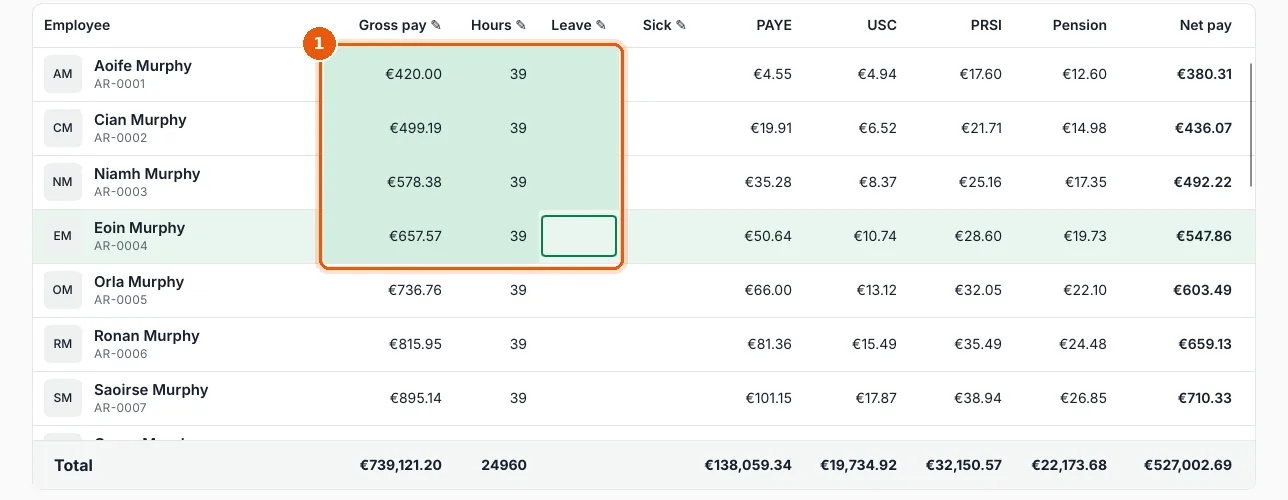
For large employers, select a block of cells with Shift and the arrow keys (or Shift+click) (1). Ctrl+C copies it, Delete sets the amounts to €0.00. Ctrl+Home and Ctrl+End jump to the first and last employee.
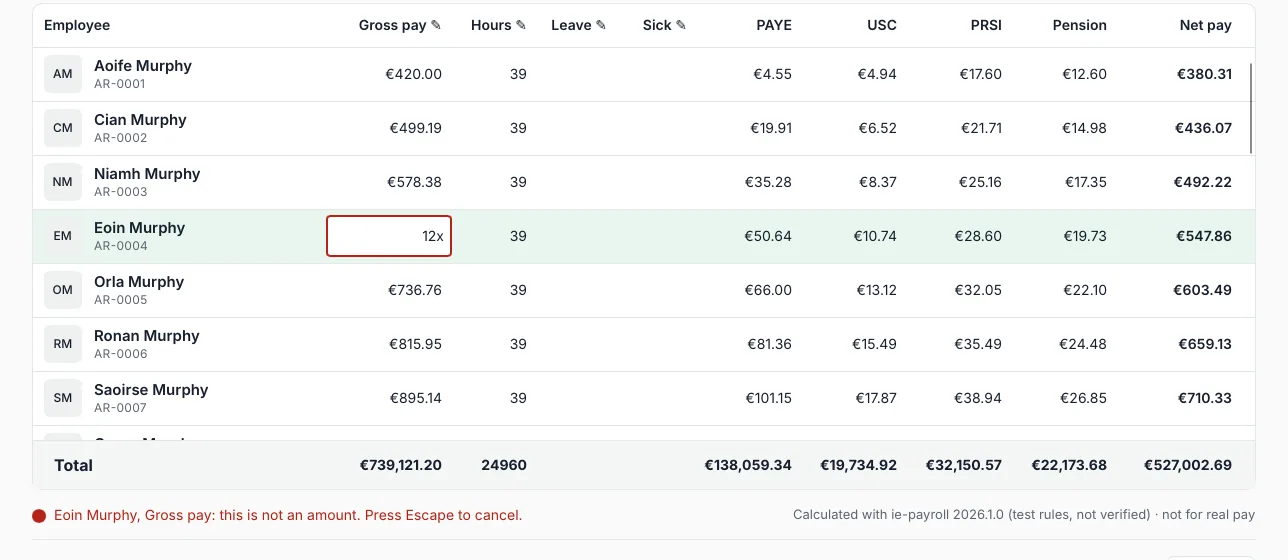
If you type something that is not an amount, the cell stays open and the line under the grid says what is wrong. Correct it, or press Esc.
Check the period
- The totals at the top show Gross pay, Deductions, Net pay and how many employees are calculated.
- Under the grid: 6 employees validated · No blocking issues, and which tax rules the calculation used.
- The last line says what to do next. If it says Some employees are not calculated, look for rows showing "—": usually the pay date is outside the installed tax rules (see Updates and tax rules).