

Screen lock
Payroll Manager locks itself when nobody uses it for a while, so no one can read pay data on a computer left unattended. The PIN or password belongs to this workspace, not to your computer account.
Set the PIN
- Go to Updates & rules and, under Screen lock, choose Set PIN (or set it in the setup wizard).
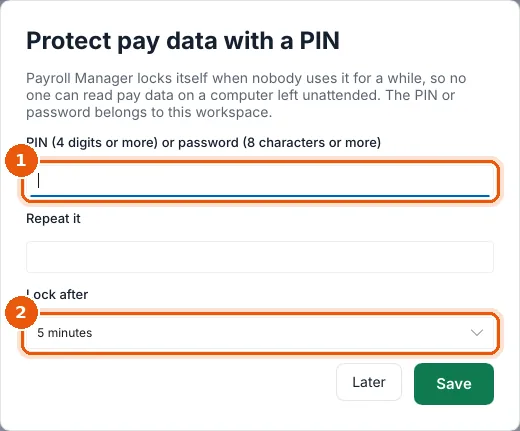
- Enter a PIN (4 digits or more) or password (8 characters or more), and repeat it (1).
- In Lock after (2), choose 1, 5, 10, 15 or 30 minutes, or 1 hour.
- Choose Save.
Once set, Screen lock shows On · locks after 5 minutes without use. Change (1) changes the PIN or the time; leave the PIN empty to keep the current one. Lock now (2) locks at once.

Lock and unlock
- Choose Lock at the bottom of the sidebar, or Lock now, when you step away.
- To unlock, enter the PIN or password and choose Unlock.
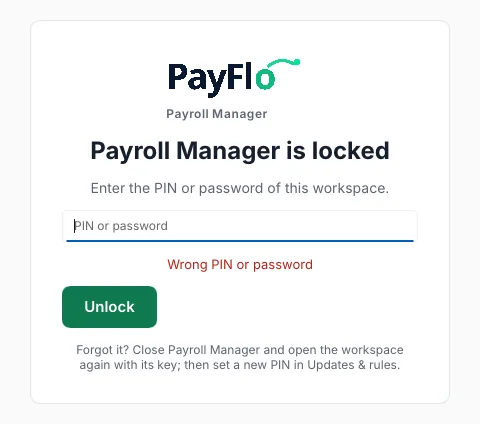
Forgot the PIN?
Close Payroll Manager and open it again on the same computer, under the same user. The workspace opens with its key from the computer's credential store, which proves you may use it. Then set a new PIN on Updates & rules.