

Revenue
Under PAYE Modernisation, Revenue sends you each employee's tax instructions (the RPN), and you report every pay run back to Revenue in a payroll submission on or before the pay date. The Revenue page brings both together for the selected employer.
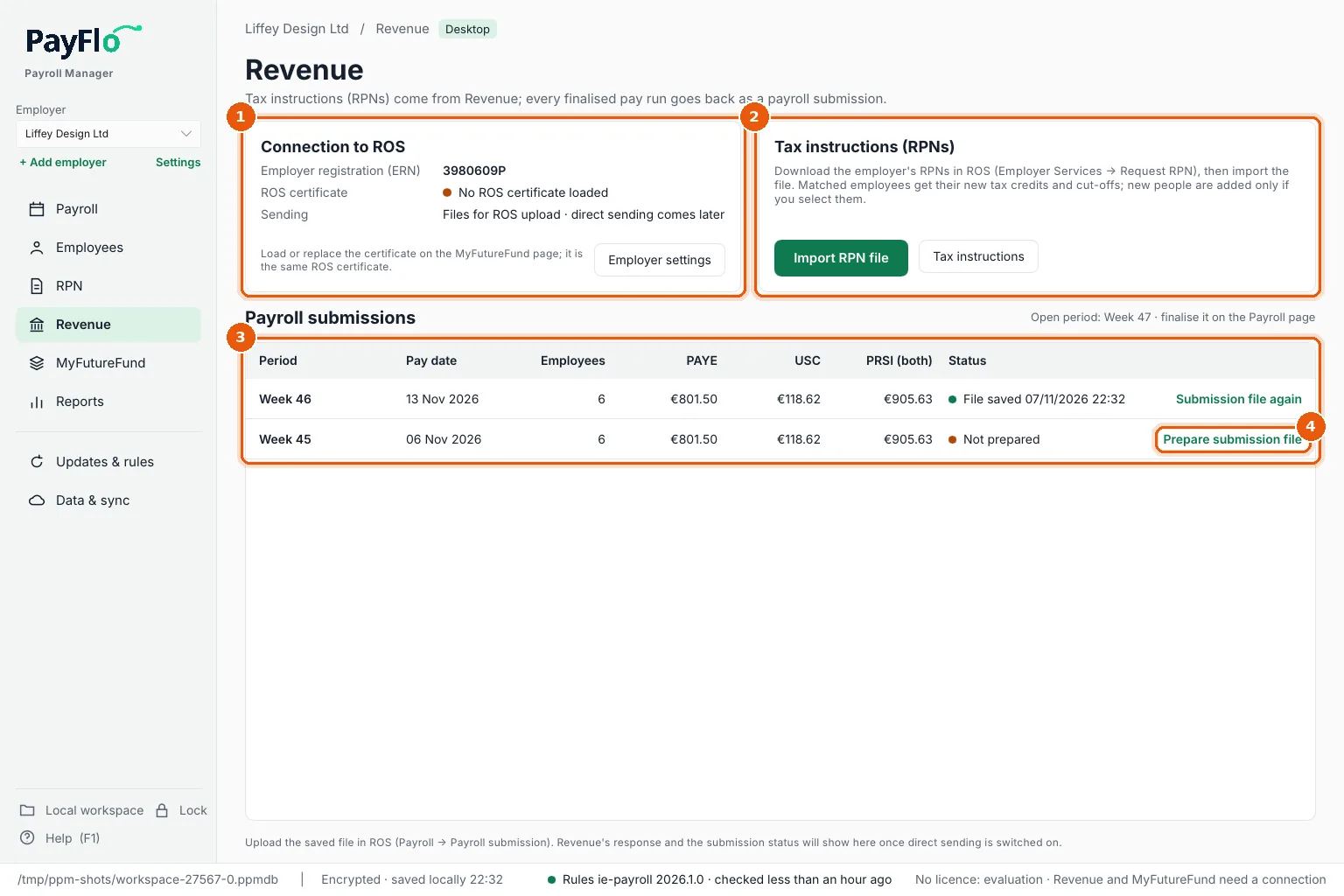
- Connection to ROS: the employer's registration number (ERN), whether a ROS certificate is loaded, and how submissions are sent (for now: Files for ROS upload · direct sending comes later). Employer settings changes the ERN. The ROS certificate is loaded on the MyFutureFund page: it is the same certificate.
- Tax instructions (RPNs): how to get the RPN file from ROS. Import RPN file imports it, Tax instructions shows everyone's current instructions. See Import RPNs.
- Payroll submissions: every finalised period with its pay date, employees, PAYE, USC and PRSI, and a status: Not prepared or File saved with the date.
- Prepare submission file makes the file for that period; Submission file again makes it again.
The line above the list reminds you of the open period, which is finalised on the Payroll page.
Prepare the payroll submission file
- Finalise the period (see Review, approve and finalise).
- On Revenue, choose Prepare submission file on the period's row. (Or on Reports, choose Revenue on that row.)
- Check the Employer PAYE registration number (1). It is saved for next time.
- Read any warning (2). For example, No RPN number, tax instructions entered by hand lists employees whose tax was not from an RPN: Revenue may query those payslips, so import the RPNs before the next run.
- Choose Save submission file (3).
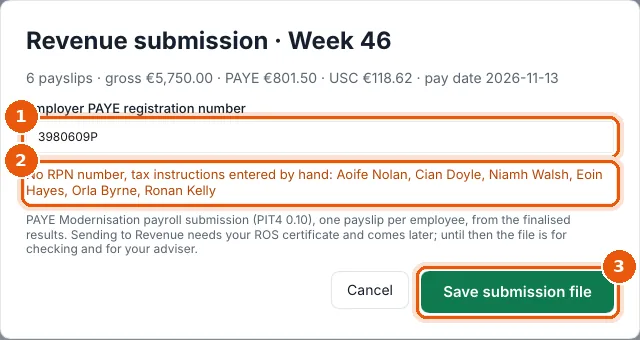
The file has one payslip per employee from the finalised results (PAYE Modernisation payroll submission). It is saved in
Documents → Payroll Manager Reports → employer as pay date, period Revenue payroll submission.json, and the status on the Revenue page changes to File saved.
Upload it in ROS
In ROS, open the employer's Payroll → Payroll submission and upload the saved file. Revenue's response and the submission status will be shown on the Revenue page once direct sending is switched on.
Paying Revenue
Reports → Due to Revenue by month shows PAYE, USC and PRSI per month, to check against the monthly statement in ROS. See Reports.