

Employer settings
Use Employer settings to correct an employer's details or to change who approves pay runs.
- Pick the employer in the switcher at the top of the sidebar.
- Choose Settings next to + Add employer.
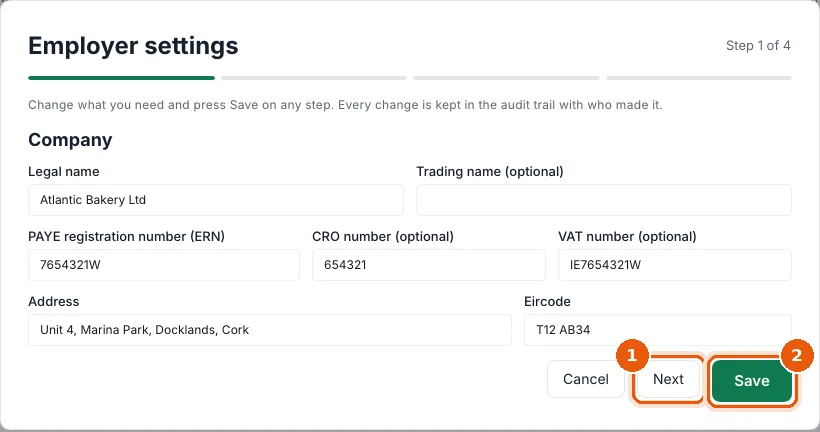
- The same four steps as Add an employer open, filled in. Next (1) and Back move between the steps.
- Change what you need and choose Save (2). Save works on any step.
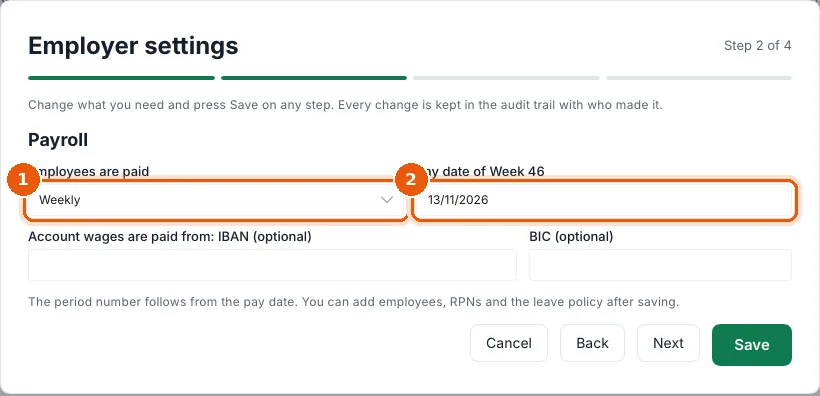
On step 2, Employees are paid (1) and the Pay date of the current period (2) can be changed:
What you can change
| Setting | Can it change? |
|---|---|
| Name, address, ERN, CRO, VAT, contacts, the wages account | Yes, at any time. |
| Pay date of the current period | Yes. Once anything has been finalised, it must stay inside the same period (Week 46 stays Week 46). |
| Employees are paid (frequency) | Only until the first period is finalised. |
| Pay run approval, approvers, approvals needed | Yes. The new rule applies to the next approval. |
Every change is kept in the audit trail with who made it.