

Review, approve and finalise
Finalising locks the period's results: payslips, the bank file and the Revenue submission are made from them, pay to date moves forward and the next period opens. Before that, Review payroll shows the totals once more and, if the employer approves pay runs, records their approval.
Open the review
On the Payroll page, choose Review payroll. Payroll Manager first checks for tax rule updates, then opens the review.
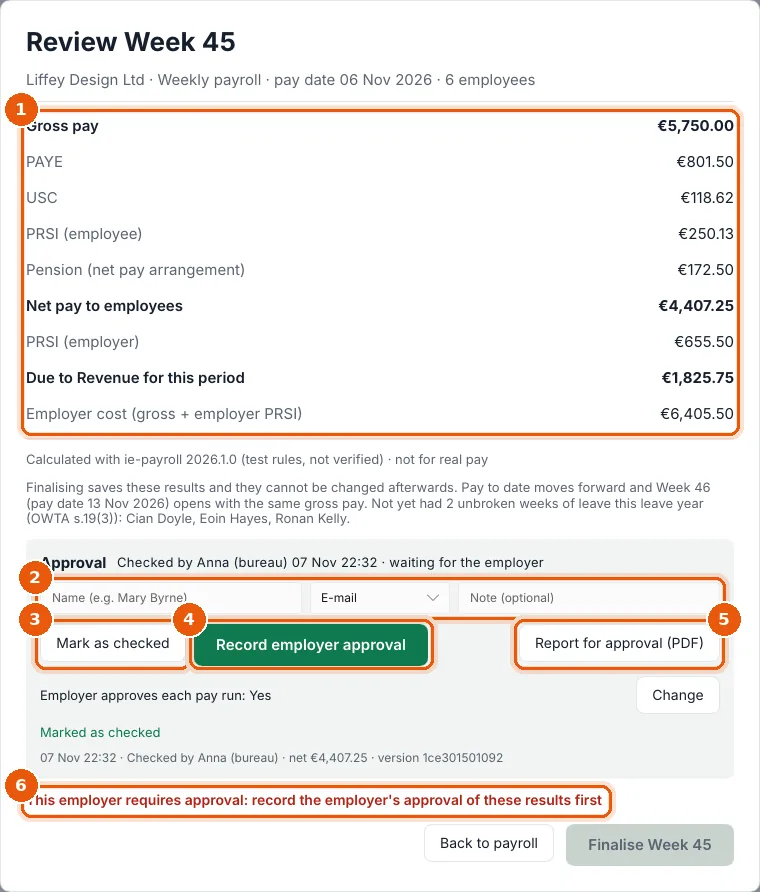
- Totals: gross pay, PAYE, USC, employee PRSI, pension, Net pay to employees, employer PRSI, Due to Revenue for this period and the employer cost. Below them: which tax rules were used and what finalising will do, with any warnings (for example employees who have not yet had 2 unbroken weeks of leave this leave year).
- Name, how the approval came (In person, E-mail, Phone or Signed report) and an optional Note.
- Mark as checked: you (the bureau) have checked the payroll. Enter your name first.
- Record employer approval: the employer has approved these exact results. Enter the approver's name and how they approved.
- Report for approval (PDF): a PDF of the pay run to send to the employer for approval, with the version of the results.
- If something stops finalising, it is said here in red, for example This employer requires approval: record the employer's approval of these results first.
When the employer approves pay runs
If the employer was set up with Yes · The employer approves (see Add an employer):
- Choose Report for approval (PDF) and send it to the approver.
- When they approve, enter their name, choose how they approved, and choose Record employer approval.
- If two or more approvals are needed, record each approver. The status shows 1 of 2 approvals · waiting for 1 more.
The approval is tied to these exact results. If anything changes afterwards (pay, hours, an RPN), the approval shows Out of date: the results changed after … approved them · approve again. Revoke withdraws an approval recorded by mistake.
Employer approves each pay run: … shows the employer's rule. Change opens it. If it says Not answered yet in red, choose Answer now: finalising waits until someone answers.
Finalise
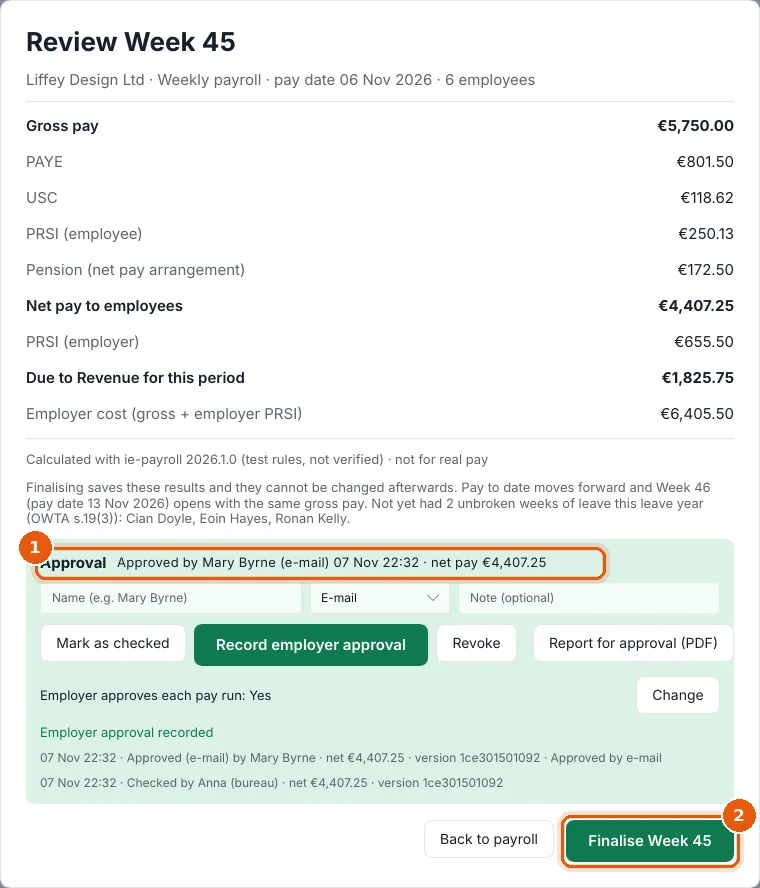
When the approval line is green (1), choose Finalise Week … (2).
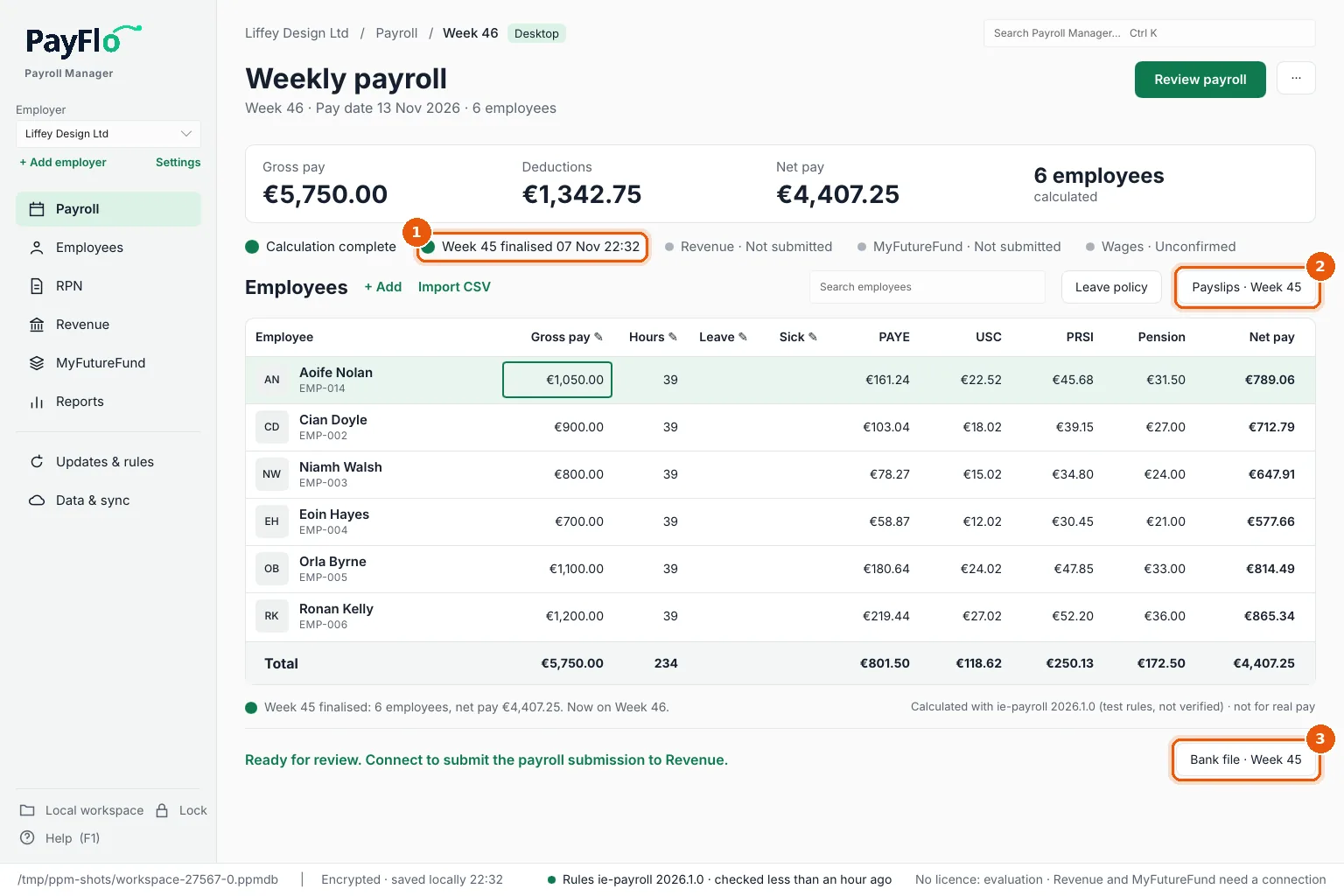
Payroll Manager saves the results, moves pay to date forward and opens the next period with the same usual pay. The Payroll page shows the finalised period (1), and Payslips (2) and Bank file (3) for it.
If Review payroll or Finalise is greyed out
| You see | Why | What to do |
|---|---|---|
| Some employees are not calculated | No tax rules cover the pay date, or an employee's data is invalid | Updates and tax rules |
| Finalising is paused until the tax rules are verified | No successful update check for over 72 hours | Connect to the internet and choose Check now on Updates & rules. When payday cannot wait: Emergency unlock |
| Renew the licence … to finalise and export | The licence has lapsed | Licence |
| This employer requires approval… | No employer approval recorded | Record it, as above |