

Import RPNs and tax instructions
A Revenue Payroll Notification (RPN) tells you how to tax each employee: the tax basis, tax credits, the rate band (cut-off point), USC and pay and tax to date. Payroll Manager calculates with the RPN, so import a fresh RPN file before every pay run.
The RPN page in the sidebar shows the tax instructions of every employee of the selected employer.
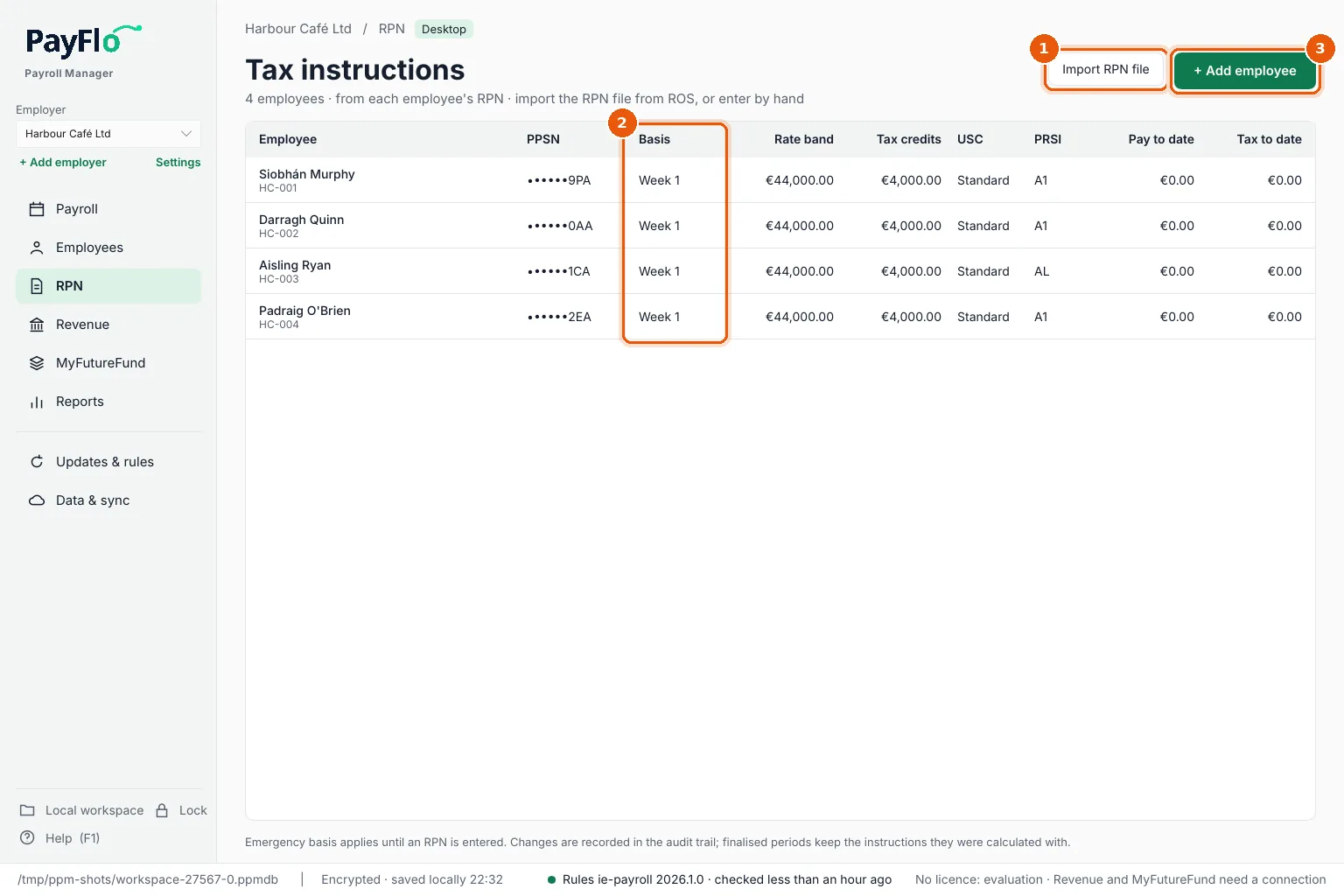
- Import RPN file opens the import.
- Basis: Cumulative, Week 1 or Emergency. An employee with no RPN is taxed on the Emergency basis until one arrives.
- + Add employee adds someone by hand (see Add and edit employees).
Before you start
In ROS, request the employer's RPNs (Employer Services → Request RPN) and download them as a file: CSV, Excel (.xlsx) or JSON all work. Save it where you can find it, for example in Downloads.
Import the file
On RPN (or Revenue), choose Import RPN file.
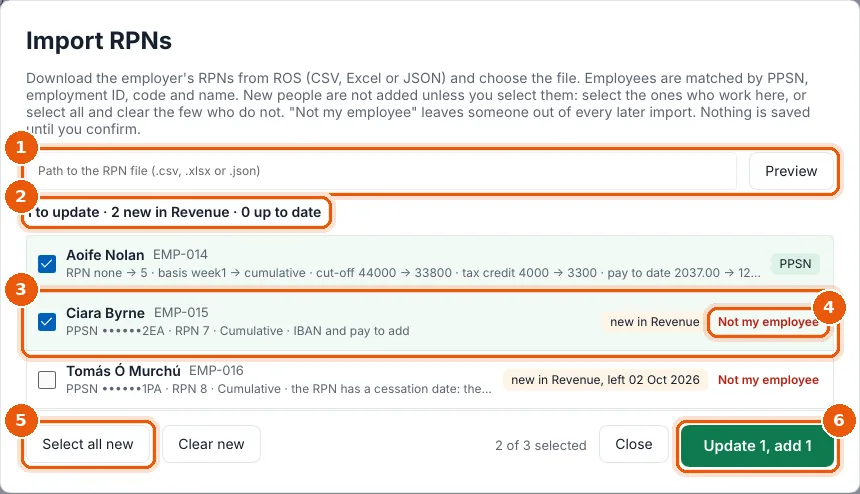
Enter the path to the file in Path to the RPN file (.csv, .xlsx or .json) and choose Preview (1). Nothing is saved yet.
The summary (2) says how many employees will be updated, how many people are new in Revenue's list, and how many are up to date. Each RPN is matched to an employee by PPSN, employment ID, payroll number and name. A known employee shows what changes, for example tax credit 4000 → 3300.
New people are not added unless you select them. Click anywhere on a row to select it (3).
- Not my employee (4) leaves that person out of this and every later import, for example someone on the employer's register who never started here.
- Select all new (5) selects every new person; Clear new clears them again. Someone whose RPN has a leaving date (left 02 Oct 2026) is best left unselected.
Choose the button at the bottom right (6). It says what will happen, for example Update 1, add 1.
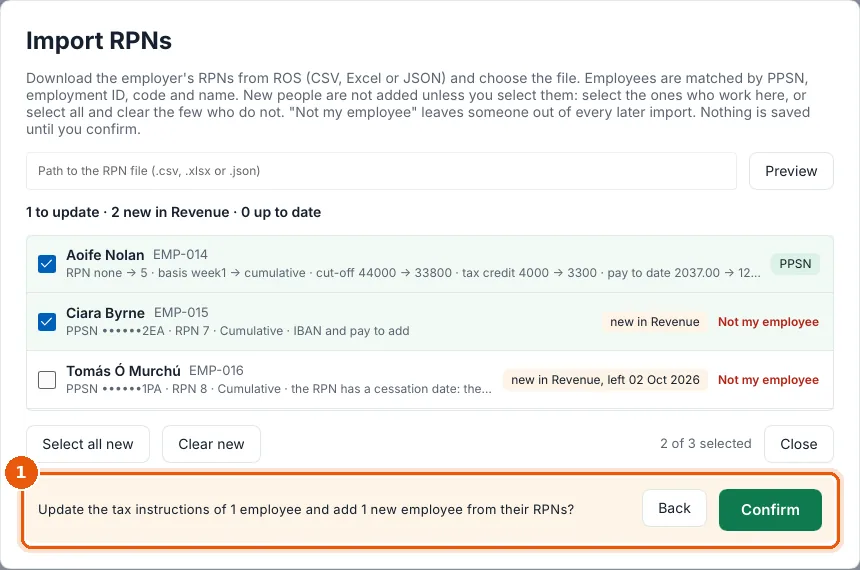
Payroll Manager asks you to confirm (1). Choose Confirm.
Complete details now?
An RPN has no bank account or pay. When the import adds new people, Payroll Manager asks Complete details now?
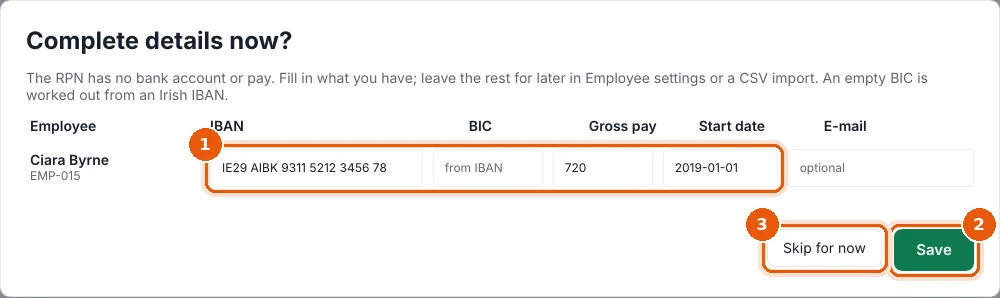
- For each new employee, enter what you have (1): IBAN, BIC (leave it empty for an Irish IBAN), Gross pay per period, Start date and E-mail.
- Choose Save (2), or Skip for now (3) and fill them in later in Employee settings or with a CSV import.
Employees without an IBAN or pay are marked Incomplete until you add them.
What if…
- An employee has no RPN. They are taxed on the Emergency basis. Ask them to add the job in Revenue's myAccount, then import the RPNs again.
- The tax credit looks wrong. Payroll Manager uses exactly what Revenue sent. The employee contacts Revenue; you then import the new RPN.
- You entered tax instructions by hand. An imported RPN replaces them. Finalised periods keep the instructions they were calculated with.
Every change is recorded in the audit trail.