

The employee page and payslip preview
The employee page shows everything about one employee for the current period: how the pay is worked out, the payslip as the employee will see it, annual leave and sick days, and the employment details.
To open it, double-click the employee's name on the Payroll page, or select the employee in the grid and choose Employees in the sidebar. The ← at the top takes you back to the payroll.
Pay calculation
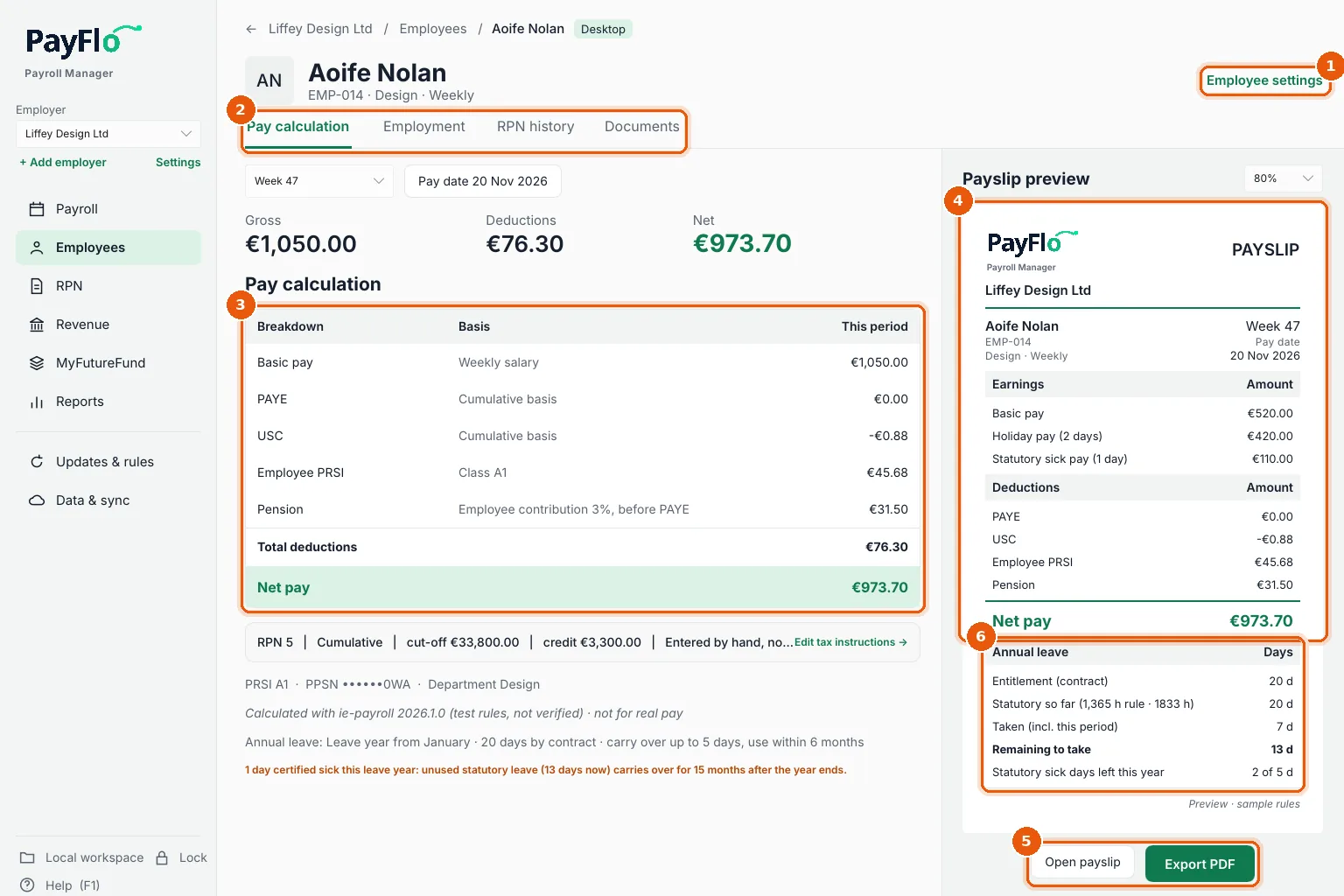
- Employee settings opens the employee form to change details, tax instructions or hours.
- Tabs: Pay calculation, Employment, RPN history and Documents.
- Breakdown: gross pay, then each deduction with its basis (PAYE and USC on the Cumulative or Week 1 basis, PRSI class, pension before PAYE), and the Net pay. Below it, the tax instructions in use. Edit tax instructions → changes them.
- Payslip preview: the payslip as it will be printed, with earnings (basic pay, holiday pay, statutory sick pay), deductions and net pay.
- Open payslip shows it full size and Export PDF saves it.
- Annual leave on the payslip: entitlement, statutory leave earned so far, days taken (including this period), Remaining to take, and Statutory sick days left this year.
If an amount looks wrong, look at the tax instructions first: most surprises come from an old RPN or the Emergency basis. See Import RPNs.
Employment
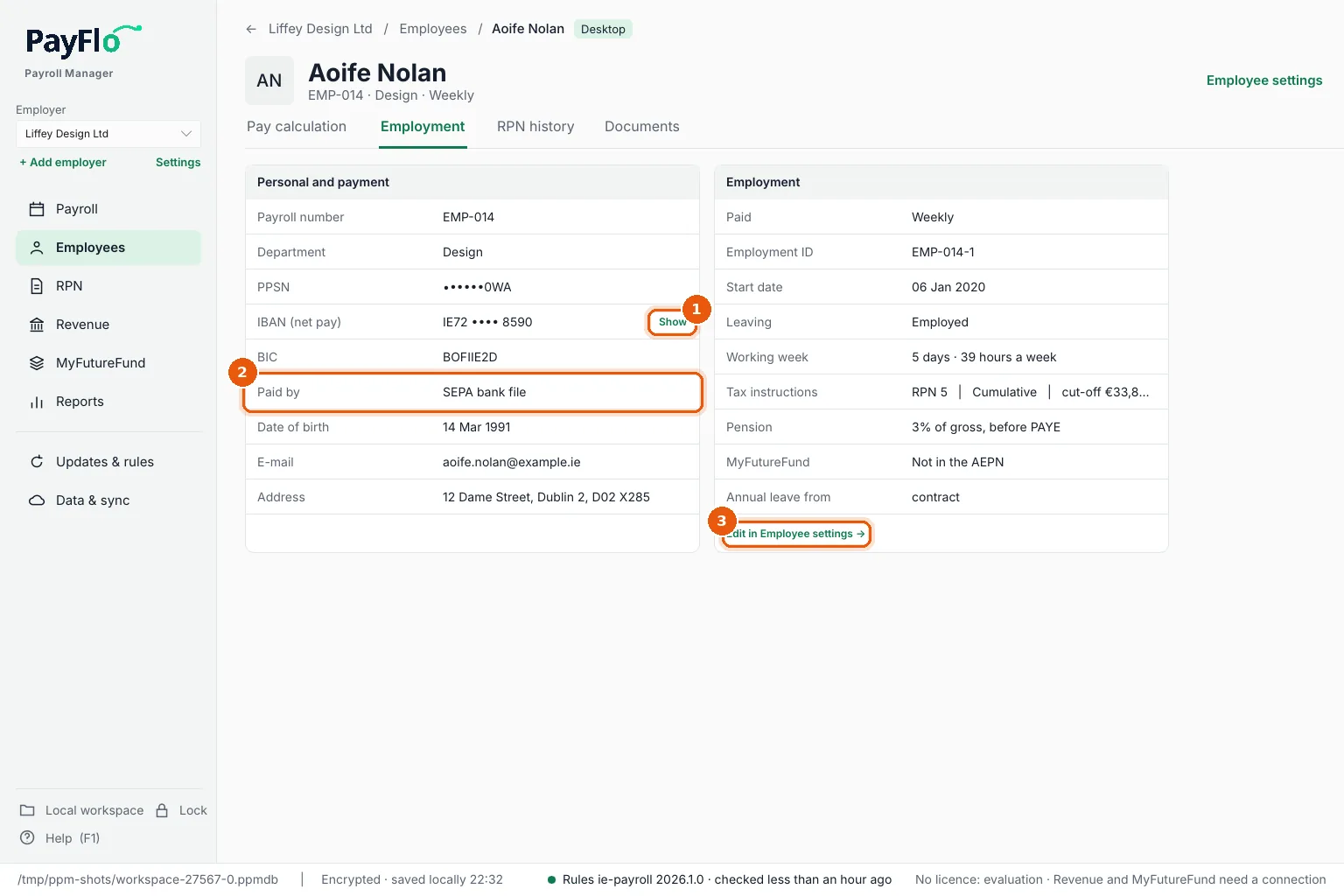
The Employment tab lists the personal and payment details (payroll number, department, PPSN, IBAN, BIC, date of birth, e-mail, address) and the employment (pay frequency, Revenue employment ID, start date, leaving, working week, tax instructions, pension, MyFutureFund, annual leave basis).
- The IBAN is masked. Show reveals it; it is masked again the next time you open the tab.
- Paid by: SEPA bank file, or Another way (not in the SEPA bank file) for someone paid by cheque or cash.
- Edit in Employee settings → opens the form.
Bank details always live on the employee, never in a separate list.