

Backups and moving data
Your payroll is kept in one encrypted file on this computer. The key to it is kept in the computer's credential store (Windows Credential Manager, or the keyring on Linux), so the file cannot be opened on another computer or by another user. That is why backups matter: if this computer fails, a backup with its passphrase is the way back.
Go to Data & sync in the sidebar.
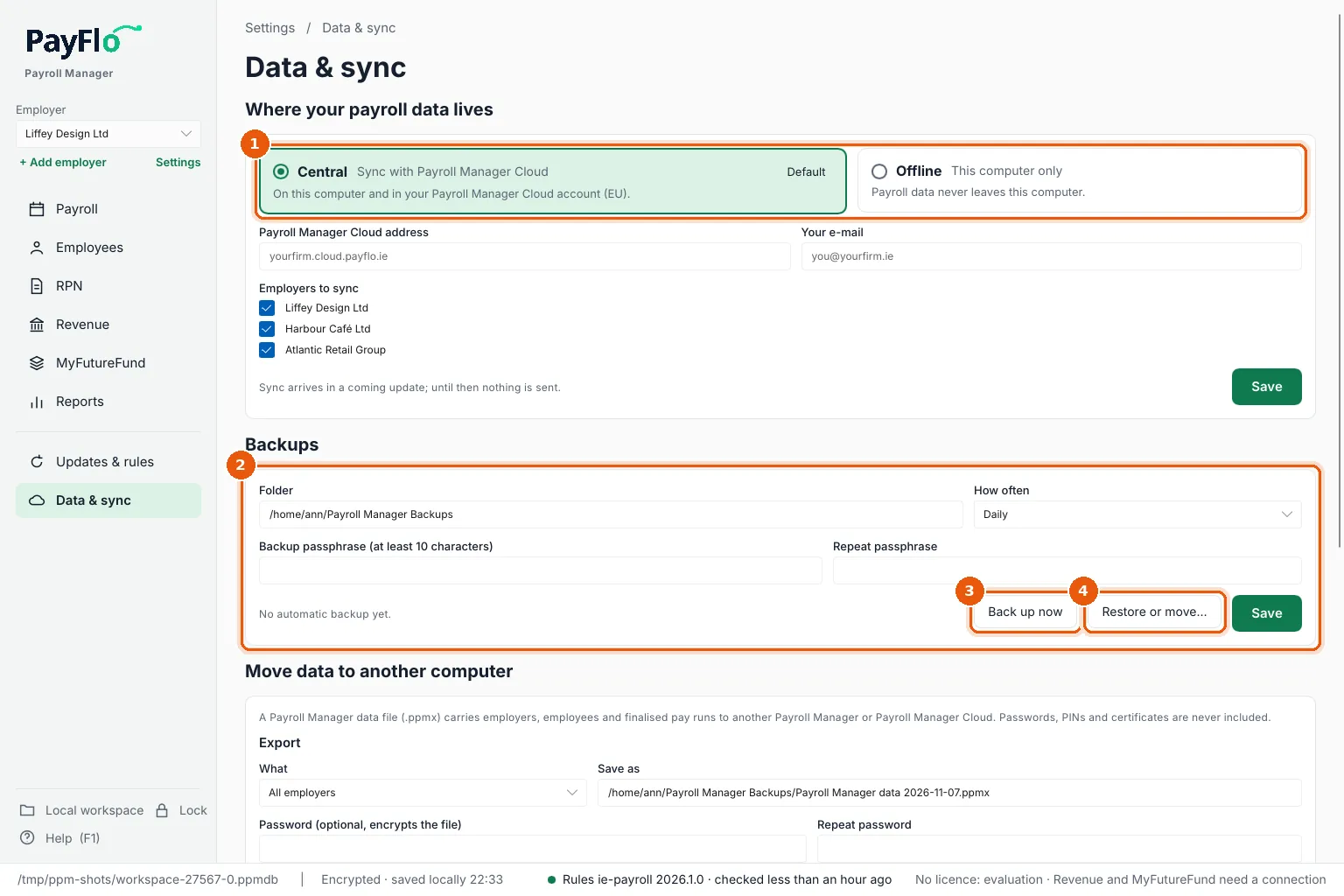
- Where your payroll data lives: Central (this computer and your Payroll Manager Cloud account, stored in the EU) or Offline (this computer only). With Central, choose the Employers to sync. Changing to Offline later keeps everything on this computer; nothing is deleted.
- Backups: the Folder, How often (Daily, Weekly or Off) and the Backup passphrase (at least 10 characters).
- Back up now makes a backup straight away.
- Restore or move… restores a backup.
Automatic backups
- Choose a Folder another drive, a network share or a synced folder (OneDrive, Google Drive) keeps safe. The default is Payroll Manager Backups in your home folder.
- Choose How often.
- Enter the passphrase twice and choose Save. Leave it empty later to keep the current one.
Each backup is one encrypted .ppmbak file named with the date and time. The passphrase is kept in this computer's credential store, so backups run on their own.
Back up or restore by hand
Choose Local workspace at the bottom of the sidebar (or Restore or move…).
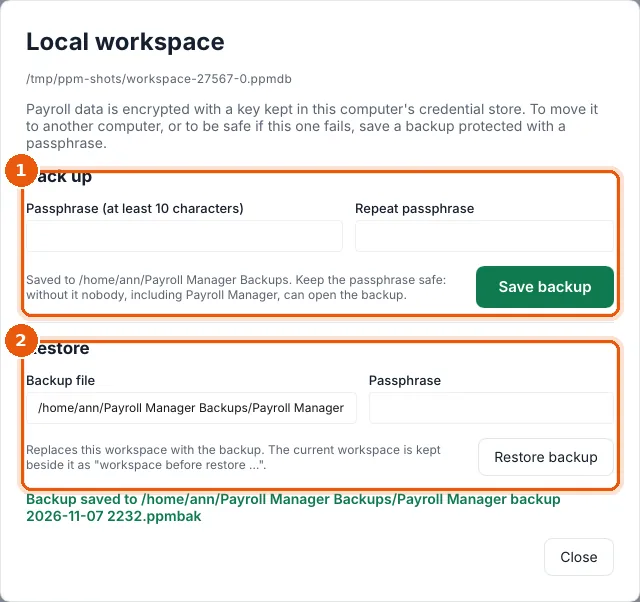
- Back up: enter a passphrase twice and choose Save backup.
- Restore: enter the path to a
.ppmbakBackup file and its Passphrase, and choose Restore backup. The backup replaces this workspace. The current workspace is kept beside it as workspace before restore …, so nothing is lost.
Restoring is also how you move to a new computer: install Payroll Manager there, then restore the latest backup.
Move data to another computer or to Payroll Manager Cloud
A Payroll Manager data file (.ppmx) carries employers, employees and finalised pay runs to another Payroll Manager or to Payroll Manager Cloud. Passwords, PINs and certificates are never included.
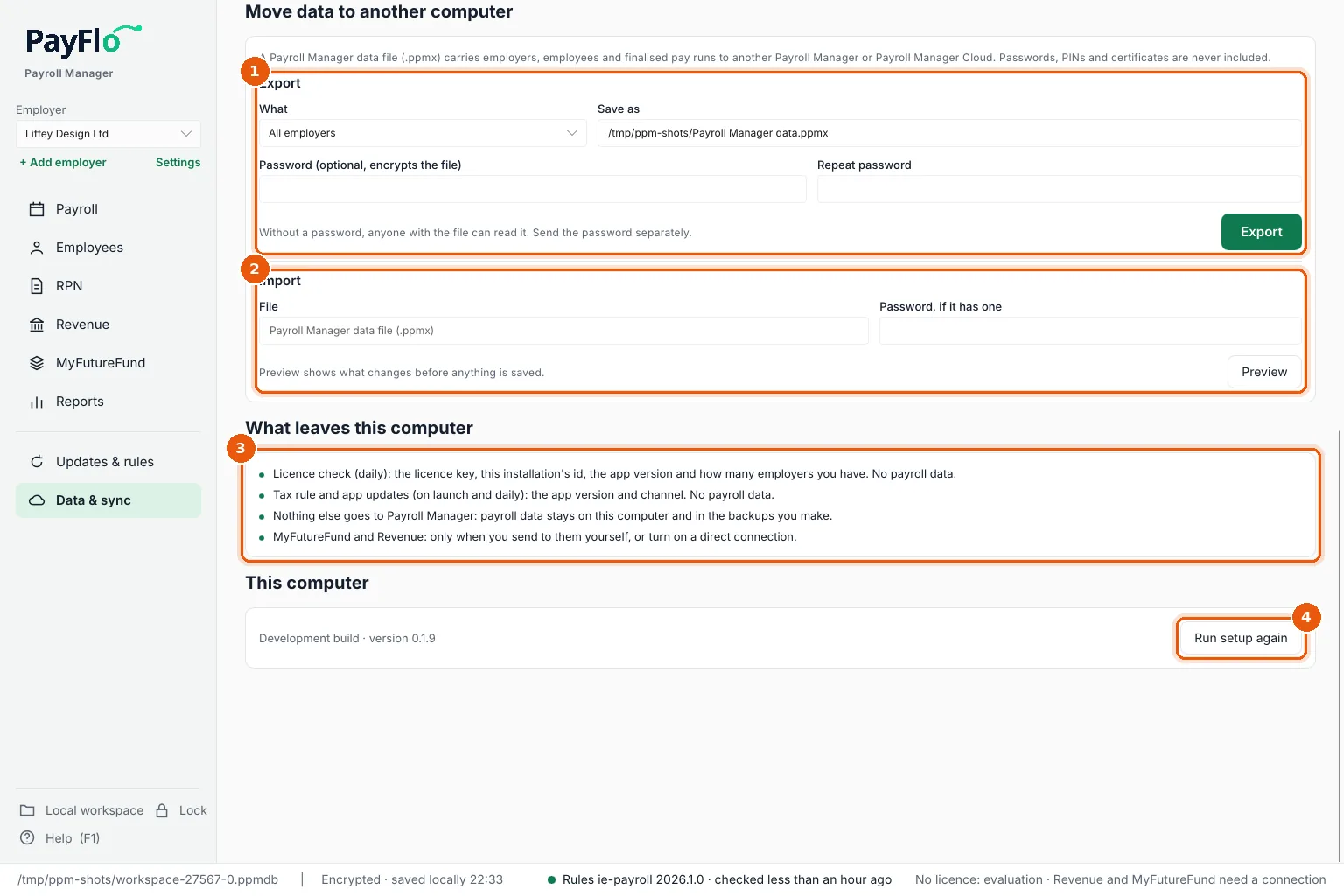
- Export: choose What (All employers or This employer), where to Save as, and optionally a Password that encrypts the file. Choose Export. Without a password, anyone with the file can read it: send the password separately, never in the same e-mail.
- Import: enter the File and its password, if it has one, and choose Preview. The preview shows what would change before anything is saved.

Past pay runs in a data file are not imported into an existing workspace (pay runs in the file are not imported): they come with a backup restore or with Cloud sync.
What leaves this computer
The What leaves this computer box (3 in the export picture above) lists it exactly:
- Licence check (daily): the licence key, this installation's id, the app version and how many employers you have. No payroll data.
- Tax rule and app updates: the app version and channel. No payroll data.
- Nothing else goes to Payroll Manager: payroll data stays on this computer and in the backups you make.
- MyFutureFund and Revenue: only when you send to them yourself, or turn on a direct connection.
This computer shows the version, and Run setup again (4) opens the setup wizard.