

Hours and pay periods
Hours is the first screen of the app. It shows your company's pay periods, newest first. Your bureau opens a pay period when it is ready to receive hours, and closes it when it calculates or approves the payroll.
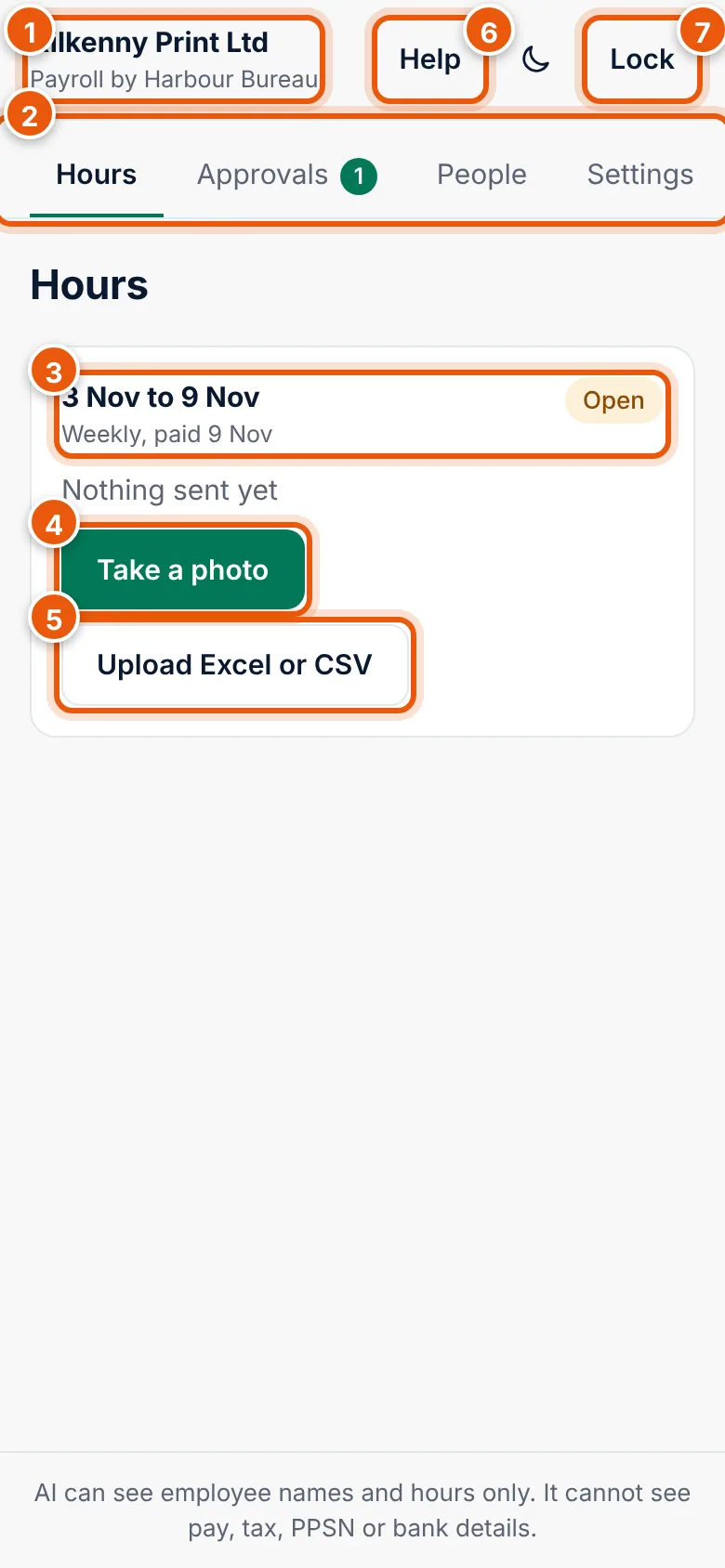
- Your company and Payroll by your bureau.
- Sections: Hours, Approvals (if you approve payroll; a number shows how many wait for you), People (employer admin only) and Settings.
- A pay period: the dates, how often you pay (Weekly, Fortnightly, Four-weekly or Monthly) and the pay date.
- Take a photo of a paper timesheet. See Photograph a timesheet.
- Upload Excel or CSV with hours from a time system or a spreadsheet. See Send hours from a file.
- Help opens this help on the page for the screen you are on.
- Lock locks the app at once. See Sign in and unlock.
Pay period status
| Status | Meaning | What you can do |
|---|---|---|
| Open | Your bureau is waiting for hours. | Send hours, change what you sent. |
| Closed | Your bureau has closed the period for hours, usually to calculate the pay. | See what was sent. Ask your bureau if something has to change. |
| Approved | The payroll for this period is approved. | See what was sent. See Approve payroll. |
Under the dates you also see:
- Send hours by a date and time, if your bureau set a deadline.
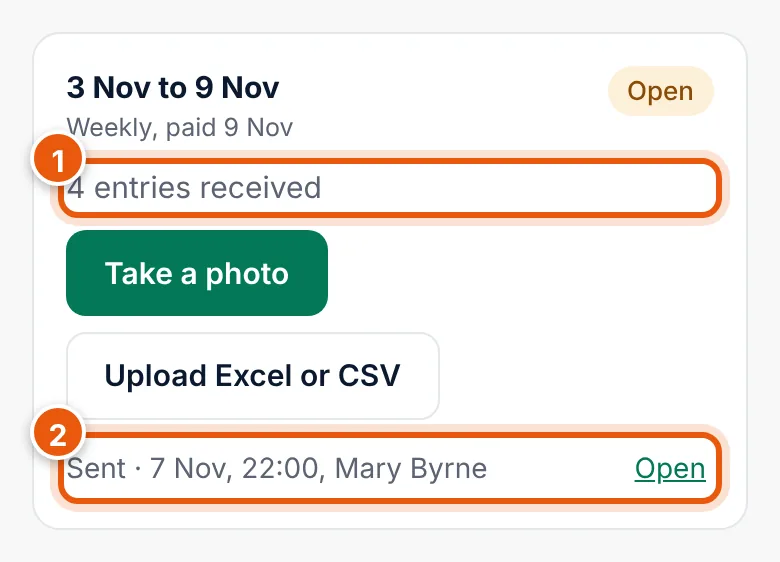
- How much your bureau has received: Nothing sent yet, 1 entry received or 4 entries received. An entry is the hours of one person, from any source.
If no period is open, the app says No pay period is waiting for hours. Your bureau will open the next one.
What you have sent
Every photo you send appears under its pay period with its state, the time and who sent it.
| State | Meaning |
|---|---|
| To check | AI has read the photo, but nobody has sent the hours yet. Choose Check. |
| Sent | The hours went to your bureau. Choose Open to see them or to send changes. |
| Not read | The photo could not be read. Take it again. |
Who sees what
What you see on this screen depends on your permissions:
- Submit hours: you see the periods and the Take a photo and Upload Excel or CSV buttons.
- View hours only: you see the periods and what was sent, without the buttons.
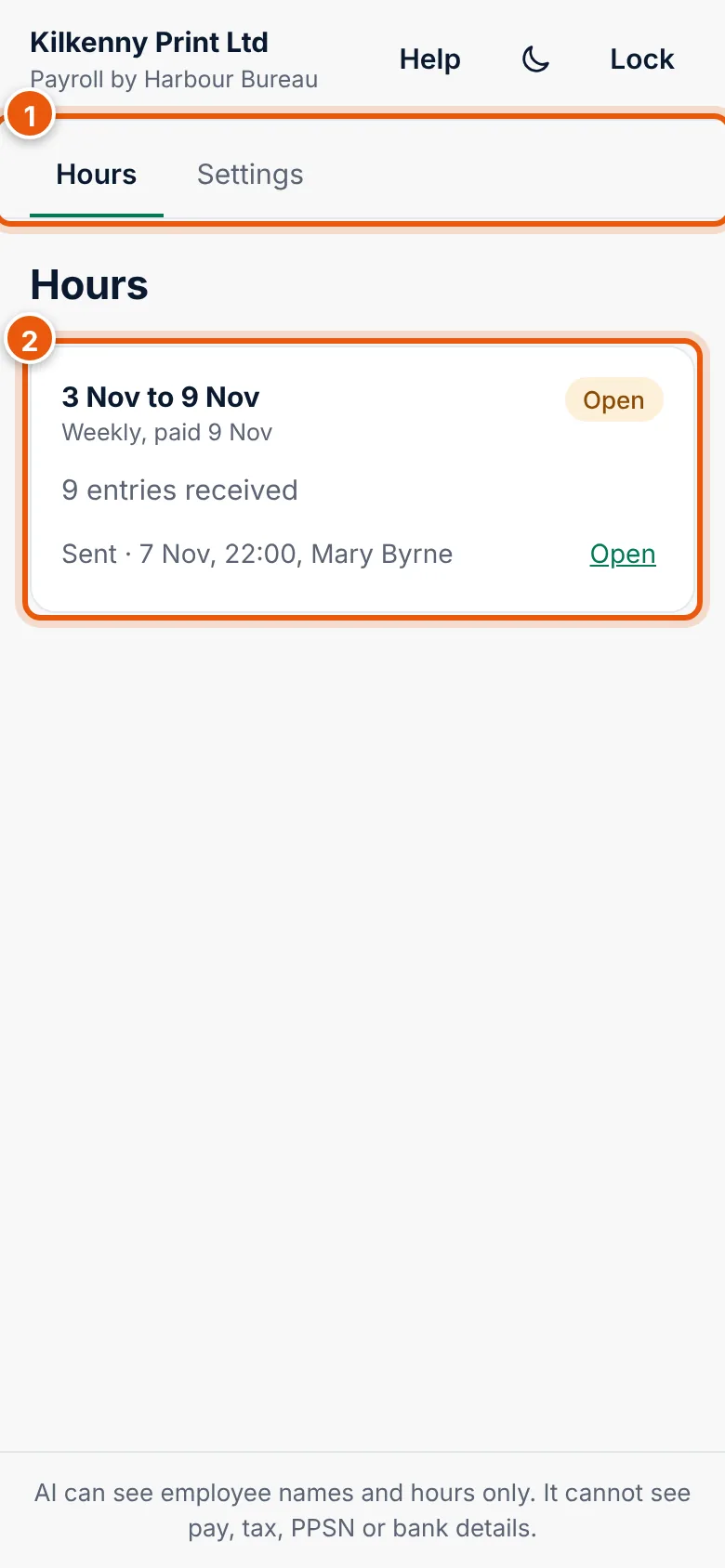
The employer admin can do everything. See People and permissions.
Staff not on a timesheet
When you send hours, anyone who is on the payroll but not on your timesheet or file is listed as Not on the sheet. They get their usual pay unless you add hours for them. Tell your bureau if someone left or was off without pay.