

Check the hours and send them
After AI reads your timesheet photo, the app shows Check the hours: one row per line of the timesheet, with the person it matched and the total hours. You check the rows, fix anything that is wrong, and choose Send hours. Only then do the hours go to your bureau.
The check screen
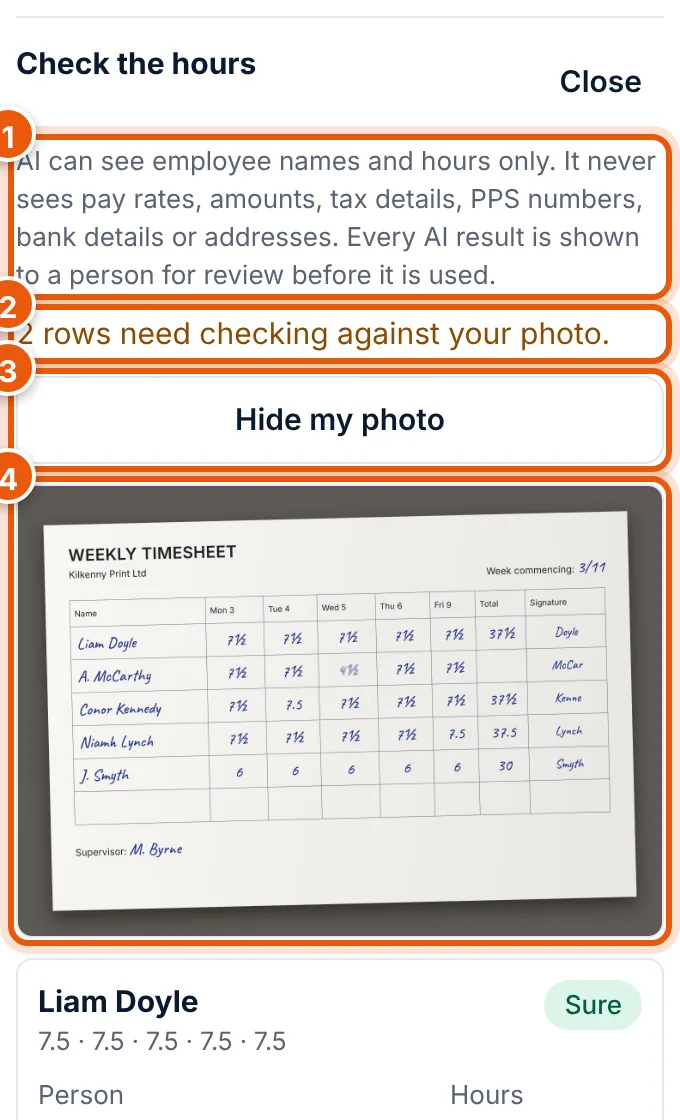
- What AI can see: names and hours only. Every AI result is shown to a person before it is used.
- How many rows need checking, for example 2 rows need checking against your photo.
- Show my photo / Hide my photo. When some rows need checking, the photo is shown at once, so you can compare.
- Your photo. Zoom in with two fingers if you need to.
Each row
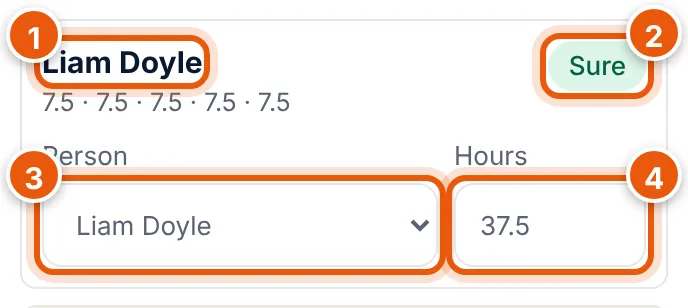
- The name as written on the timesheet, and the hours AI read for each day.
- Sure (green) or Check (amber). Check means AI is not certain about the name or a number.
- Person: who on your staff list this row is. AI fills it in; you can change it.
- Hours: the total for the period. You can change it.
If a row says Matched from an earlier timesheet, someone in your company matched this name to this person before, and the app remembered it.
Fix a doubtful number
A row marked Check says why, for example Wednesday could be 4.5 or 7.5.
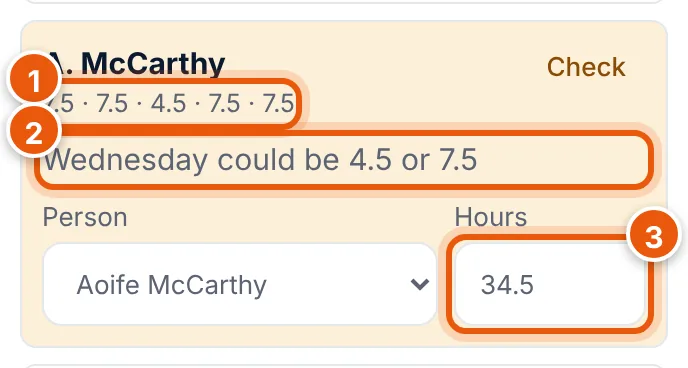
- Look at the photo for that person and day.
- If the total is wrong, enter the right total in Hours (3). In this example the Wednesday is 7½, so the total is 37.5, not 34.5.
Hours can have decimals: 7.5 or 7,5. They must be between 0 and 168.
A name that is not on your staff list
If AI cannot match a name, the row says Name not on the staff list and Person is empty. You cannot send the hours until you choose something for it.
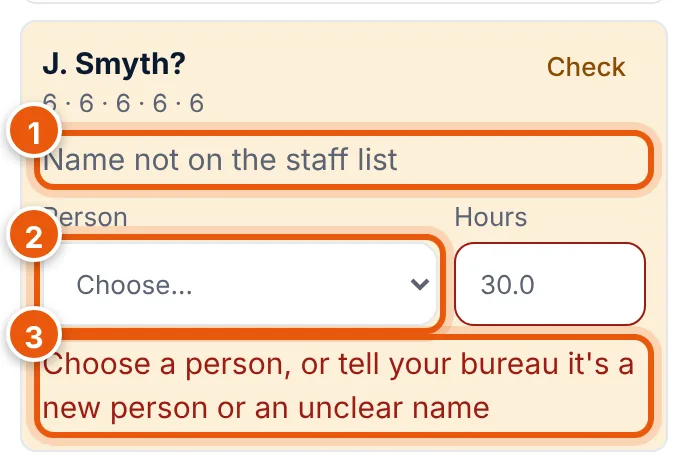
Open Person (2) and choose:
- The right person, if you know who it is (for example "J. Smyth" is a nickname for someone on the list). The app remembers your choice for next time.
- New person (tell my bureau): someone who started recently and is not on the payroll yet.
- Unclear name (tell my bureau): you cannot read the name either.
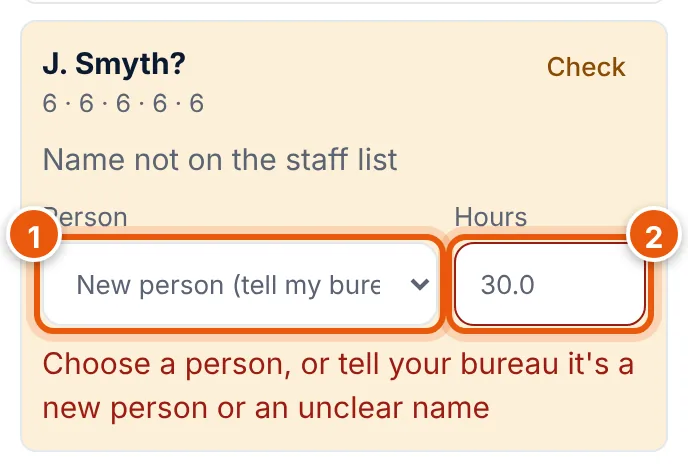
For New person and Unclear name, the hours are not added to the payroll. Your bureau sees the flag next to your photo and contacts you for the details they need (for example the PPSN and start date for a new person). You do not enter those details in the app.
People not on the sheet
Below the rows the app lists staff who are on this payroll but not on the timesheet, for example Not on the sheet: Seán Murphy. They get their usual pay unless you add hours. If that is wrong, tell your bureau, or send their hours in another photo or a file.
Send the hours
- When every row has a person (or a flag) and the right hours, choose Send hours.
- The app confirms, for example Hours sent to your bureau for 4 people. Your bureau will check 1 name. (1).
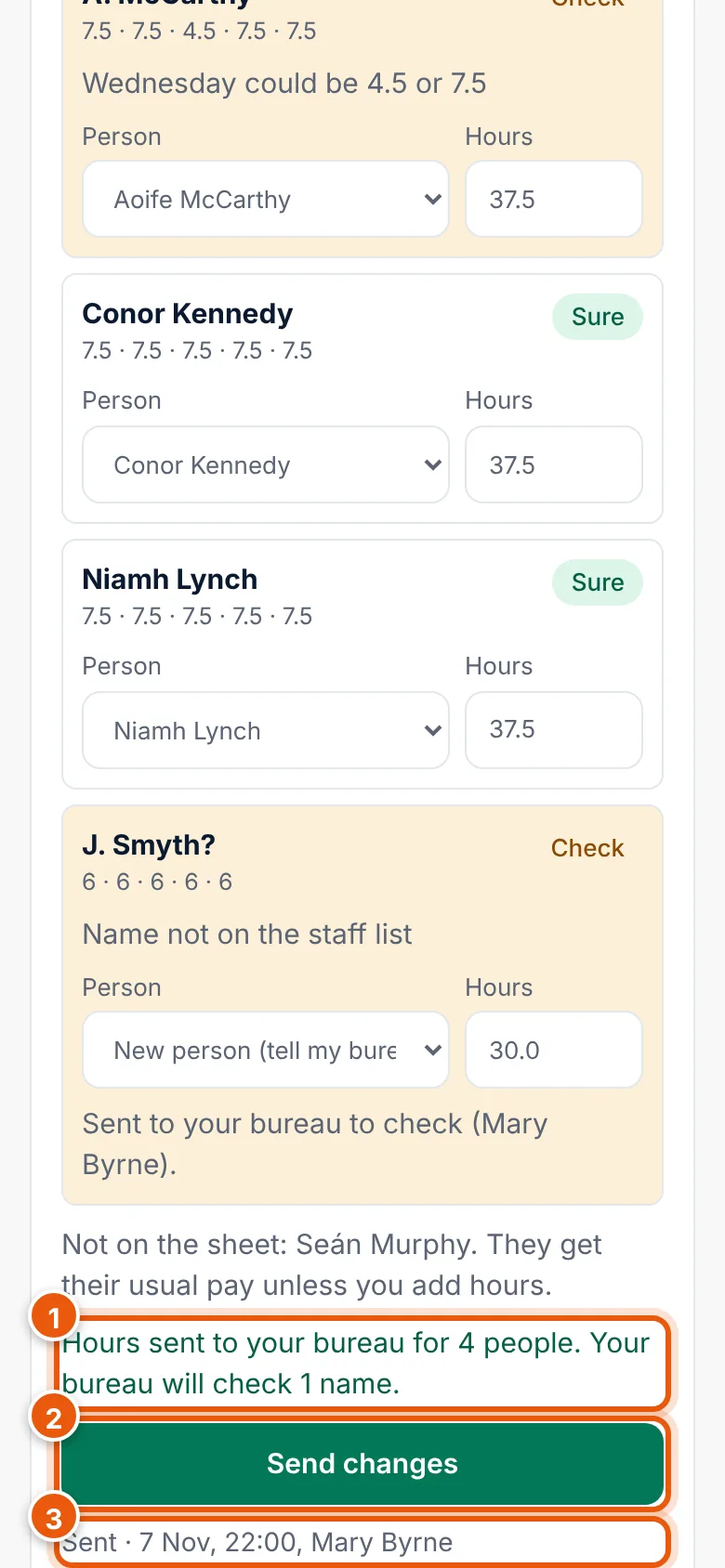
The photo is now Sent (3) in the list under the pay period, and entries received goes up.
Change what you sent
While the pay period is Open you can correct the hours:
- Under the pay period, choose Open next to the photo.
- Change Person or Hours.
- Choose Send changes (2). The new numbers replace the old ones for those people.
After your bureau closes the period, the rows are read-only. Ask your bureau if something is still wrong.
What your bureau sees
Your bureau sees the hours in the pay period, marked as coming from a timesheet photo, together with your photo, who sent it, and any New person or Unclear name flags. When they sort a flag out, the row in your app says Your bureau sorted this out.