

Sign in and unlock
The Employer app protects your company's data like a banking app. It locks when you open it again, when you leave it in the background, and after some time without use. You unlock it with your PIN, a passkey or your password.
Sign in
You sign in on your bureau's address (the one the app opened after you joined, or the icon on your home screen).
- Enter your Email (1) and Password (2).
- Choose Sign in (3).
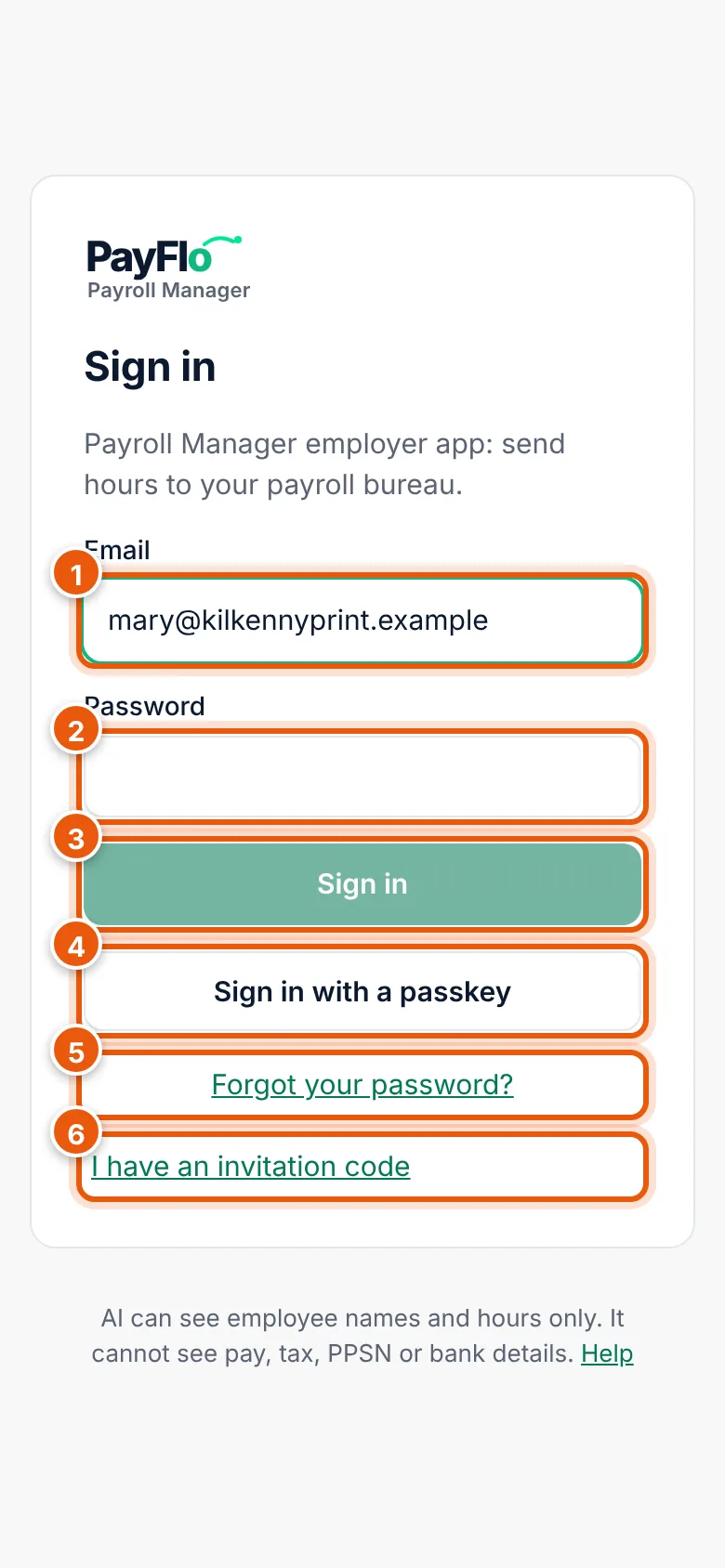
- Sign in with a passkey (4) uses your fingerprint or face instead of the password, once you have added a passkey in Settings.
- Forgot your password? (5): see below.
- I have an invitation code (6) is for joining another company, or joining again after an invitation. See Join the Employer app.
Unlock the app
When the app is locked you see Welcome back and your first name.
- Enter your PIN (1).
- Choose Unlock (2).
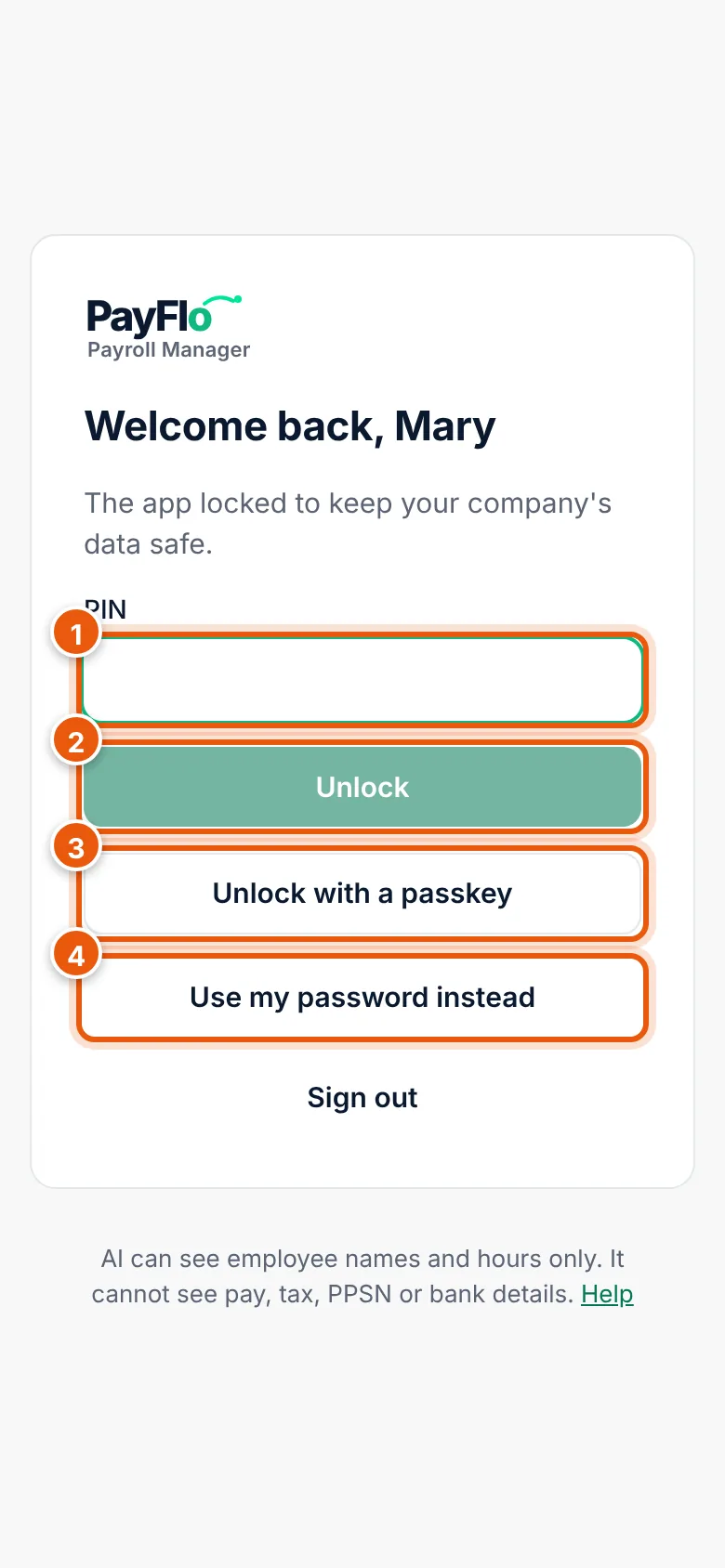
Other ways to unlock:
- Unlock with a passkey (3): fingerprint or face.
- Use my password instead (4): if you have no PIN or forgot it.
- Sign out: ends the session. You then sign in again with your password.
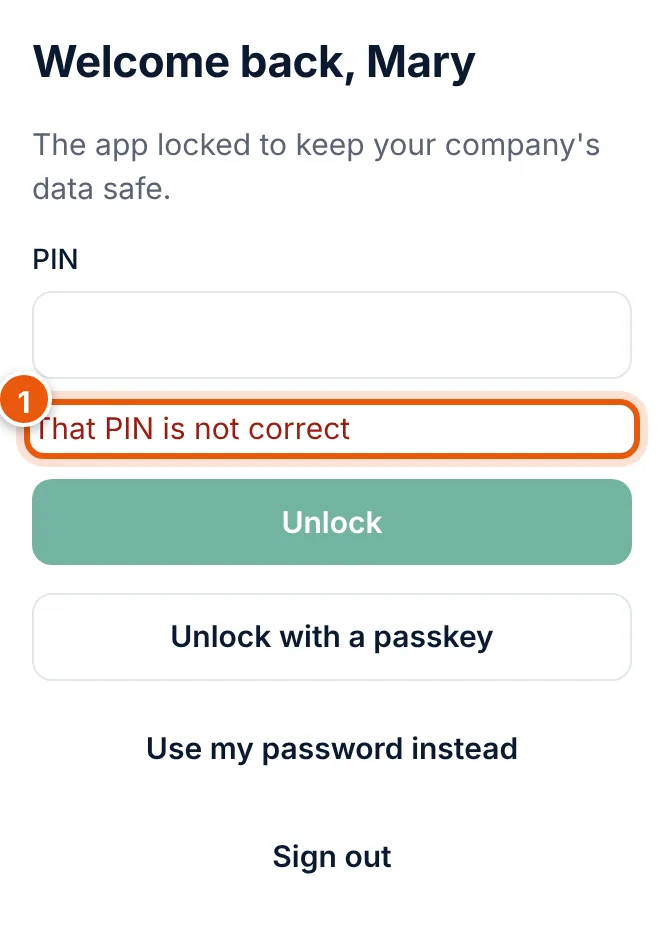
If you enter a wrong PIN, the app says That PIN is not correct. Try again or use your password.
When the app locks
- Every time you open it with a session that is still running.
- When you switch to another app and come back after a short time.
- After a while without use. Your bureau sets how long.
- When you choose Lock at the top of the screen. Do this before you hand your phone to someone.
Your session lasts at most 60 minutes. After that you sign in again with your password or passkey.
Forgot your password
On the sign-in screen, choose Forgot your password? (5).
Check your Email (1) and choose Send reset link (2).
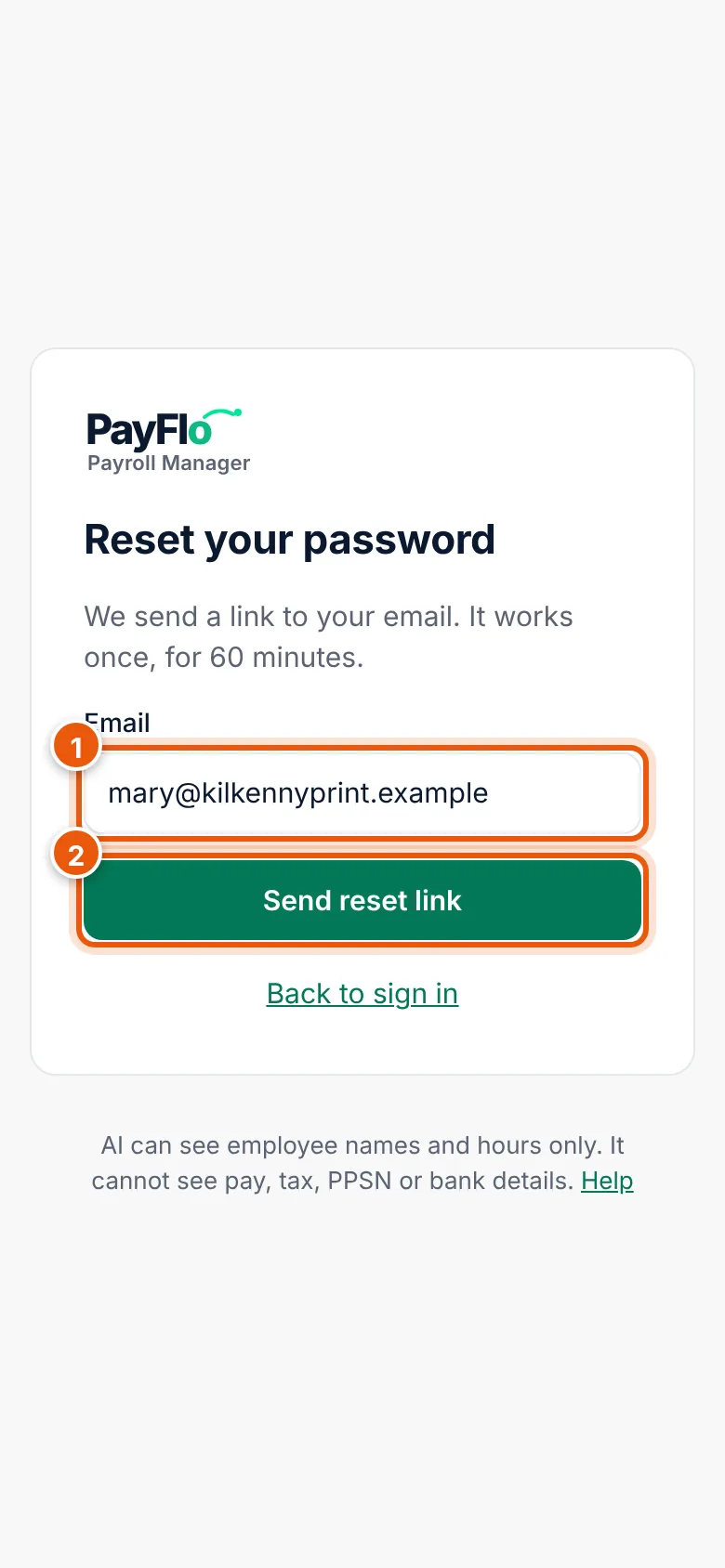
Email (1), Send reset link (2). The app says a link was sent if an account with that email exists (1). Open the email (check your spam folder too). The link works once, for 60 minutes.
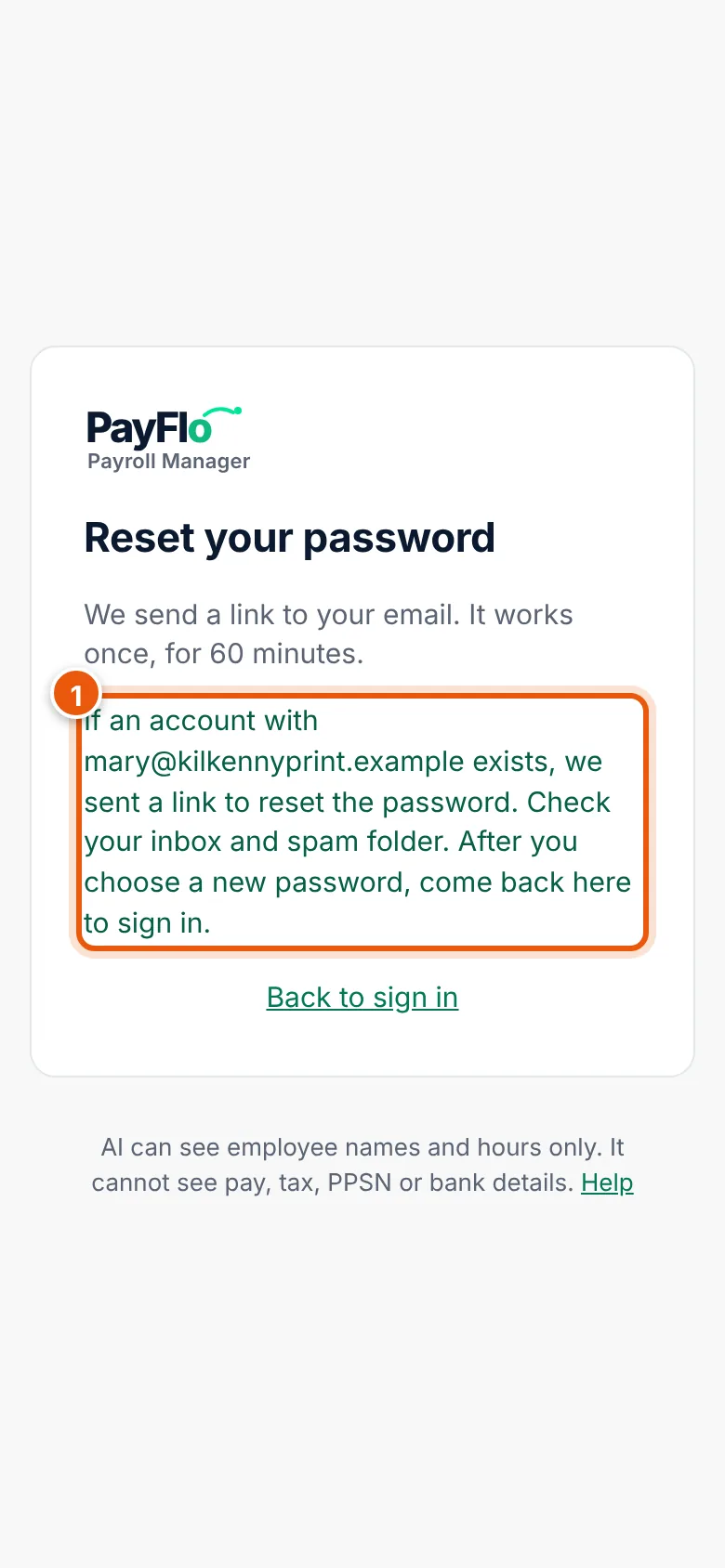
Choose a new password on the page the link opens, then come back to the app and sign in.
If the app says Password reset by email is not available yet, ask your employer admin or your bureau for help.